
Tutorials
Learn by doing
Short guides, one technique each. Every step was clicked through in the app — follow along with ToonFlick open.
Quick start · A bouncing ball
A first look
Open a finished scene and find your way around the window.
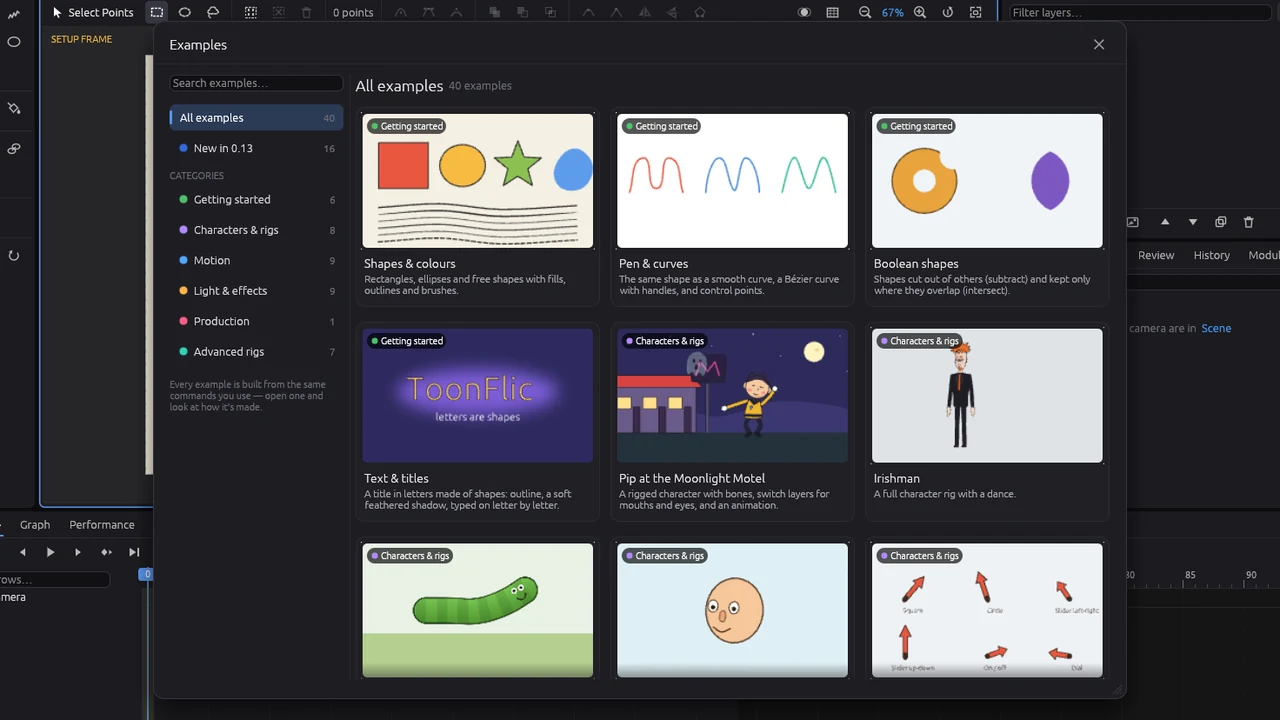
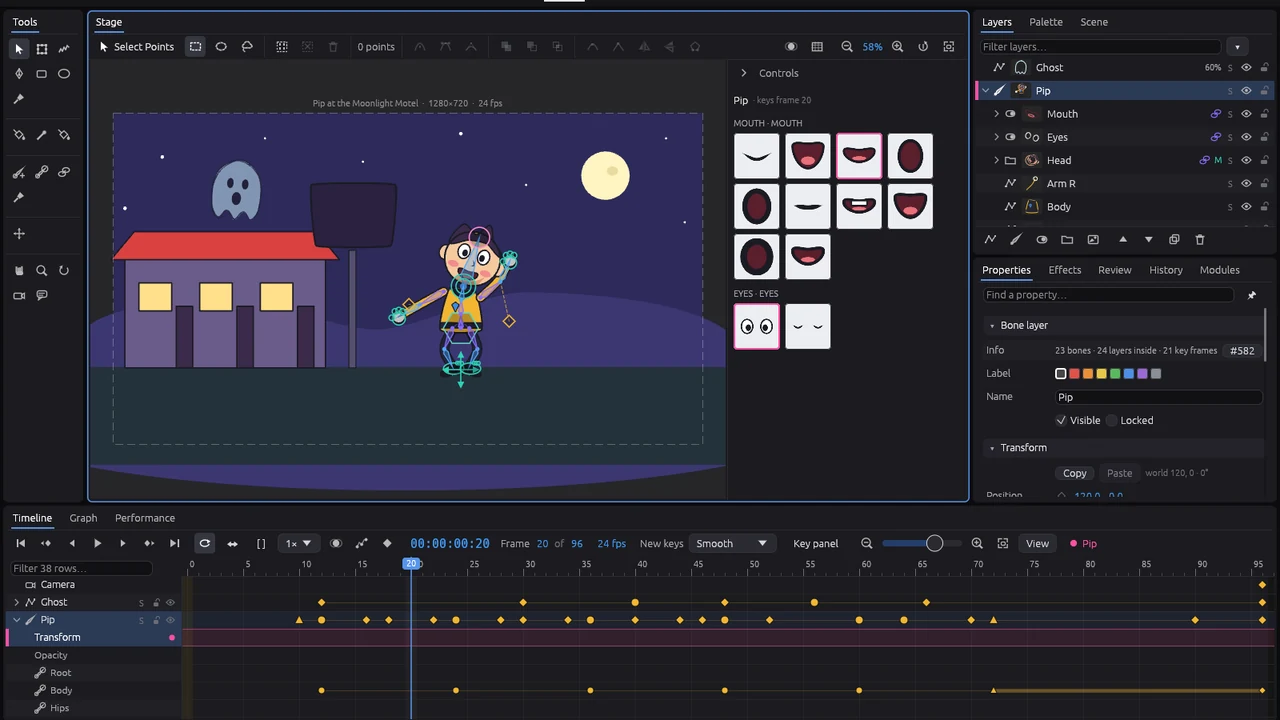
- File ▸ Examples… opens the gallery. Pick a category on the left, then click a card — try “Pip at the Moonlight Motel”.
- Play and stop with Space. The arrow keys step one frame; Home jumps to the start. Space←→Home
- Find the panels: tools on the left, the stage in the middle, Layers and Properties on the right, the Timeline and Graph below.
- Move around the stage: the mouse wheel zooms, a right-drag pans, Ctrl+wheel rotates the view.
- The Animate, Draw and Rig tabs at the top rearrange the panels for each kind of work. Alt+1Alt+2Alt+3
Draw a ball
Start a project and draw the two things a bouncing ball needs: a floor and a ball.
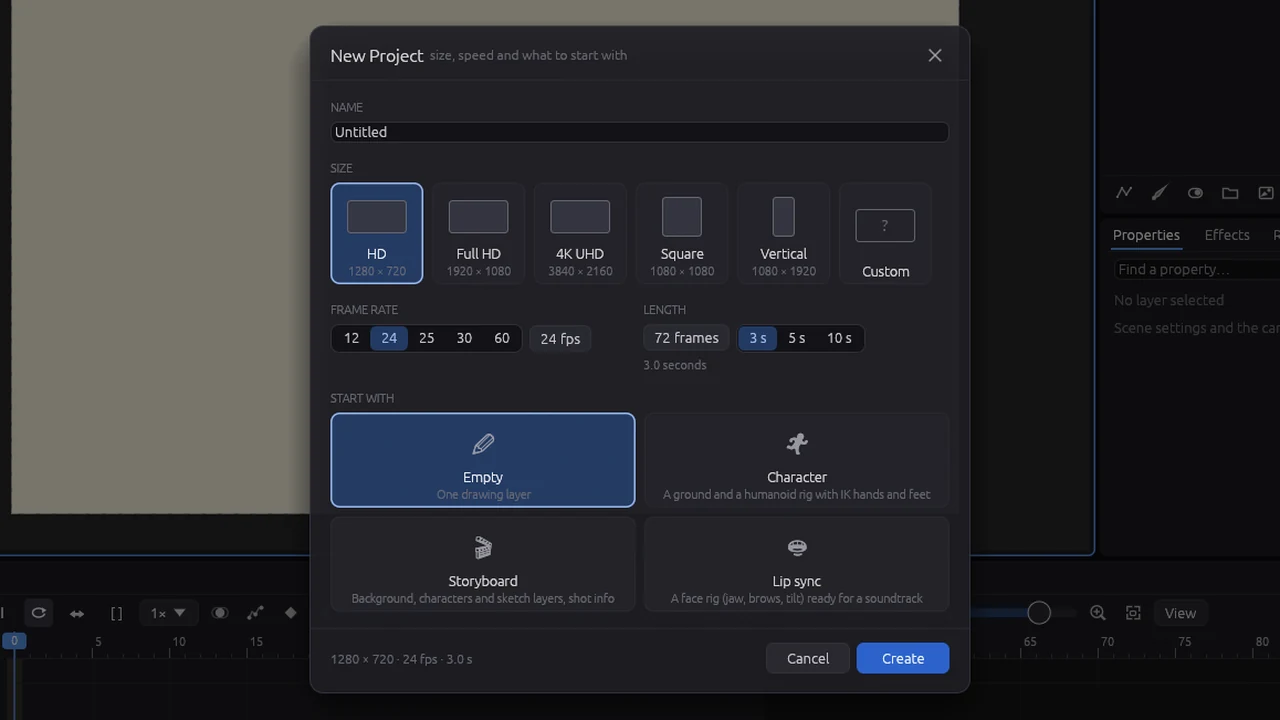
- File ▸ New…: name it, keep HD and 24 fps, set 48 frames, choose Empty and press Create. Ctrl+N
- Empty starts with one drawing layer, Layer 1: rename it to Floor (double-click its name, or F2). Then add a second vector layer with the first button under the Layers list and call it Ball. F2
- Open the Palette tab and pick the colours: Fill for the inside, Line for the outline, and its Width.
- Take the Ellipse tool and drag on the stage. Hold Shift for a circle, Alt to draw from the centre. Draw a wide flat one on the Floor layer, a round one on Ball. EShiftAlt
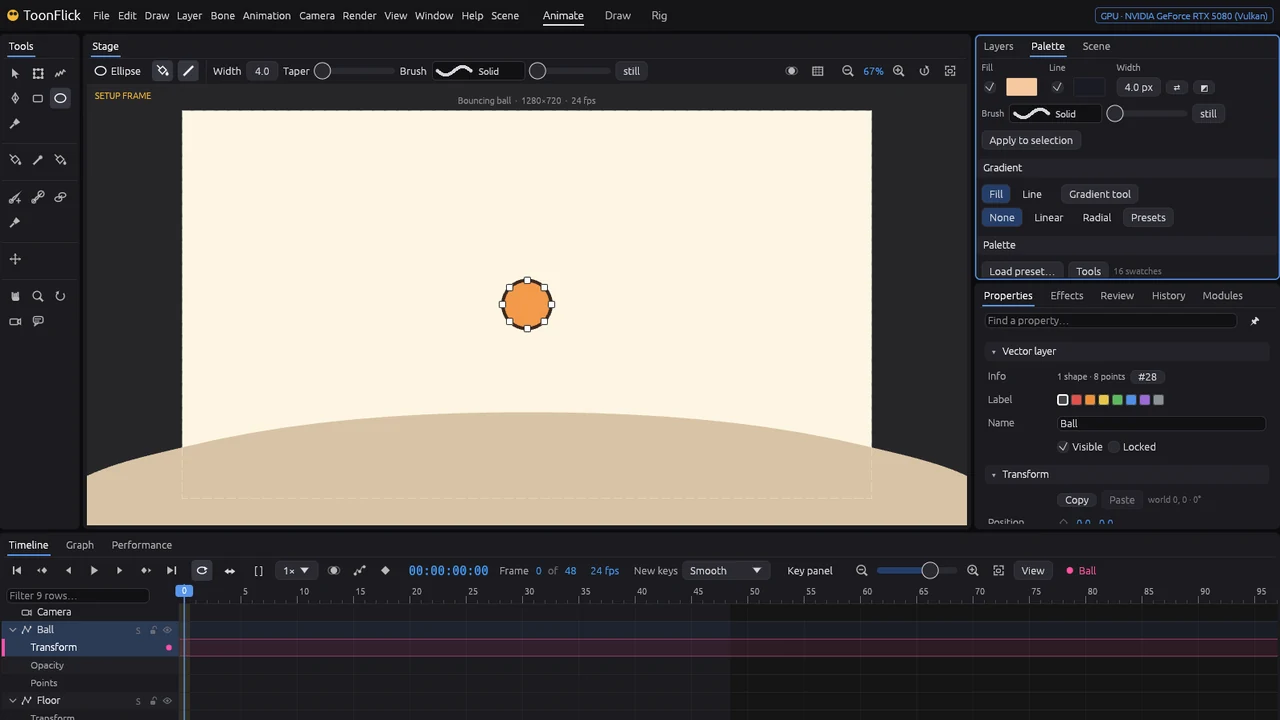
- Want another colour later? Select the shape with Select Points and pick a new colour in the Palette — the selected shapes change straight away. V
Make it bounce
Three keys make a hop: down, up, down. ToonFlick fills in the frames between.
- Frame 0 is the setup frame (the stage says SETUP FRAME): what you set there is the rest pose. Step to frame 1. →
- Pick Transform Layer, select the Ball layer and drag the ball to the left, onto the floor. A key appears in the timeline: every change on frame 1 or later is keyed by itself. M
- Go to frame 12 (click the ruler or type 12 in the frame field) and drag the ball up high. On frame 24, drag it down onto the floor on the right.
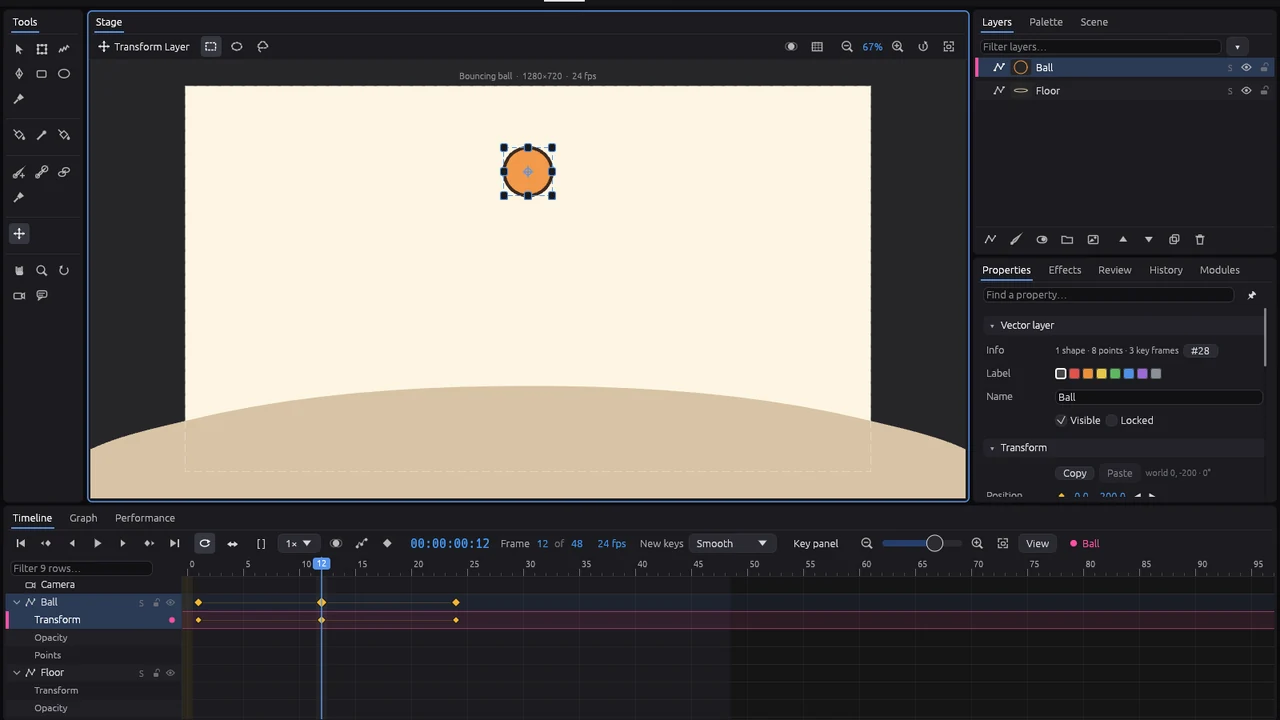
- Press Space to watch it. To change how keys move between each other, use New keys at the top of the timeline, or right-click a key ▸ Interpolation. Space
Shape the bounce in the Graph
A real ball hangs at the top and hits the floor hard. Curves let you shape exactly that — then loop it.
- Open the Graph tab below the stage. With the Ball layer selected you see its Position x (red) and y (green) curves.
- Click the key at frame 12 on the green curve and press Flat: the ball slows into the top of the hop and hangs there. (The stage counts y downwards, so the top of the hop is the lowest point of the green curve.) Only y goes flat — x keeps its speed.
- Click the floor key (frame 24, the highest point of the green curve), press Break and pull its two handles apart into a sharp V — the hit becomes hard. Alt+drag a handle breaks it as well. Alt
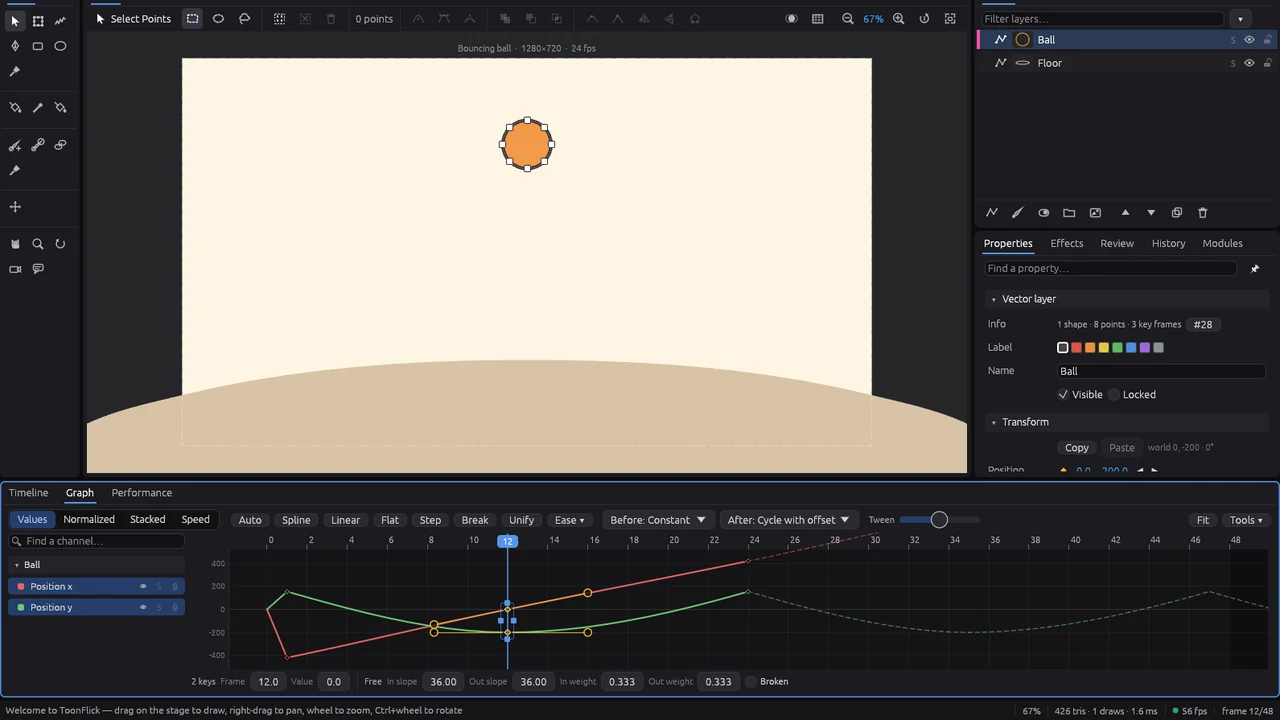
- Set After to Cycle with offset: after frame 24 the ball keeps hopping on, each hop further across.
- Lost in the curves? F frames them all; the wheel zooms time, Ctrl+wheel the values. F
Bend the path and render
See the whole flight on the stage, shape it there, and save it as a video.
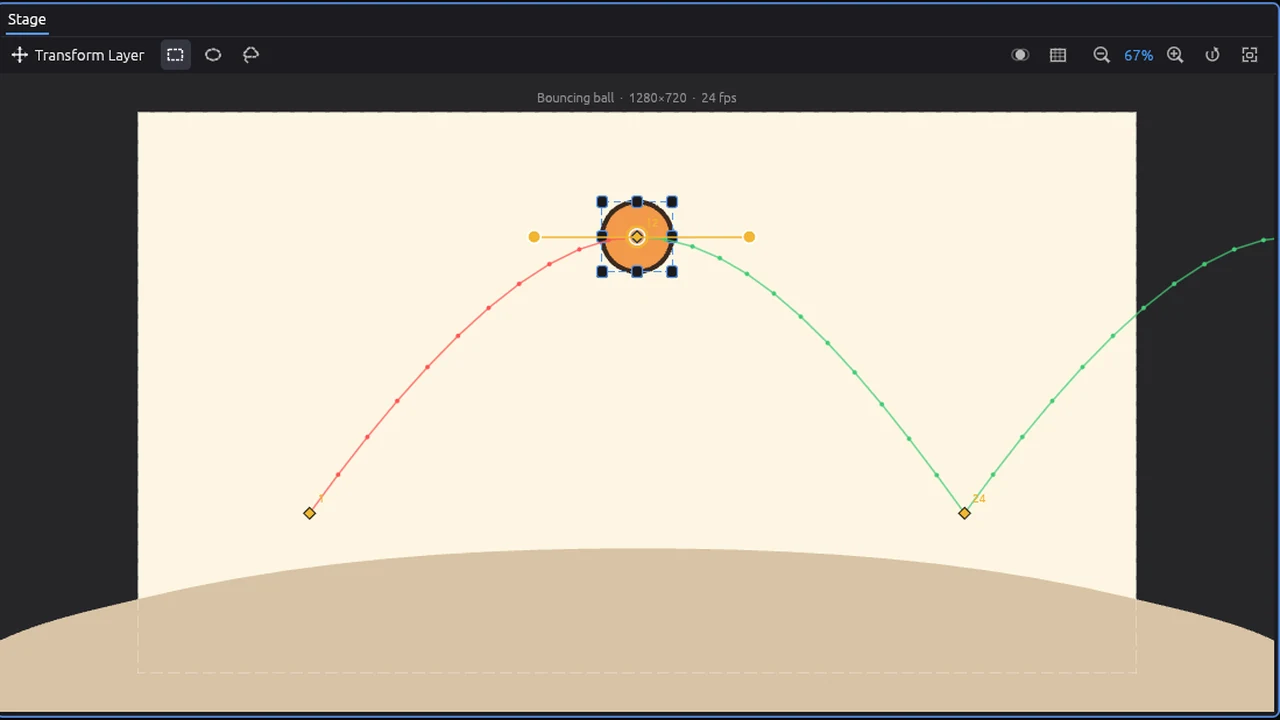
- Turn on motion paths with the path button in the timeline. The ball’s flight appears as dots, one per frame — the gaps between them show its speed. Ctrl+Shift+P
- Drag a key (a diamond) to move it. Click it to show its handles and pull them to bend the arc. Alt+drag moves the key in time along the path; Ctrl+click on the path adds a key. AltCtrl
- Render ▸ Render… opens the render window. Pick MP4 (or GIF), check the range and size, and press Render…. Ctrl+R makes a quick preview. Ctrl+Shift+RCtrl+R
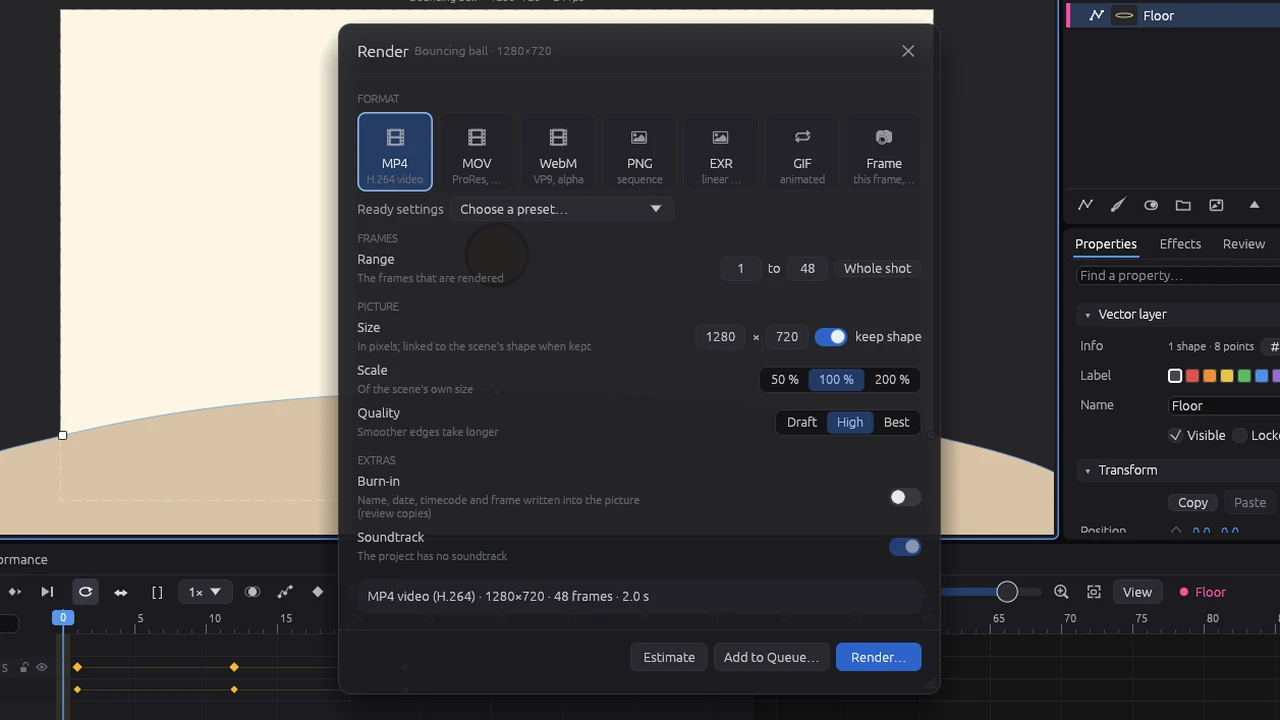
- MP4, MOV and WebM need ffmpeg installed (the window tells you when it’s missing); PNG, EXR and GIF work without it.
A · The app
Install and first start
Get ToonFlick running and see what it shows you first.
- Unpack ToonFlick for your system. Windows: unzip the folder and run bogo.exe (if SmartScreen stops it: More info ▸ Run anyway). macOS: drag ToonFlick to Applications; the first time, right-click it ▸ Open. Linux: run the AppImage (make it executable first) or install the .deb.
- While it starts, the splash lists what is loading. Then a tip appears: page through the tips with ‹ › or the arrow keys, untick Show at start if you don’t want them, and press Got it. Help ▸ Tips brings them back. ←→
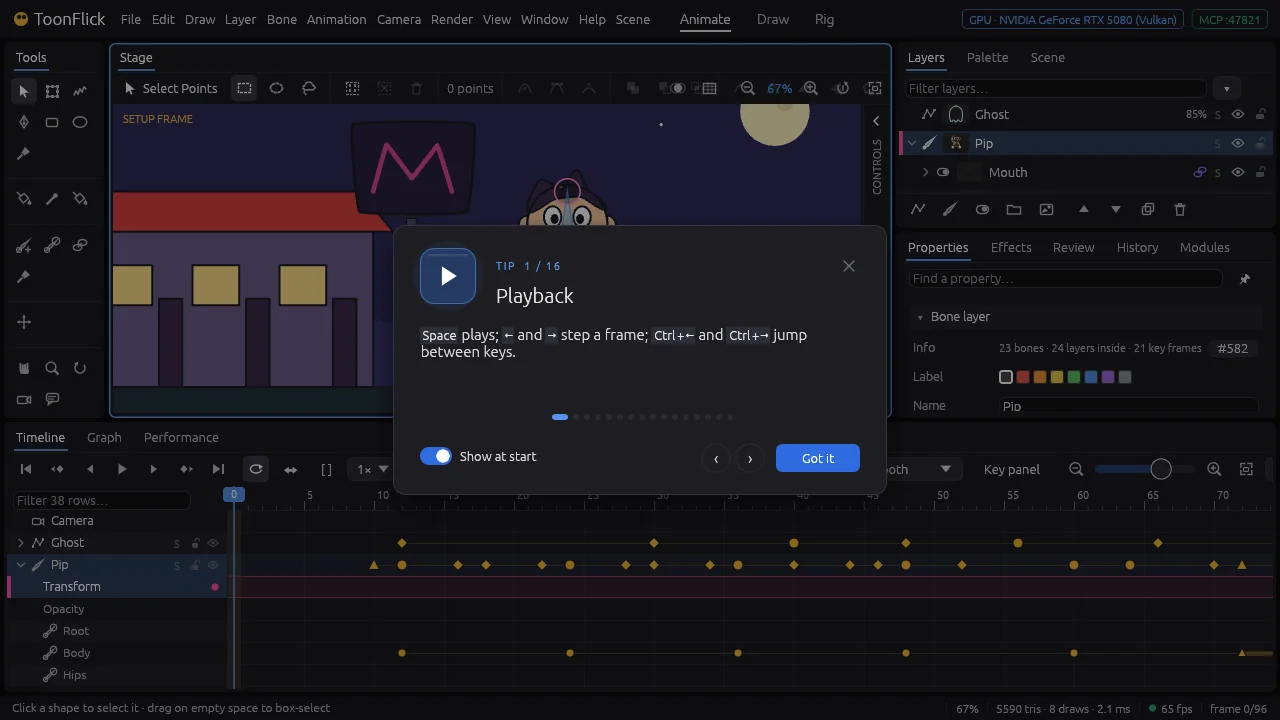
- The demo scene opens with Pip, a rigged character, selected. On a smaller screen his controls wait folded at the right edge of the stage — click CONTROLS to pull them out.
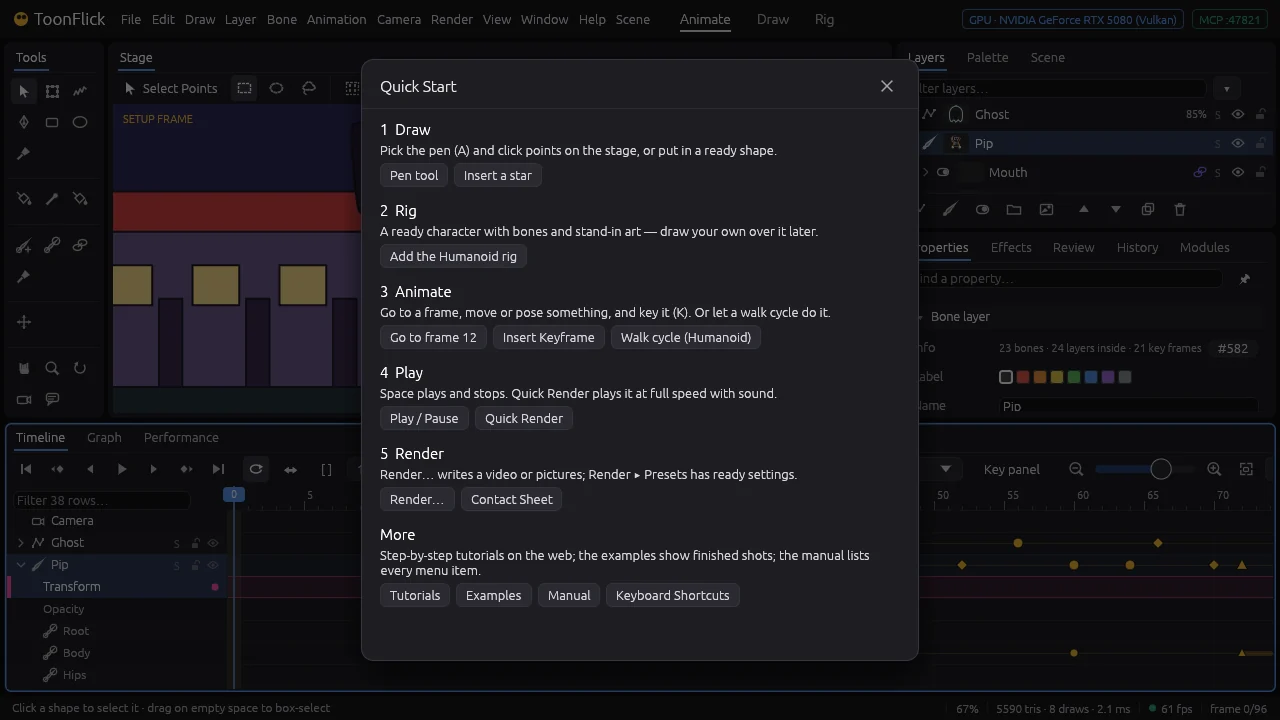
- Help ▸ Quick Start walks through a first shot in five steps, each with a button that does it. Help ▸ Tutorials opens this page; File ▸ Examples… has finished scenes to learn from.
Find your way around the window
Eight areas, three workspaces, and two ways to find any command.
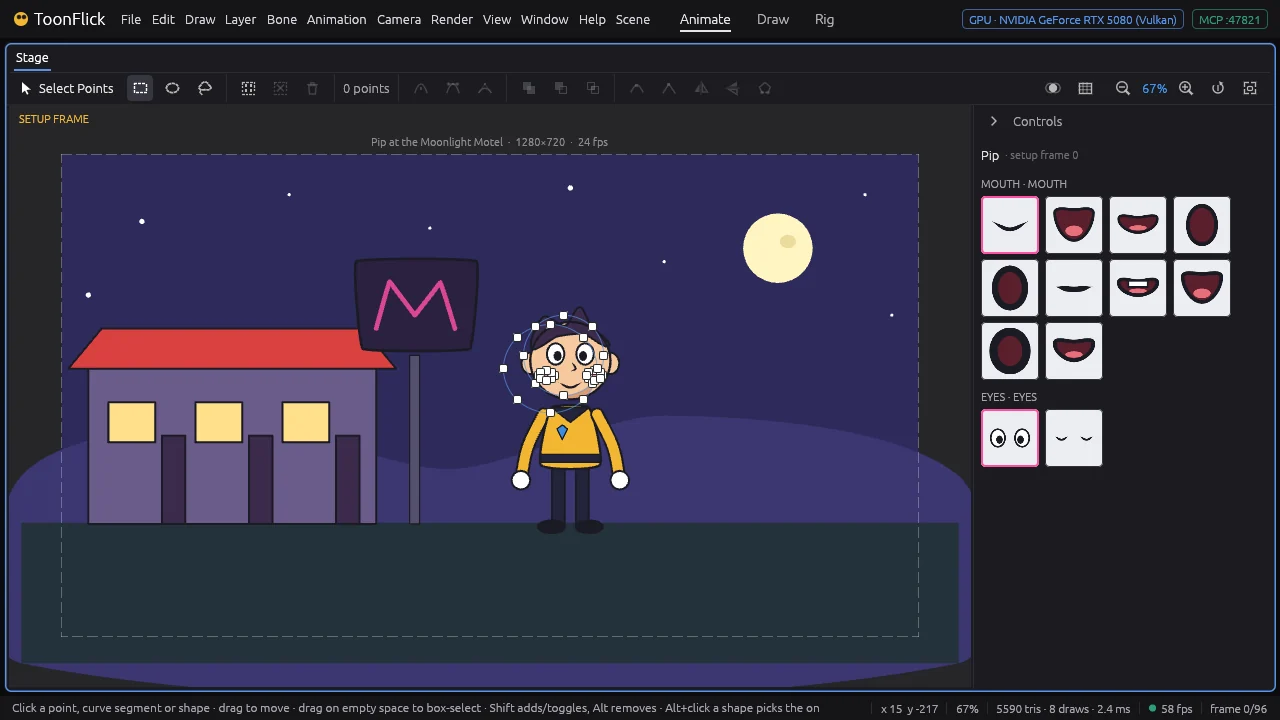
- The window: 1 the menus, 2 the workspaces, 3 the tools, 4 the stage, 5 Layers, Palette and Scene, 6 Properties and the other tabs, 7 Timeline, Graph and Performance, 8 the status bar — it says what the tool does and what just happened.
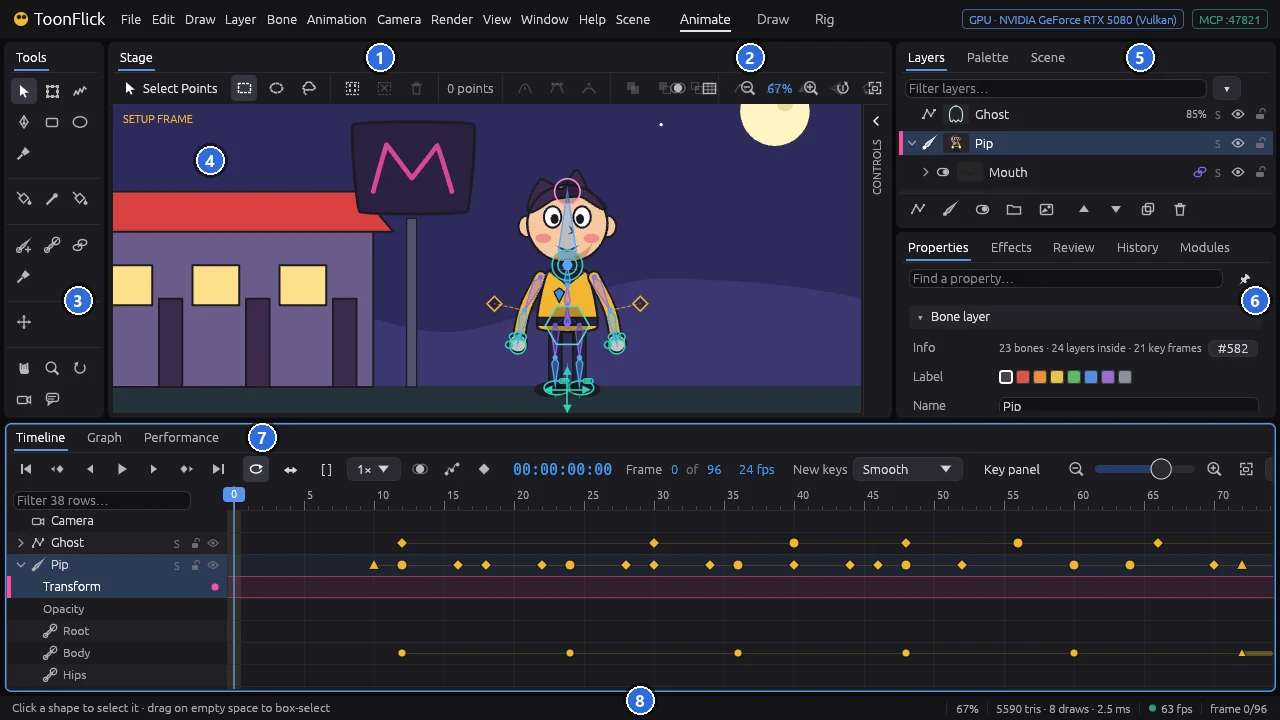
- Animate, Draw and Rig at the top (Alt+1, Alt+2, Alt+3) lay the panels out for each kind of work. Drag the gaps between panels to resize them; Window ▸ Panels shows any panel; Window ▸ Workspaces saves your own layout. Alt+1Alt+2Alt+3
- Ctrl+Space gives the panel under the pointer the whole window; press it again to bring the rest back. Ctrl+Space
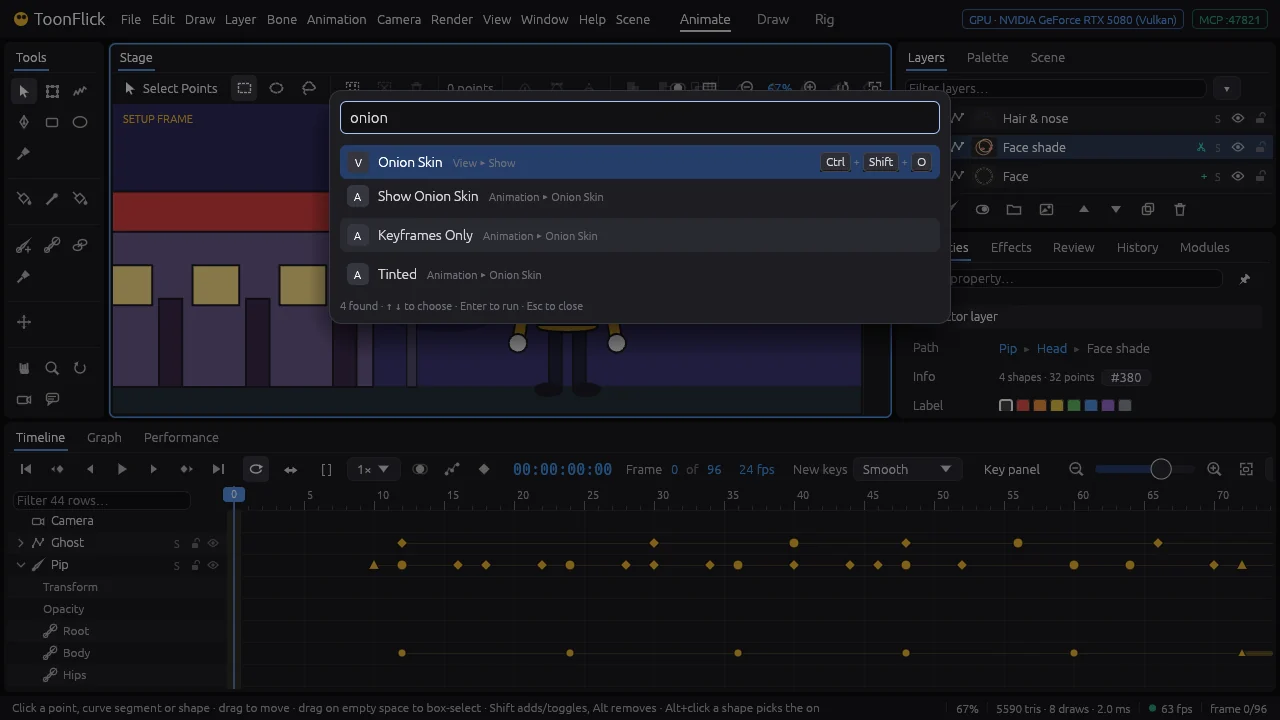
- Ctrl+K opens the command palette: type a few letters of any command or tool and press Enter to run it. Ctrl+K
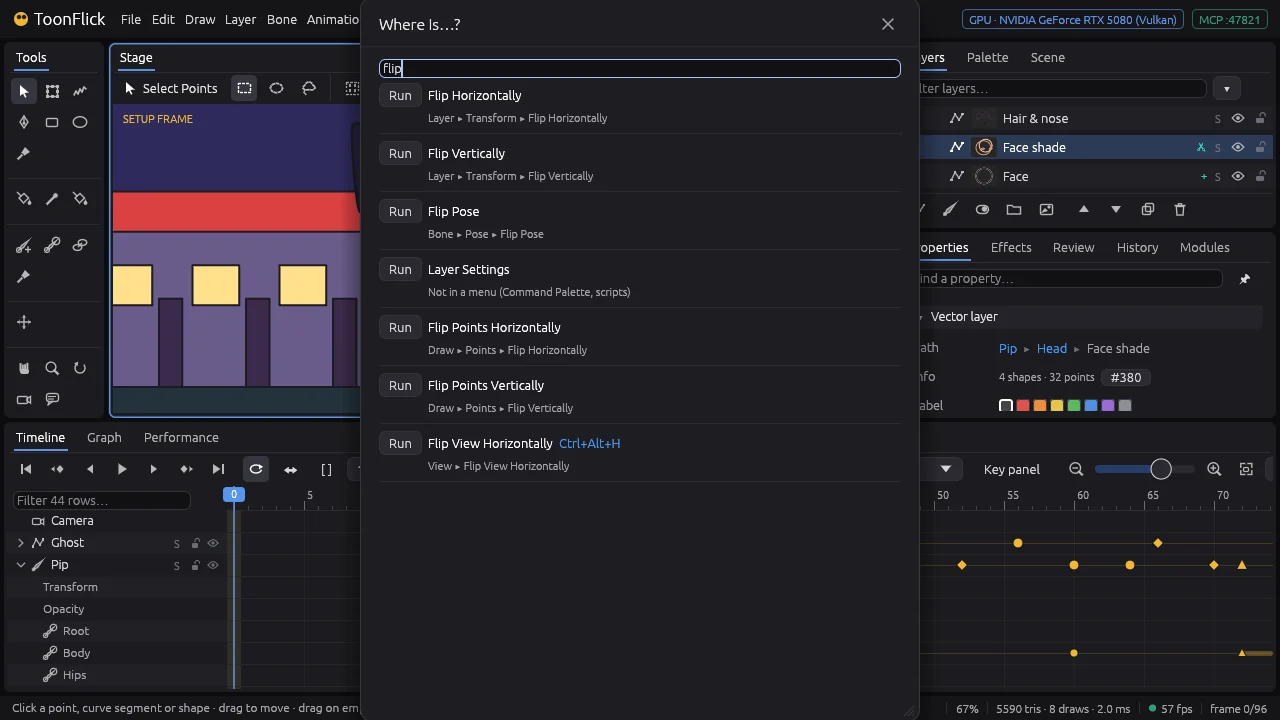
- Help ▸ Where Is…? (Ctrl+Shift+F1) tells you which menu a command lives in — and runs it. Ctrl+Shift+F1
Move around the stage
Zoom in on a detail, step back to see the shot, turn the view for a better stroke.
- The wheel zooms where the pointer is. Drag with the right or middle button to pan, or hold Space and drag. Ctrl+wheel turns the view. SpaceCtrl
- Ctrl+0 fits the whole frame in view; Ctrl+Shift+0 straightens a turned view. The buttons at the right end of the stage toolbar do the same. Ctrl+0Ctrl+Shift+0
- With a pen tablet, the Hand (H), Zoom (Z) and Rotate View (Q) tools do the same with the pen. HZQ
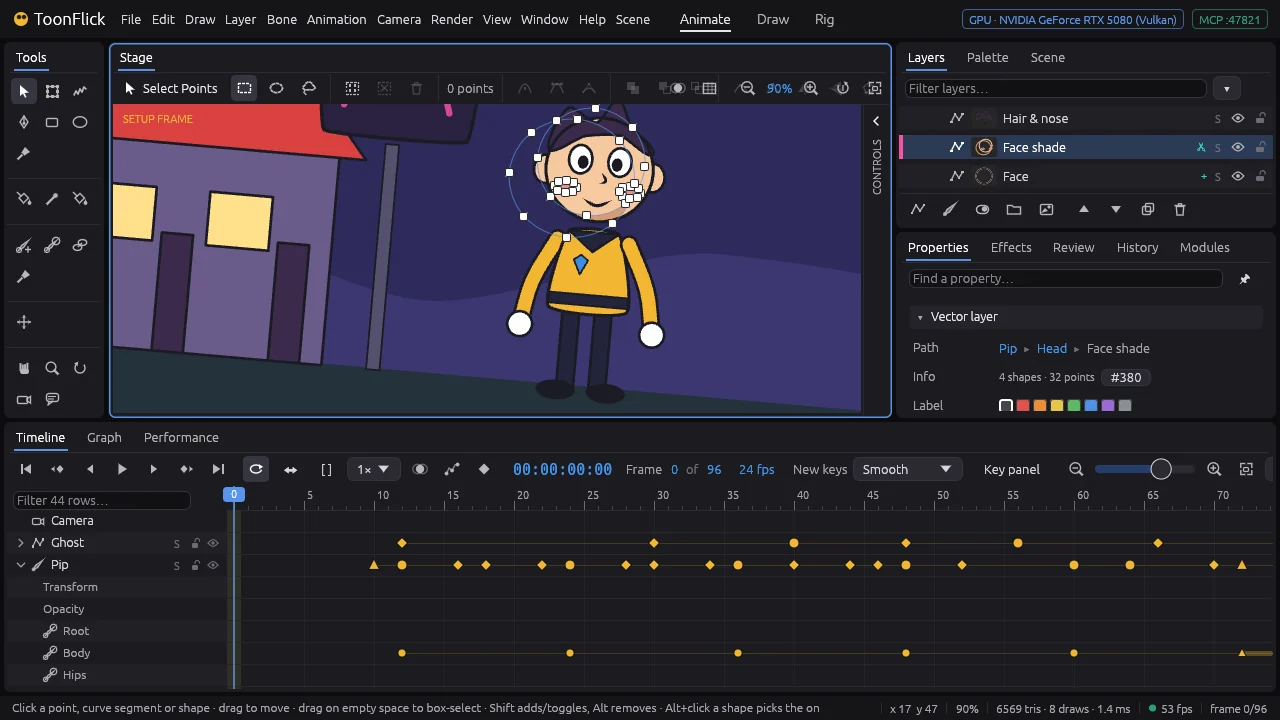
- View ▸ Flip View Horizontally (Ctrl+Alt+H) shows the drawing mirrored to check it with fresh eyes — the drawing itself doesn’t change. Ctrl+Alt+H
Projects and files
Start a project, save it, keep versions and never lose work.
- File ▸ New… (Ctrl+N): a name, the size (HD, Full HD, 4K, square, vertical or your own), the frame rate, the length, and what to start with — Empty, a Character with a ground and a rig, a Storyboard, or a Lip sync face. Ctrl+N
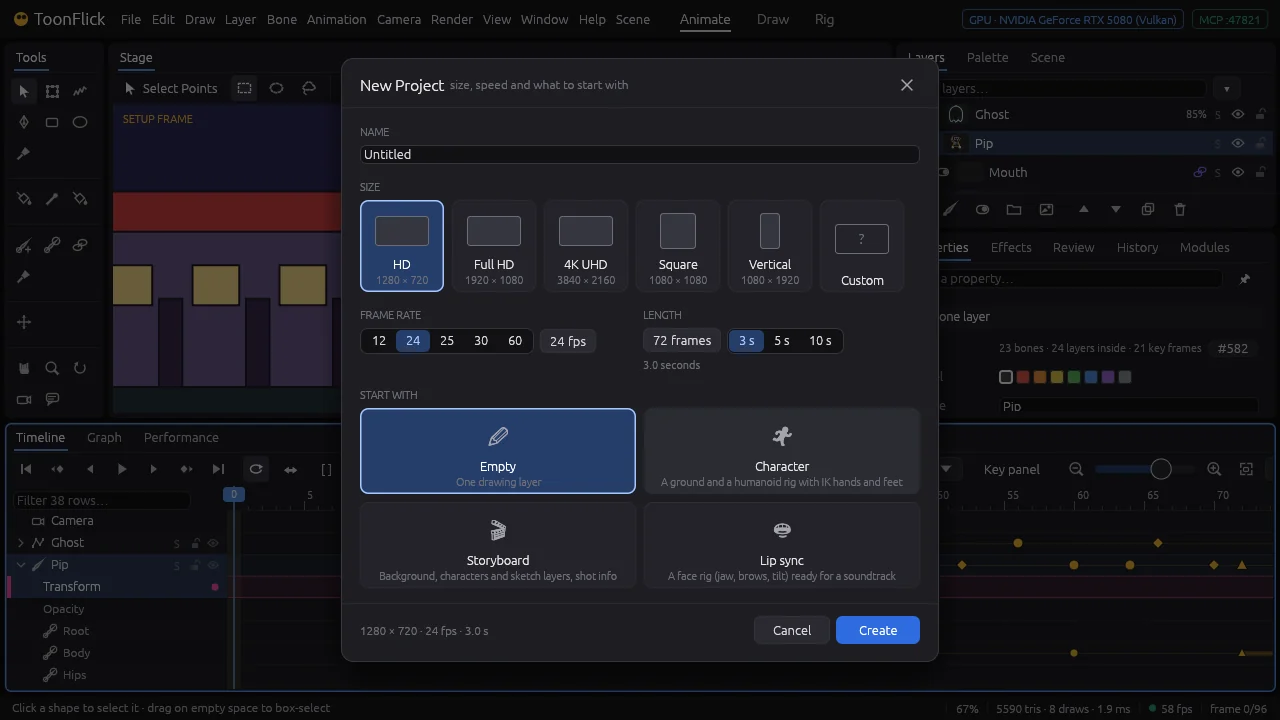
- Ctrl+S saves; the first time it asks where. A project still called Untitled takes the name of its file. Ctrl+S
- File ▸ Save Version (Ctrl+Alt+Shift+S) saves and keeps a numbered copy beside the project. File ▸ Versions lists them — pick one to compare it with what is open. Ctrl+Alt+Shift+S
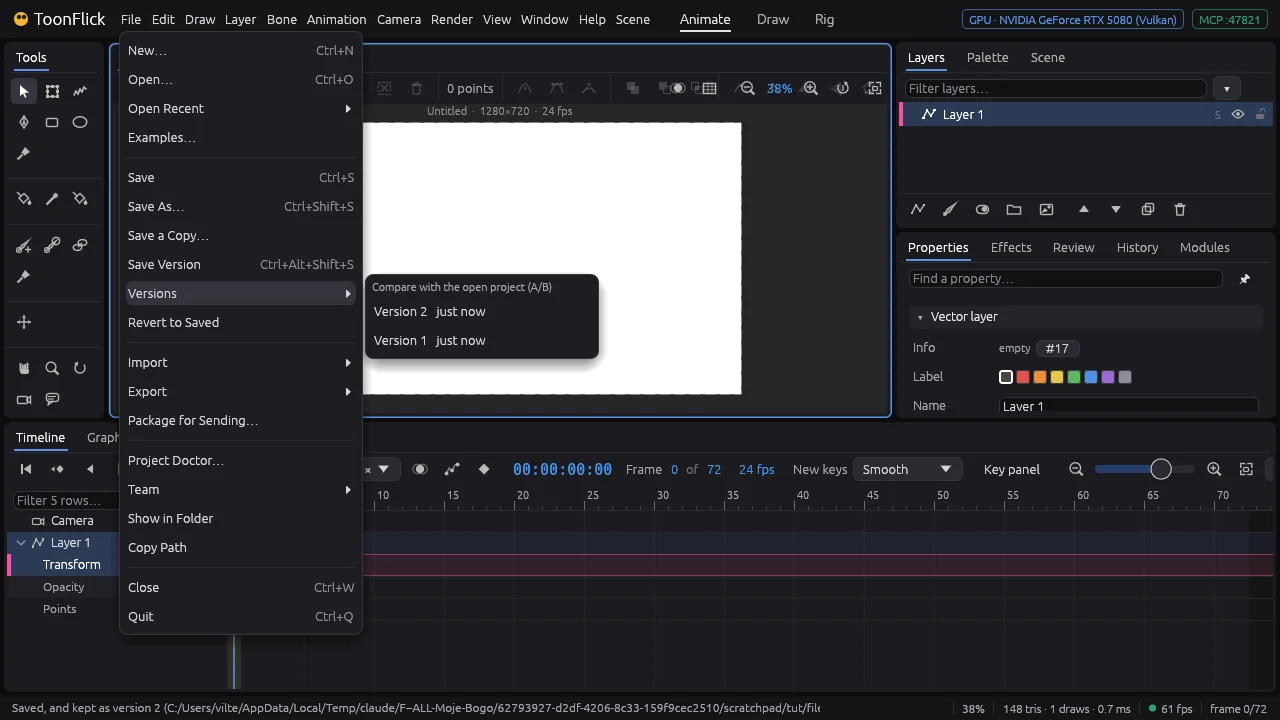
- While there are unsaved changes, ToonFlick keeps a backup copy every 2 minutes (Edit ▸ Preferences). If it closes unexpectedly, it offers to recover your work the next time — untitled projects too.
- File ▸ Open Recent reopens your last projects. File ▸ Package for Sending… gathers the project with its pictures and sounds into one folder; File ▸ Project Doctor… checks it for missing files and other problems.
B · Drawing, tool by tool
Rectangles and ellipses
The quickest shapes: drag them out, square them up, draw them from the middle.
- Start an empty project (File ▸ New… ▸ Empty). Take Rectangle and drag on the stage from one corner to the other. Ctrl+NR
- Hold Shift while dragging for equal sides — a square. Hold Alt to draw from the middle out; the outline shows the shape as it will be. ShiftAlt
- Ellipse works the same way: Shift makes a circle, Shift+Alt a circle around the point you press. E
- New shapes are filled and outlined as the two buttons at the left of the bar above the stage say (Fill, Line), with the line Width next to them. Their colours come from the Palette — part B6 is all about colour.
- Draw ▸ Insert Shape has more: Star, Polygon, Spiral, Arrow, Speech Bubble and Heart. Set a few numbers, press OK, and the shape lands in the middle of the frame.
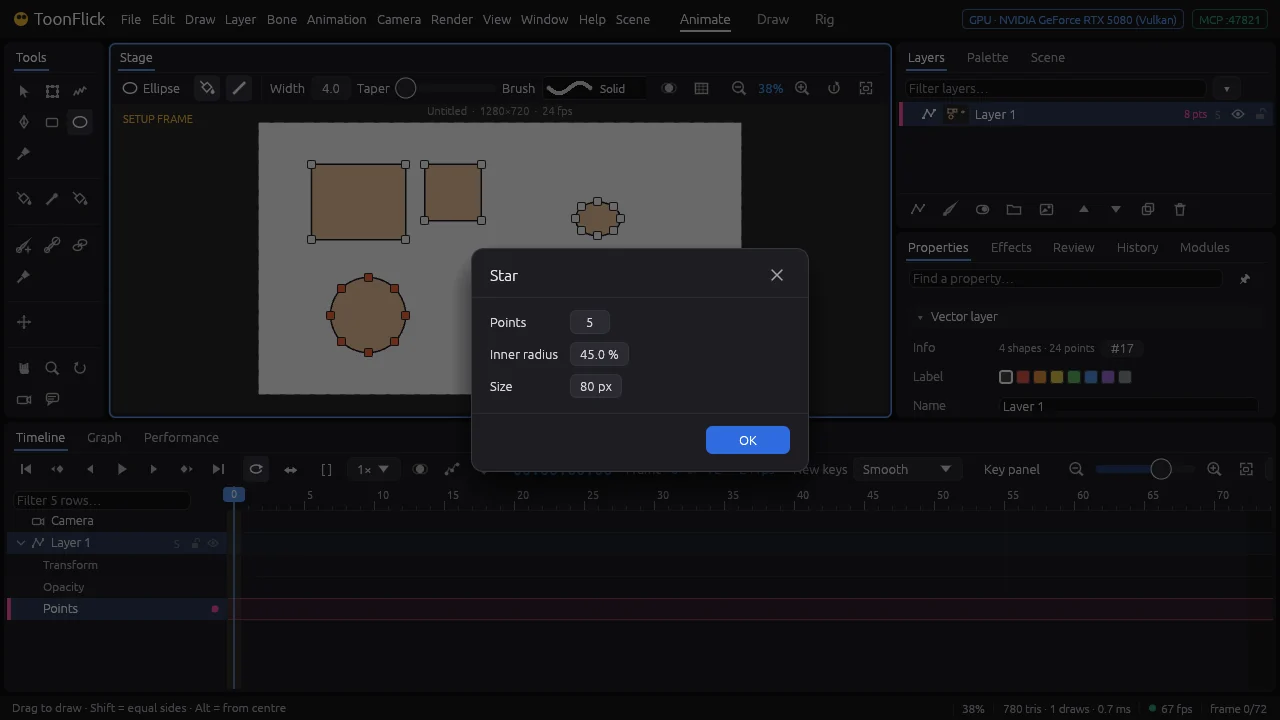
- Every shape is made of points — the small squares around it. Moving them is the next tutorial.
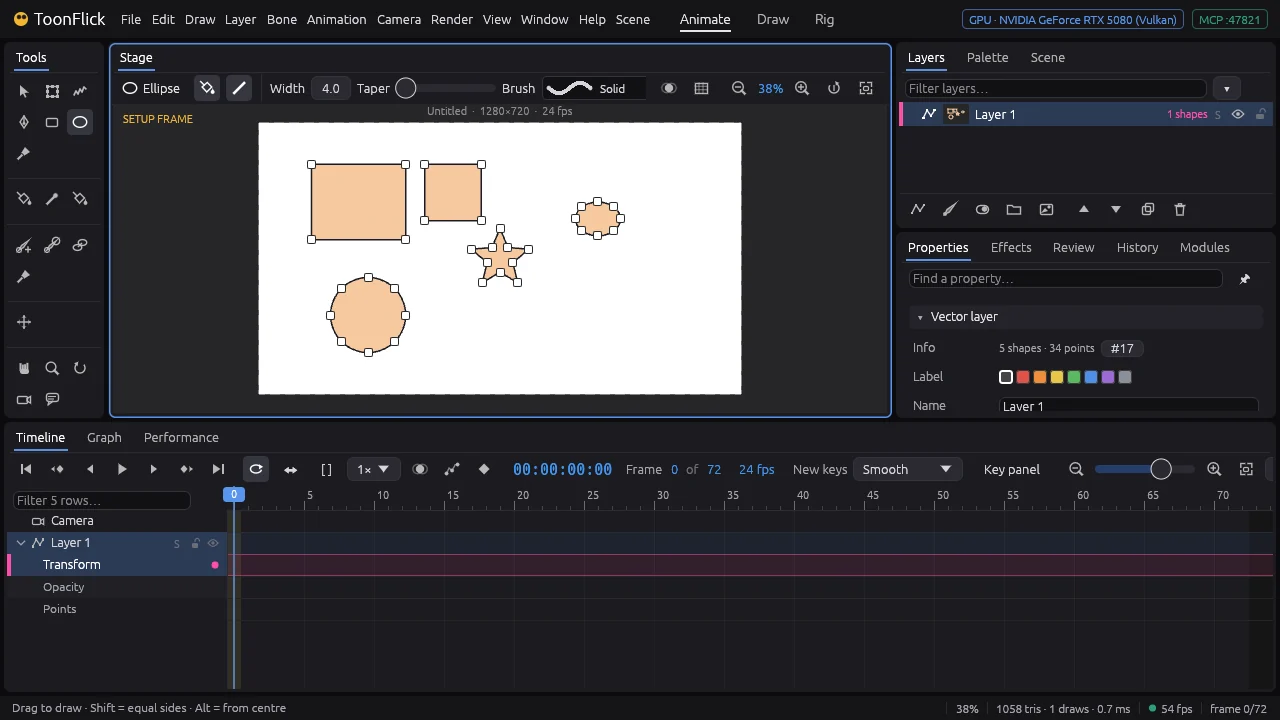
Select and move points
Every shape is points joined by curves. Pick the points you want and move, bend or reshape them.
- Take Select Points and click a point: it turns orange. Shift+click adds or takes away points; a click on the curve or inside a shape picks the whole shape. VShift
- Drag on empty space to draw a box around points — the buttons on the bar switch it to an ellipse or a lasso. Shift adds to what is selected, Alt takes away. Ctrl+A selects every point of the layer, Esc none. AltCtrl+AEsc
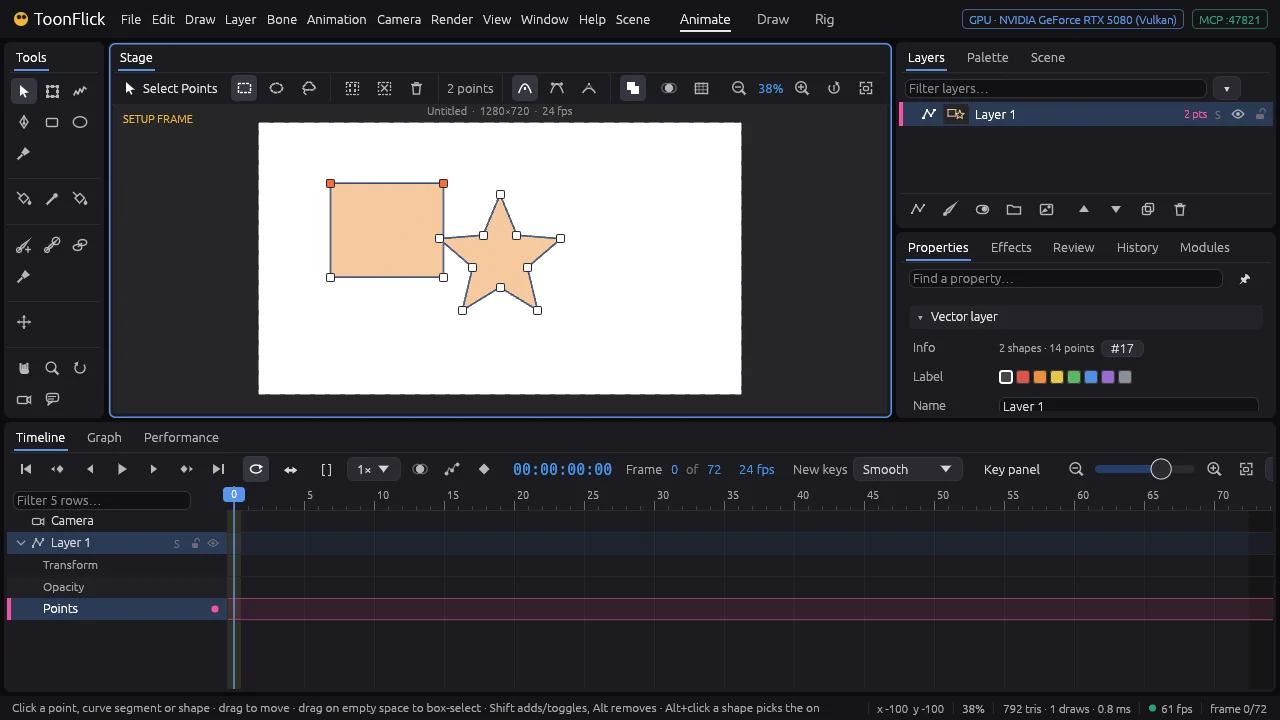
- Drag one of the selected points and they all move. Shift+arrows nudge them a step (Ctrl+Shift ten steps); the plain arrows still step frames. Shift+→Ctrl+Shift+→
- Double-click a curve to add a point there. Double-click a point to switch it between a corner and a smooth curve (the Smooth and Corner buttons on the bar do it for all selected). Delete removes the selected points. Delete
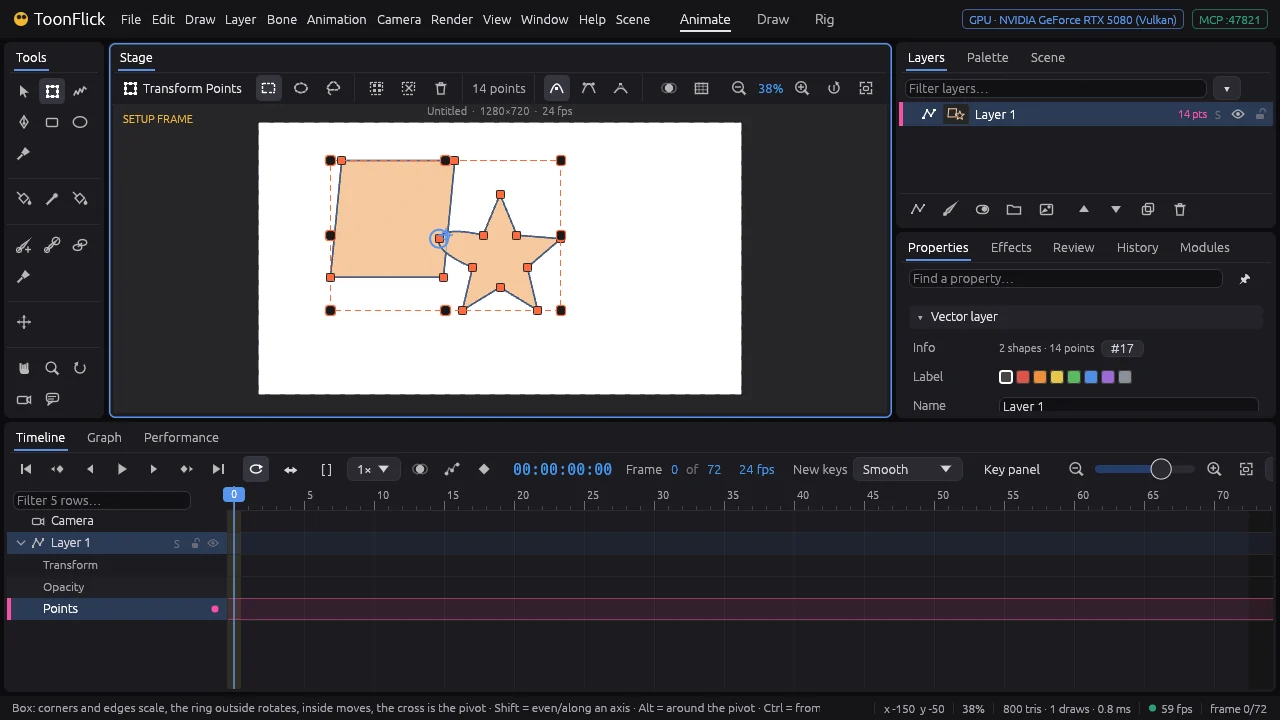
- Transform Points puts a box around the selection: drag a corner or an edge to scale, the ring just outside to rotate, the inside to move, the cross to move the pivot. Shift keeps the proportions, Alt works around the pivot. TShiftAlt
The pen
Point by point: straight corners where you click, smooth curves where you drag.
- Take the Pen and click on the stage: each click is a corner, and the next line follows the pointer. A
- Click the first point again to close the shape — it fills.
- For a curve, press and drag: the drag pulls the point’s two handles out. Alt breaks them so each side bends its own way; Shift keeps the line at 45° steps. AltShift
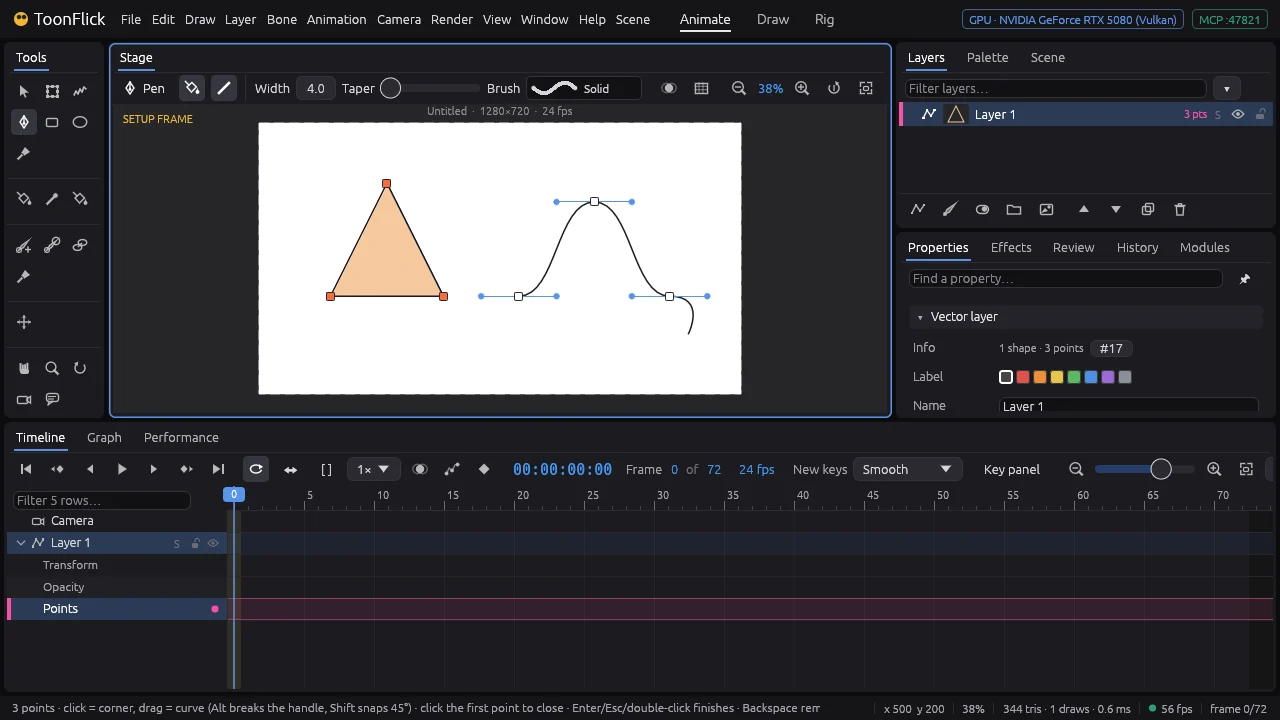
- Backspace takes back the last point. Enter, Esc or a double-click finishes an open line. BackspaceEnterEsc
- To change it later, take Select Points: drag the points or their handles, double-click a point to switch corner and smooth. V
Freehand
Draw the way you would on paper; ToonFlick turns the stroke into a clean, editable curve.
- Take Freehand and drag on the stage. With a pen tablet, pressing harder makes the line wider. F
- Finish near where you started and the stroke closes into a shape and fills.
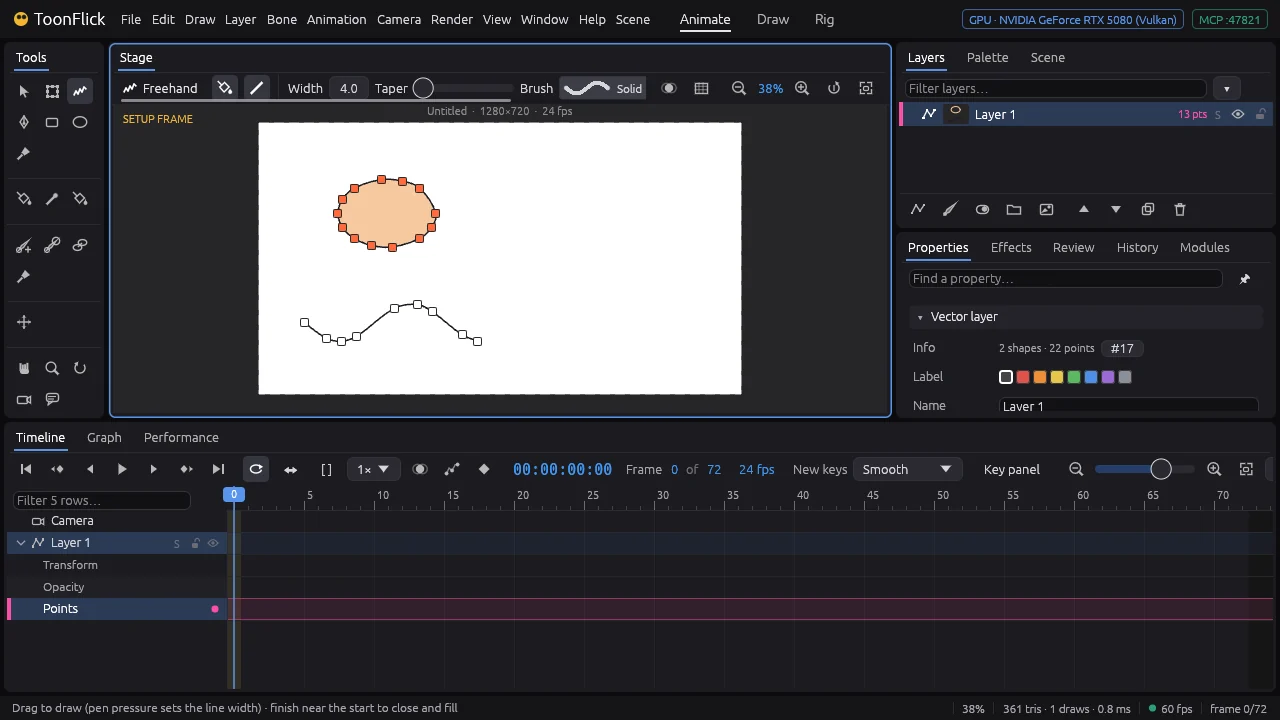
- Width and Taper on the bar set the line: taper thins its ends like a brush stroke.
- Click the brush on the bar to pick one: Solid, Ink, Calligraphy, Pencil, Marker, Chalk, Dry brush, Sketchy, Wavy, Splatter, Dotted or Dashed. Roughness roughens it; Boil every N frames redraws the roughness, so the line shimmers like hand-drawn animation. Esc closes the window. Esc
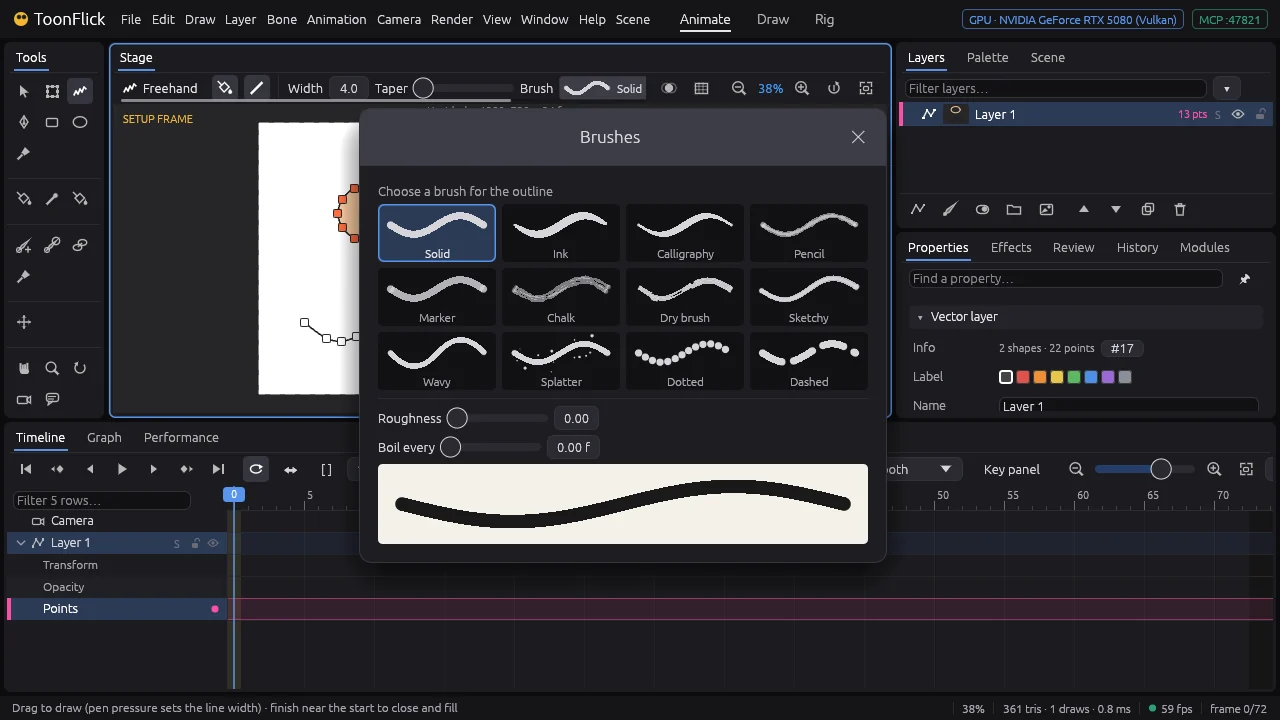
- A freehand stroke is points like any shape: move them with Select Points, or thin them out with Draw ▸ Path ▸ Simplify…. V
Lines with life
An even line looks mechanical. Make it swell and thin out like a brush stroke.
- Width on the bar of the drawing tools sets how thick new lines are; Taper thins their ends.
- To shape a line along its length, take Line Width and grab a point. Points you select first (click near them, Shift adds) change together. WShift
- Drag a point to the right and the line gets thicker there, to the left and it thins out. The bar shows it as Width × — type a number to set it exactly.
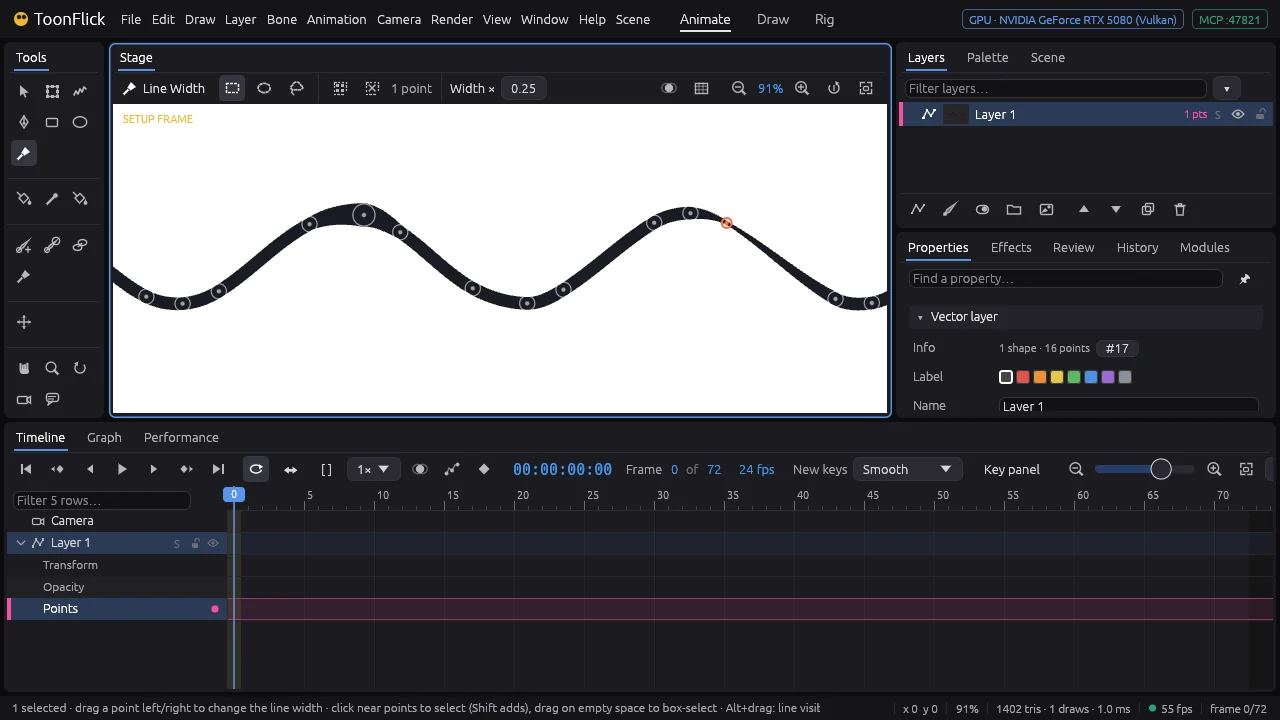
- Click near points to pick several (Shift adds, a box on empty space too): one drag then shapes them all. Alt+drag a point sets how much of the line it draws on either side. ShiftAlt
- Draw ▸ Line Ends shapes whole lines at once: Taper Both Ends, Taper the Start, Taper the End, Pressure (thin – thick – thin) or Even.
Colour
Fill and line, the palette, the bucket and the eyedropper — and swatches that recolour every shape at once.
- Switch to the Draw workspace (Alt+2): the Palette sits at the top right. Fill and Line — the tick turns them on for new shapes, the square picks the colour — then the Width and the swatches below. Alt+2
- Click a swatch for the fill colour, Shift+click for the line. Selected shapes take the colour straight away. Shift
- Paint Bucket: click a shape to fill it, Shift+click to colour its line, Alt+click to take the fill away. UShiftAlt
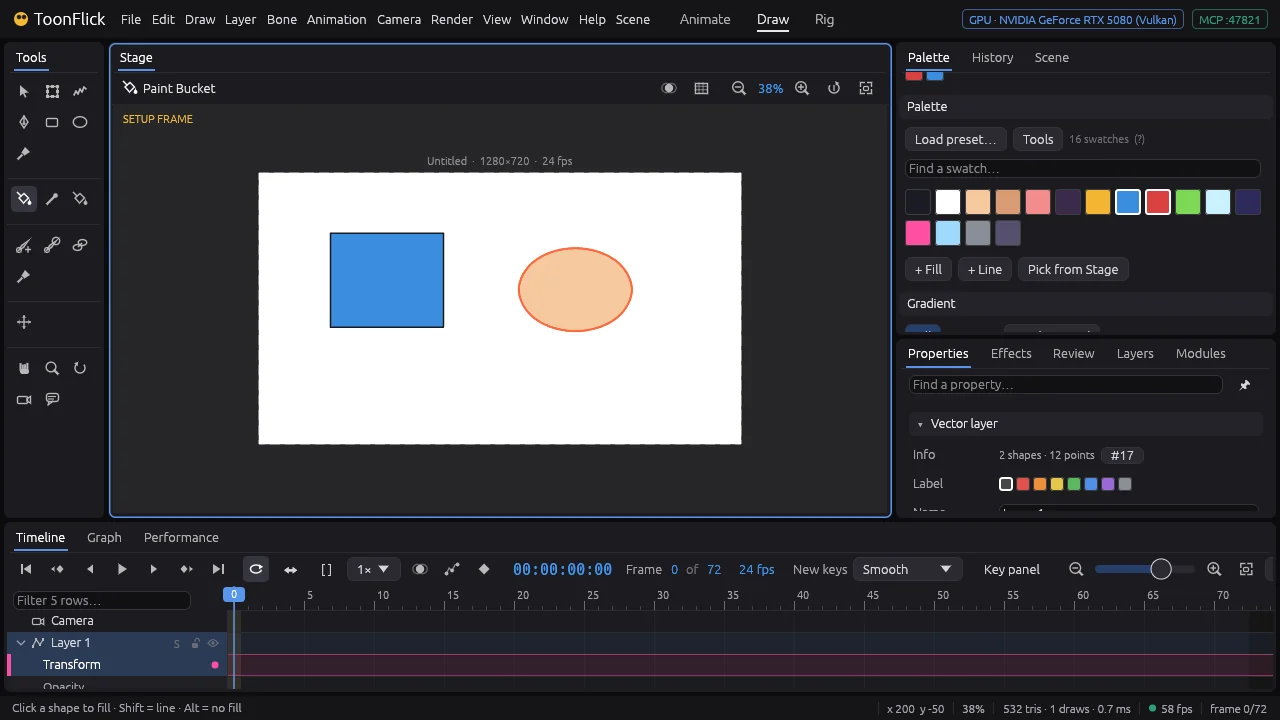
- Eyedropper: click a shape and its fill and line become the current colours. I
- A colour taken from a swatch stays linked to it. Double-click the swatch to edit it (hex, RGB, HSL) and every shape using it changes — recolour a whole character in one go.
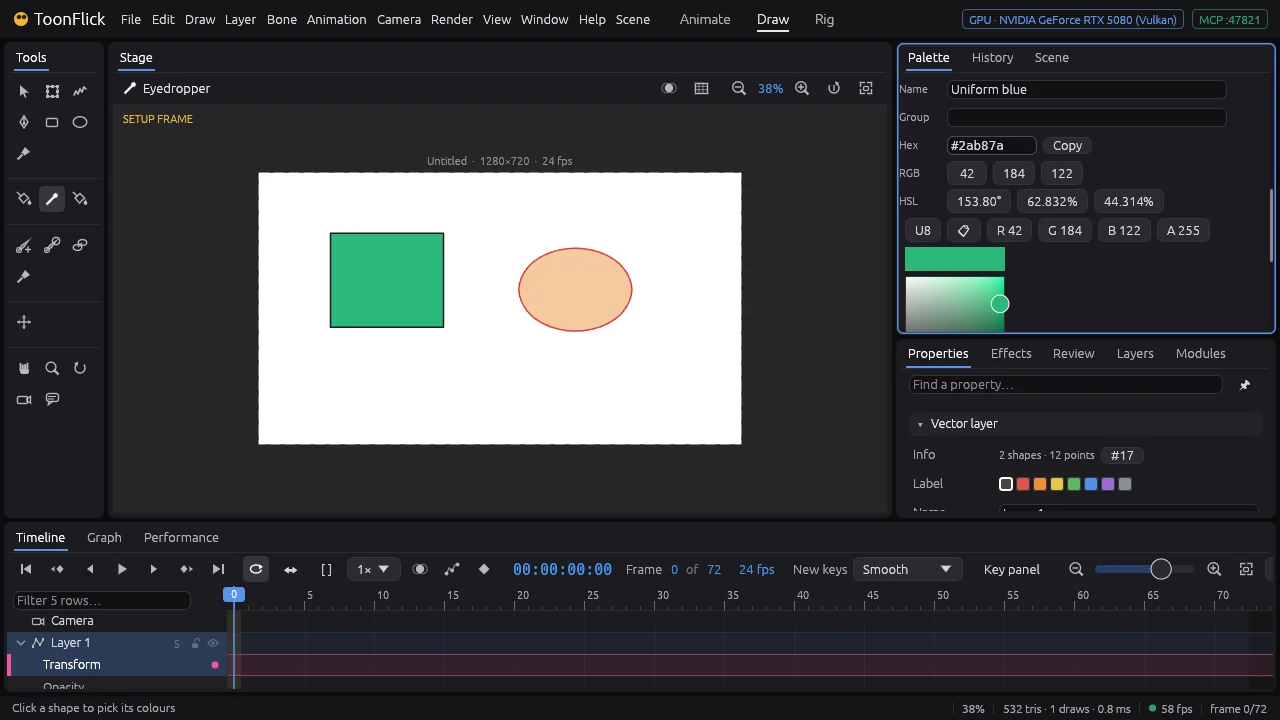
- Edit ▸ Copy Style (Ctrl+Alt+C) and Paste Style (Ctrl+Alt+V) carry fill, line, width and brush from one shape to others; Edit ▸ Replace Colour… swaps one colour everywhere. Ctrl+Alt+CCtrl+Alt+V
Gradients
Skies, glows and round shading: lay a gradient by dragging across a shape, then shape it on the stage or pick a ready one.
- Take the Gradient tool and drag across a shape: the gradient runs from where you press to where you let go. Hold Ctrl at the press for a radial one. Shift+UCtrl
- While dragging, Alt grows it from the middle, Shift moves the whole line. AltShift
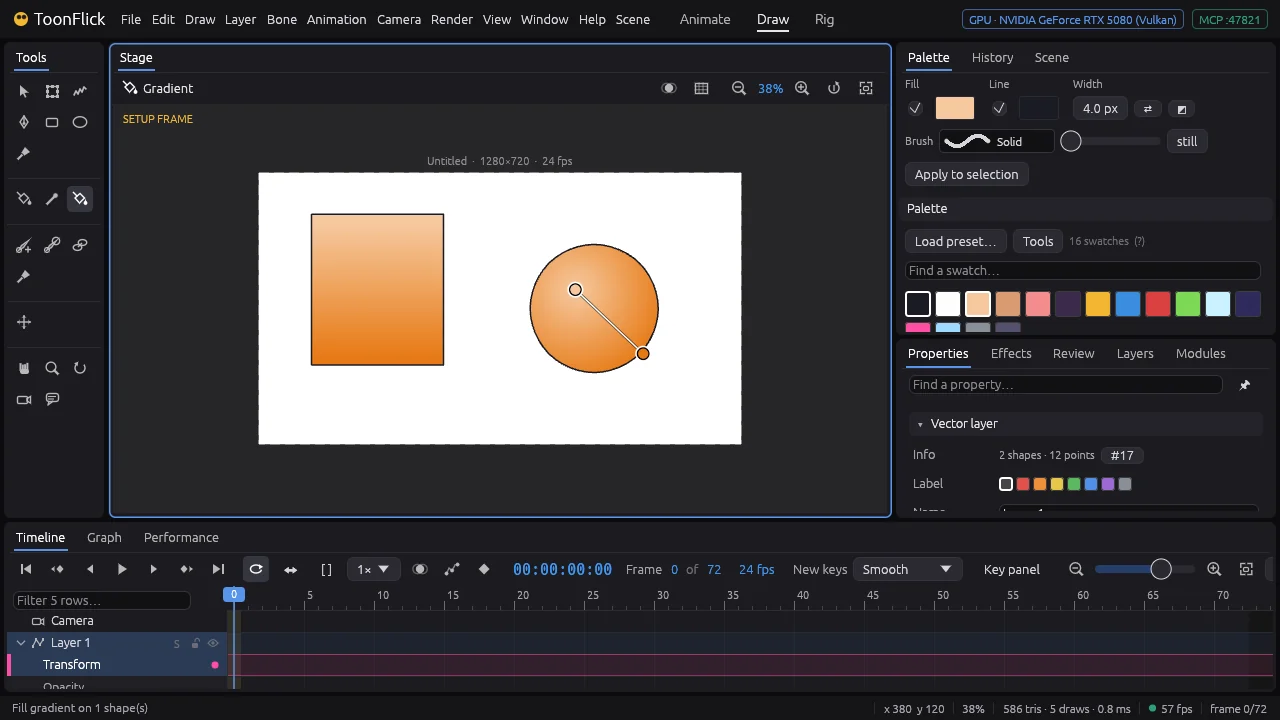
- Click a shape to show its gradient: drag the round handles to move the ends, the square one to move it all.
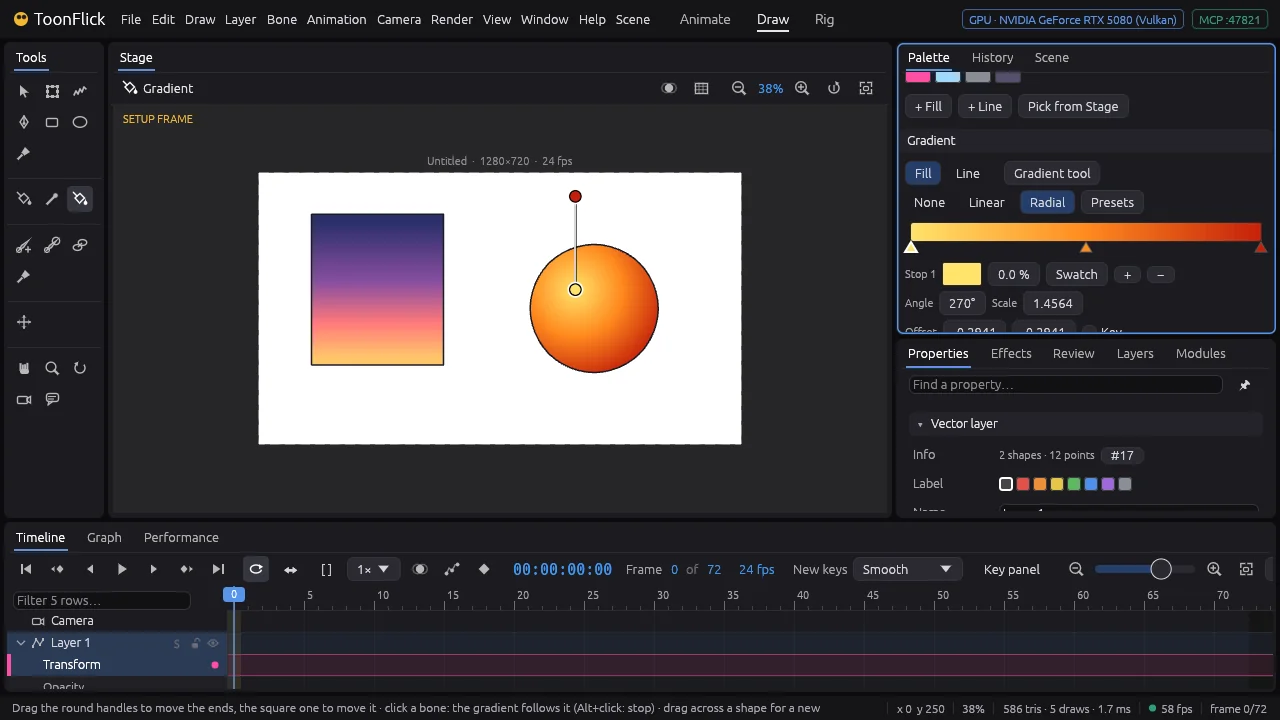
- In the Palette, the Gradient section edits it exactly: None, Linear or Radial, the colour stops (click a stop, + adds one, − removes it, Swatch links it to a swatch), the angle, scale and offset. Fill or Line chooses which one you edit.
- Presets gives ready ones: Day, Sunset and Night Sky, Shadow, Gloss, Metal, Fire, Sea, Glow and Cheek Blush.
- A gradient can follow a bone, turning and stretching with it: with the Gradient tool, click a bone (Alt+click lets go). The rigging part shows it on a character. Alt
Shapes together
Cut holes, keep overlaps, stack shapes, turn lines into shapes and line things up on a grid.
- Shapes in a layer can cut each other. Select a shape and pick its mode on the Select Points bar (or Draw ▸ Boolean): Add draws it as itself, Subtract cuts its area out of the shapes below it, Intersect keeps only the part of the shapes below that is inside it. V
- Nothing is cut for good: the shapes stay as they were, so you can still move the hole or change the mode back.
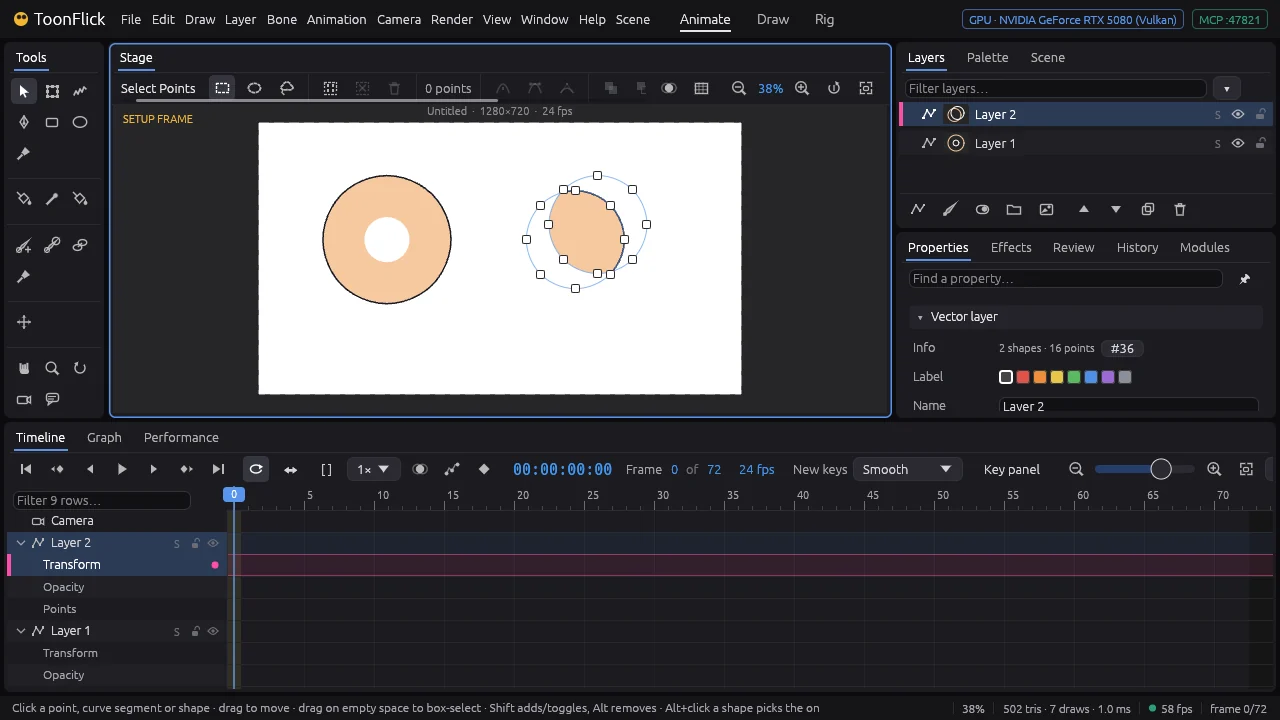
- A mode works on every shape below it in the same layer — put separate objects on separate layers (the lens here has its own).
- Draw ▸ Arrange changes which shape is in front: Raise and Lower Shape (Shift+PgUp, Shift+PgDn), Bring to Front (Shift+Home). Shift+PgUpShift+PgDn
- Draw ▸ Path: Outline Stroke turns a line into a filled shape; Simplify… thins out points; Join Lines, Break at Point, Reverse Path, Offset Path… and Clean Up do what they say.
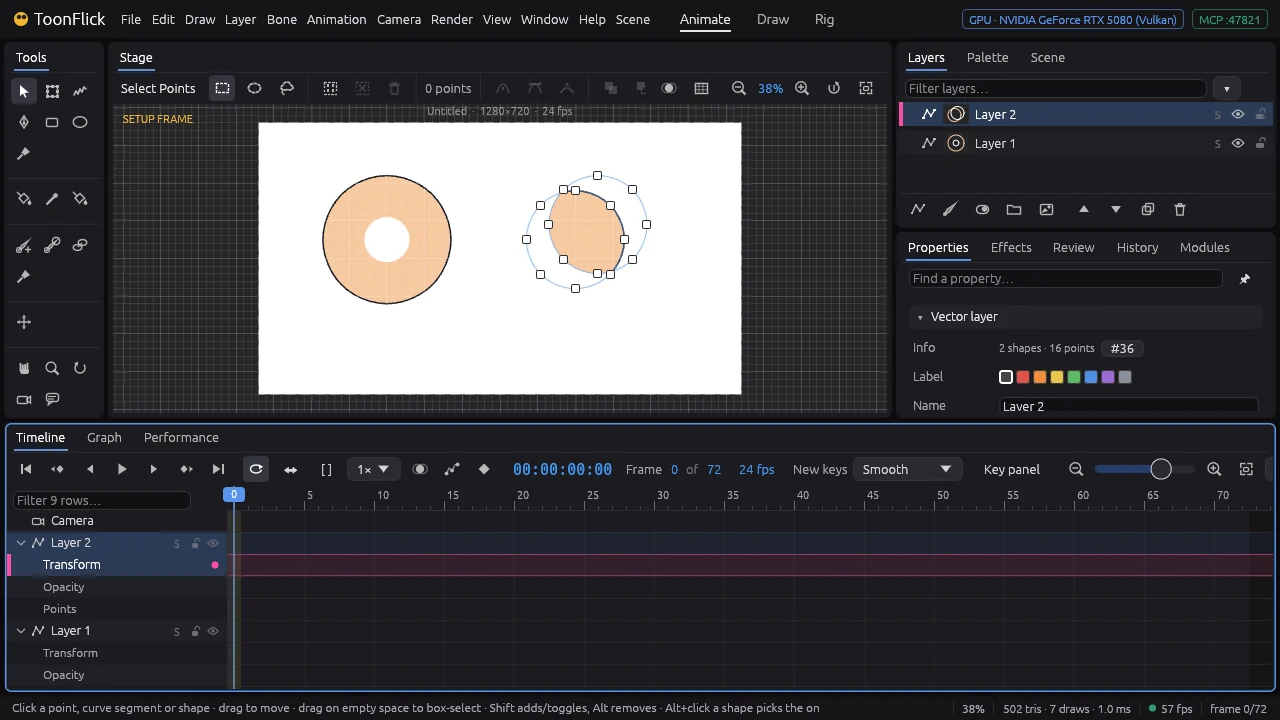
- Draw ▸ Snapping: Show Grid, Snap to Grid, Snap to Points and Grid Size… for drawing that lines up.
C · Layers
The Layers panel
Every drawing, picture and skeleton lives on a layer. Name them, stack them, group them, hide what is in the way.
- The buttons under the list add a layer of each kind: drawing (vector), bones, switch, group and picture; then raise, lower, duplicate and delete. A new layer lands above the selected one — or inside it, if it is a group.
- Double-click a name (or F2) to rename it. Drag a layer to restack it — the line shows where it lands; drop it onto the middle of a group to put it inside. F2
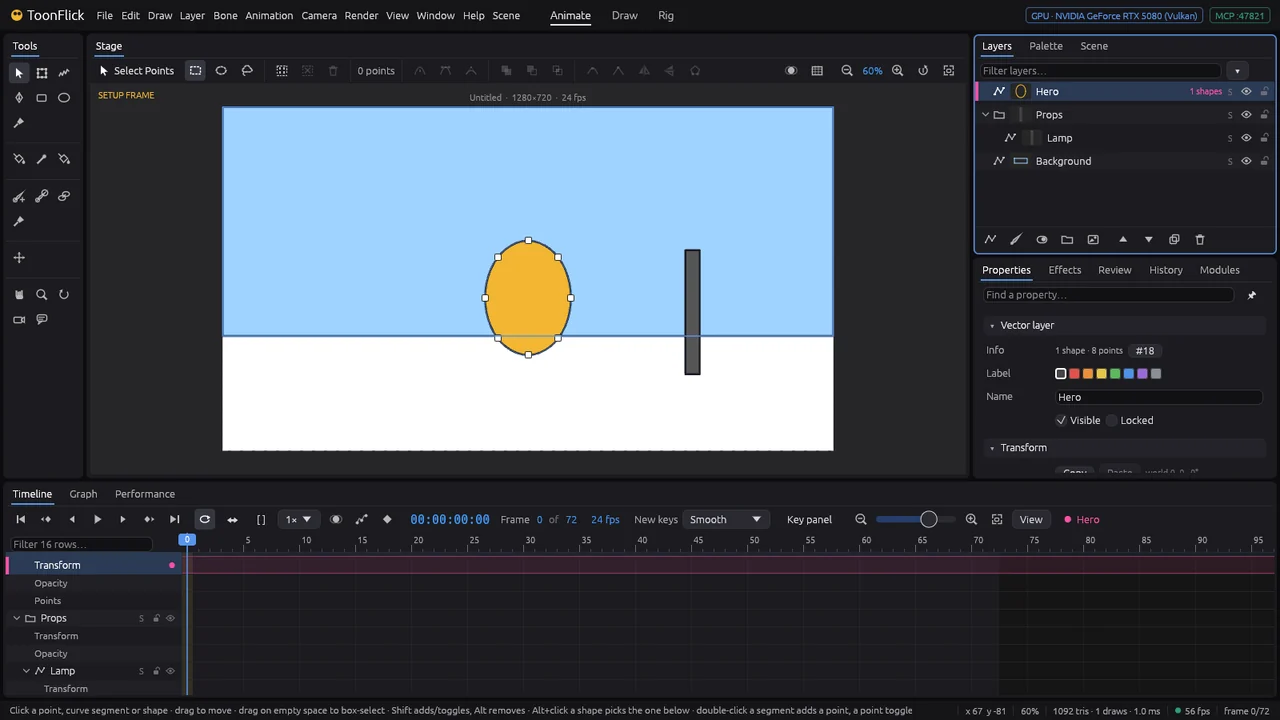
- The eye shows or hides a layer, the lock keeps it from being changed, S shows it alone (solo) while you work. Alt+click an eye hides all the others; drag down the eyes or locks to set several. Alt
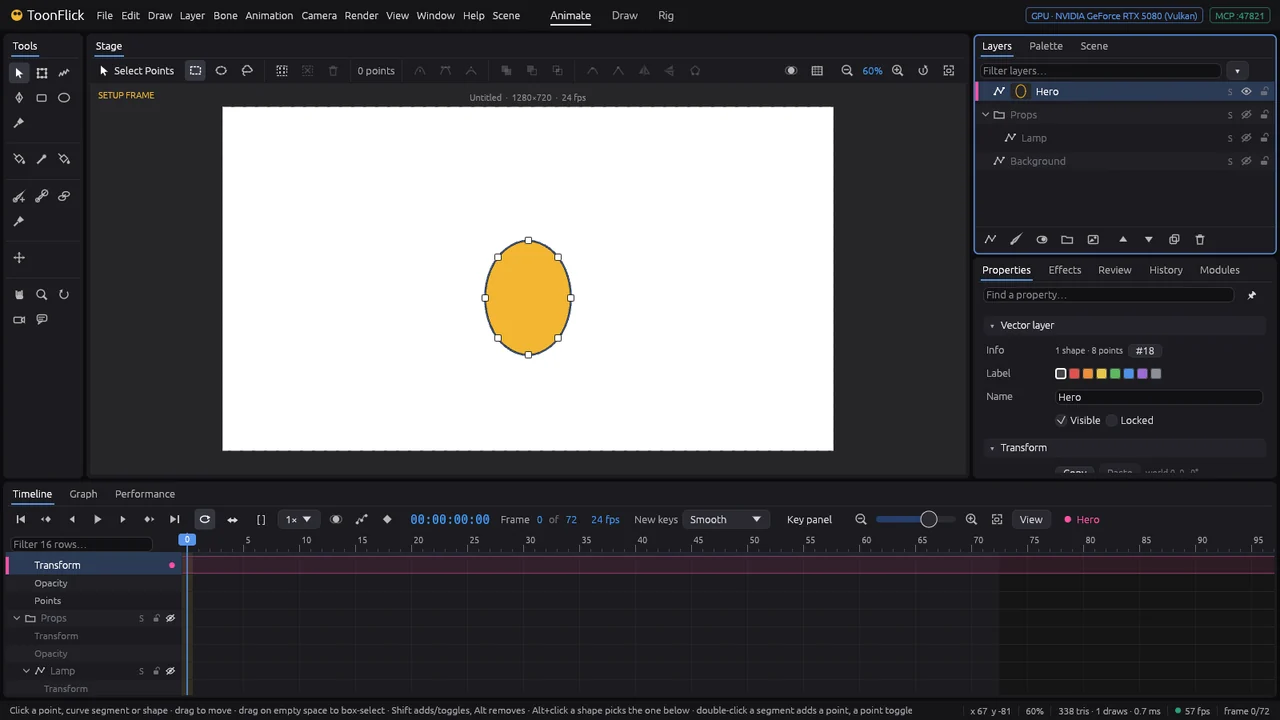
- Type into Filter layers… to find layers by name (bones too); the ▾ next to it filters by kind or colour label, folds and unfolds everything, and switches thumbnails and row size.
- Ctrl+click picks several layers, Shift+click a range — then act on them all from the right-click menu. Arrow keys move through the list, ← and → fold and unfold. CtrlShift←→
- A bone layer shows its Skeleton as a folder: the bones as a tree, ready to select, rename or re-parent — part E shows it on an arm.
Move, turn and scale a layer
The whole layer at once — a character, a prop, a background — with a box on the stage or exact numbers.
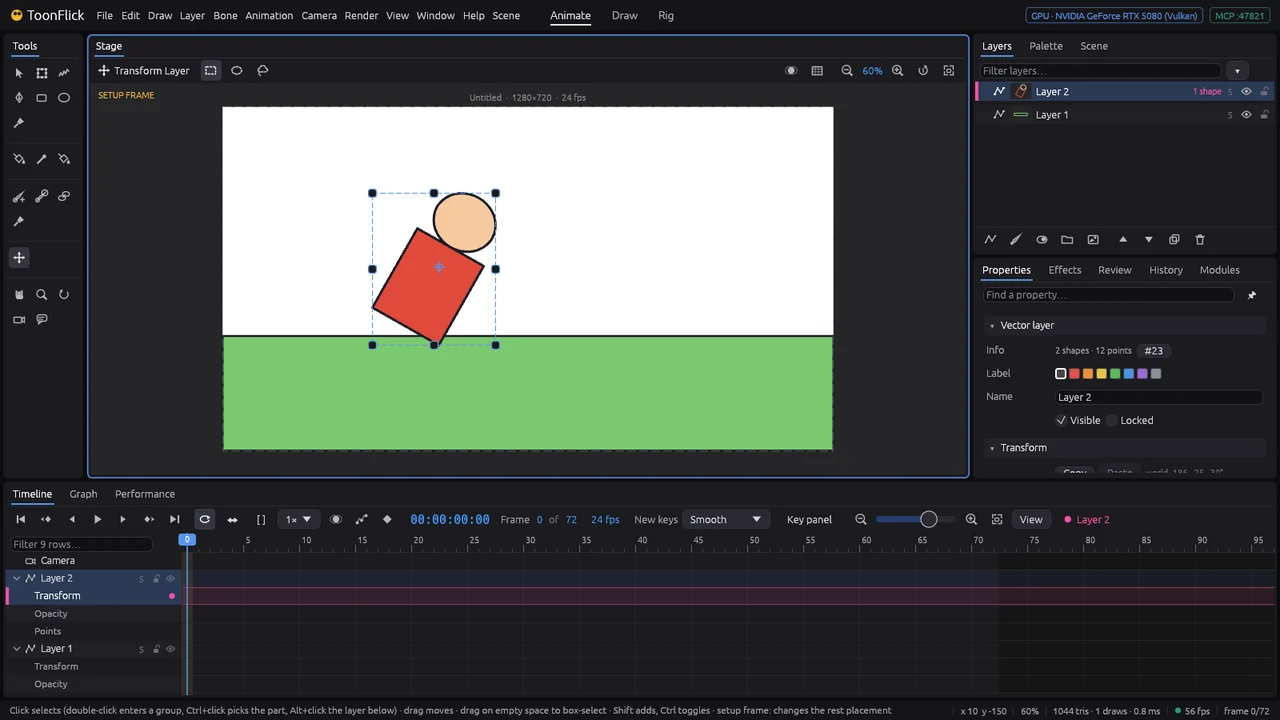
- Take Transform Layer and click what you want to move: its layer gets a box. Double-click enters a group, Ctrl+click picks the part inside, Alt+click the layer below. MCtrlAlt
- Drag inside the box to move it, a corner or an edge to scale it, the ring just outside a corner to turn it. The cross in the middle is the pivot — drag it to turn around another point. Shift keeps the proportions, Alt works around the pivot. ShiftAlt
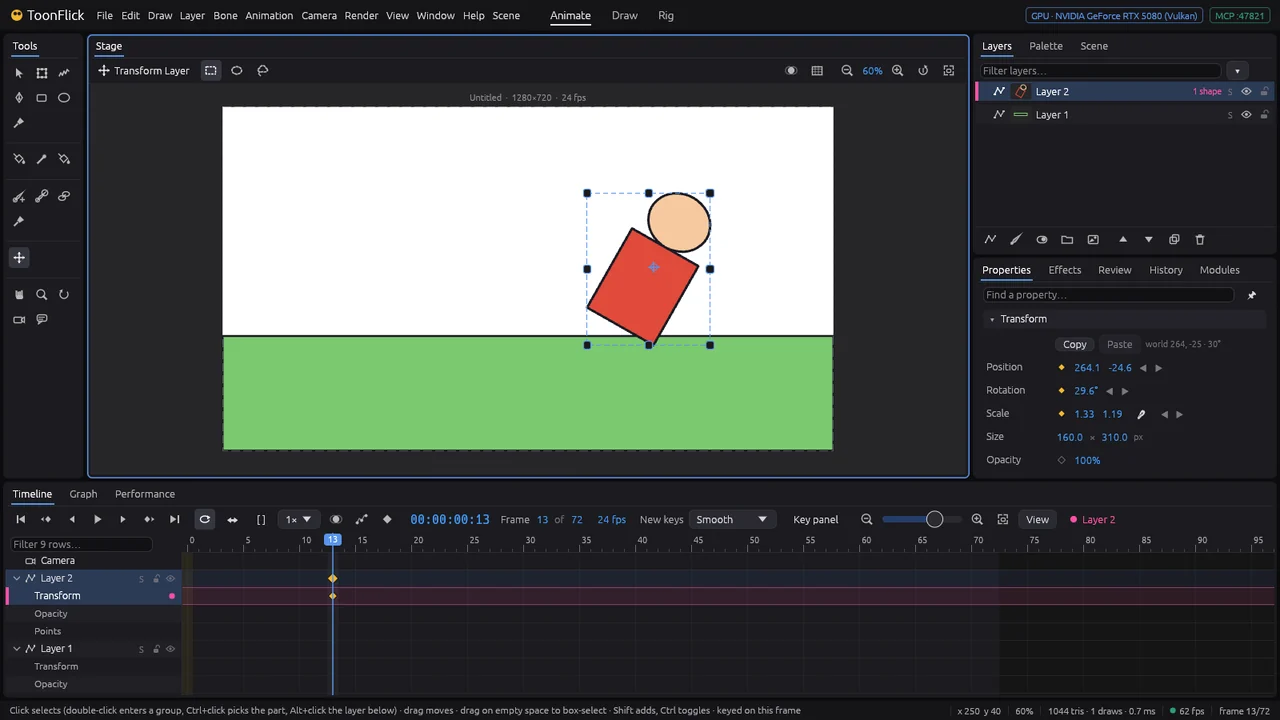
- Properties ▸ Transform shows the same as numbers — Position, Rotation, Scale (🔗 keeps them together), Size and Opacity — drag a number or double-click to type it. Copy and Paste carry a placement to another layer.
- On the setup frame (0) this places the layer for good. On frame 1 or later every change is keyed: a diamond appears in the timeline and next to the number in Properties.
Masks and pictures
Show a layer only through another — a window, a hole, a TV screen — and bring in pictures to draw over.
- Put the layers in a group: here a Porthole group with Glass (a circle) and Night (a sky with a moon). Select the group and tick Children can mask each other in Properties — the group gets an M.
- Select the shape that cuts the window (Glass) and set its Mask: Add to mask (it shows), or Add to mask, invisible (it only cuts).
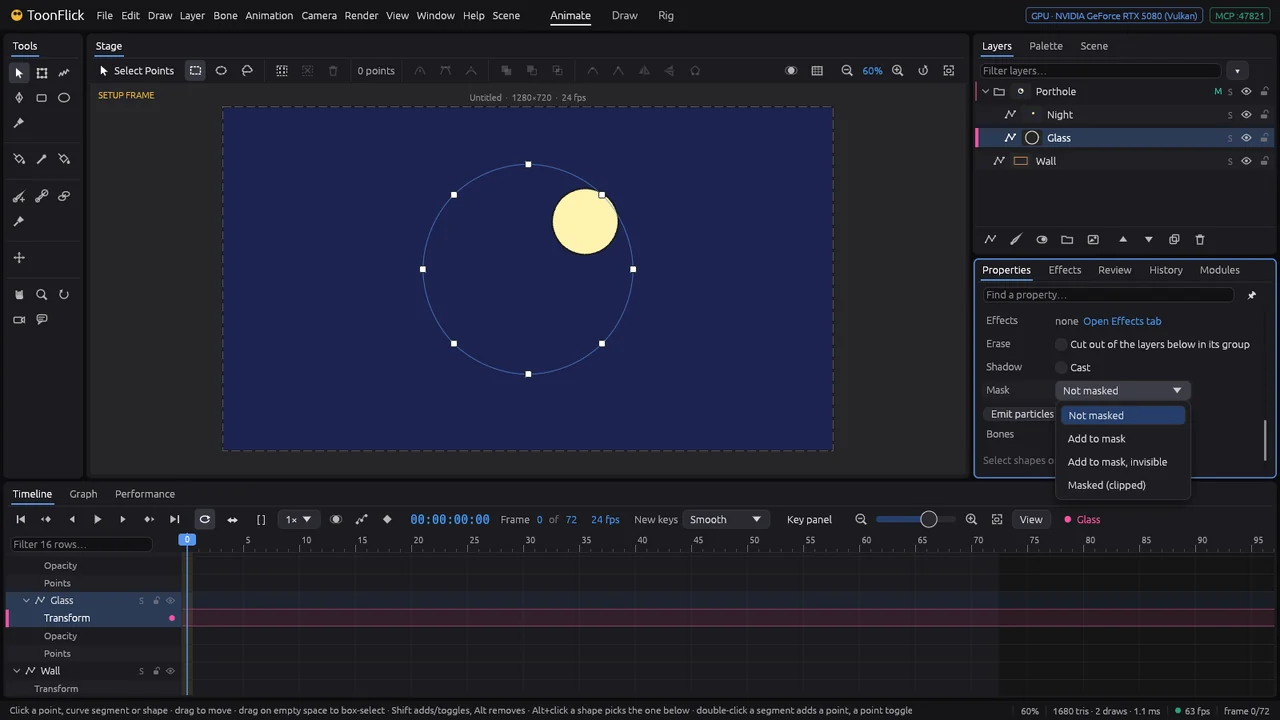
- Set the layers to show through it (Night) to Masked (clipped): they appear only inside the mask. Layer ▸ Mask has the same choices.
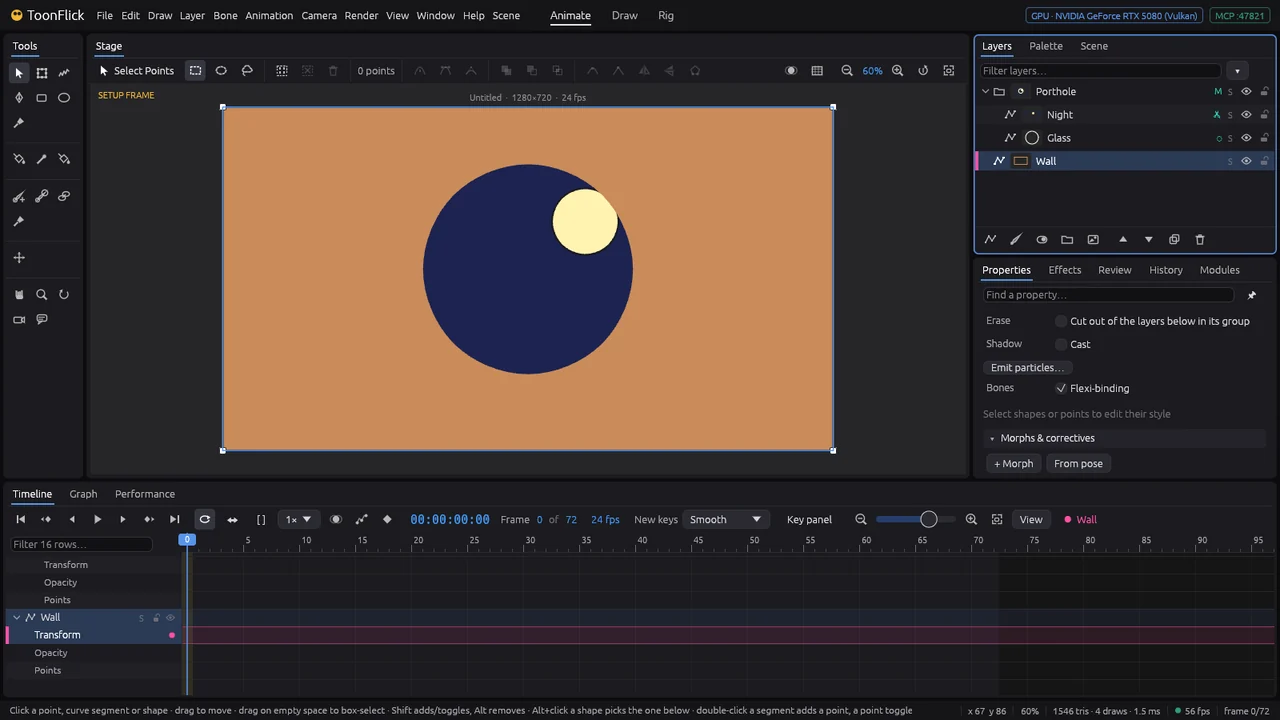
- The mask is just a layer: move or animate it and the window moves too.
- Pictures: the fifth button under Layers (File ▸ Import ▸ Image…) adds a picture as its own layer — a background, a sketch to trace over, a reference. Move and scale it with Transform Layer, lower its Opacity, lock it so it stays put. M
Switch layers: mouths, hands, eyes
A switch layer holds several drawings and shows one at a time — the classic way to swap mouth shapes, hands or eyes.
- Add a switch layer with the third button under Layers and name it (Mouth). With it selected, each new drawing layer goes inside: Closed, Open, Smile — draw one mouth on each.
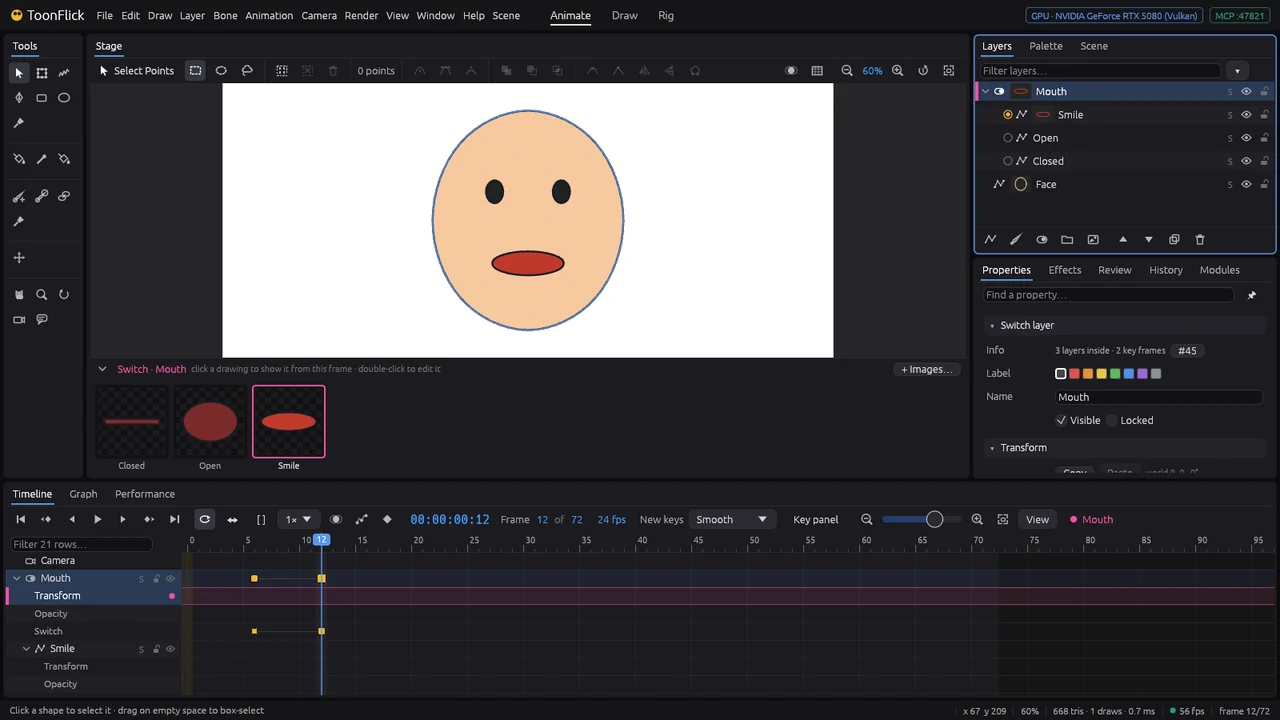
- With the switch selected, its drawings appear as a strip under the stage. A click on one shows it from this frame on (keyed); double-click opens it to edit.
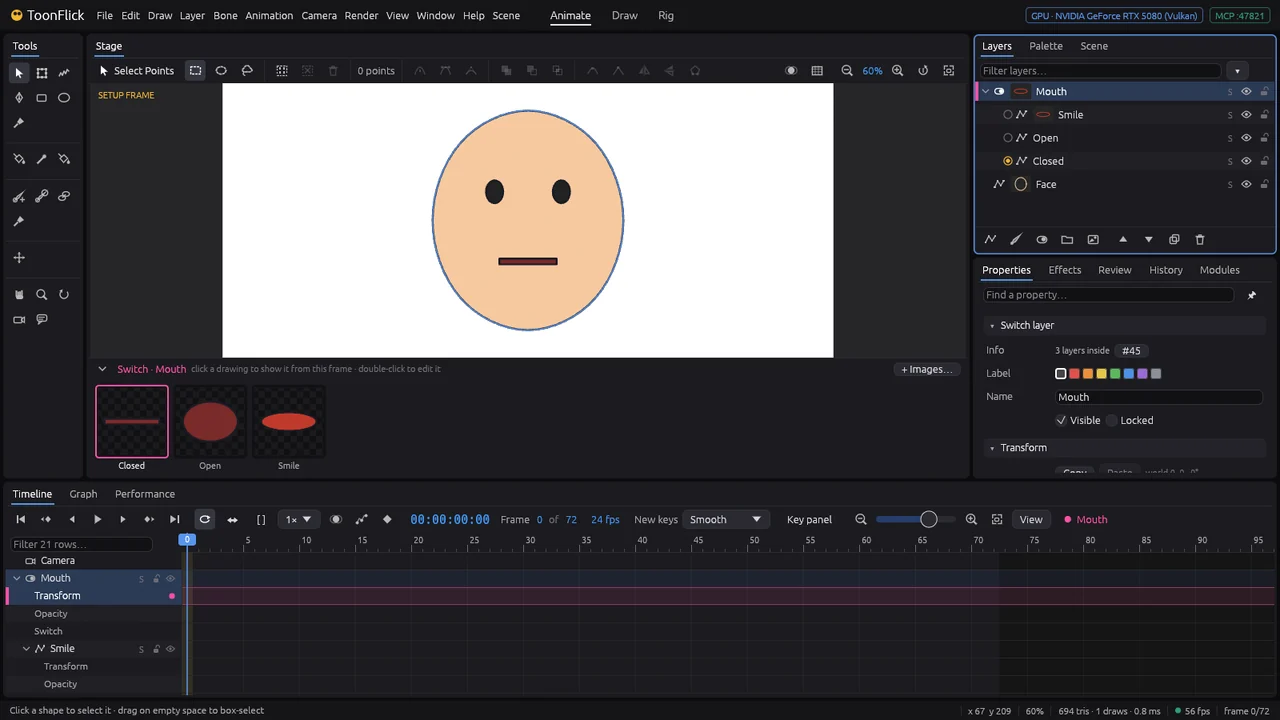
- The round buttons in front of the drawings in Layers do the same. Each switch is a key on the Switch row of the timeline; the drawing holds until the next key.
- Switches go further later: lip-sync picks mouths from a soundtrack (part F), and a dial or joystick can drive one (part E).
D · Animation in depth
The timeline
Where time lives: frames, keys, playback, and the part of the shot you are working on.
- Frame 0 is the setup frame: what you draw and place there is the rest state. From frame 1 on every change you make is keyed by itself — a diamond appears on the layer’s row.
- The buttons on the left: first frame (press twice for the setup frame), previous key, previous frame, play, next frame, next key, last frame. Space plays, ← and → step, Ctrl+← and Ctrl+→ jump between keys. HomeSpace←→Ctrl+←Ctrl+→
- Click the ruler to go to a frame, or click the timecode and type a frame, a time (1:12), seconds (1.5s) or +/− frames.
- A play range: Shift+drag on the ruler. Playback stays inside it and [ ] turns it off and on again. Loop repeats, ↔ plays forwards and back (ping-pong), 1× changes the speed. Shift
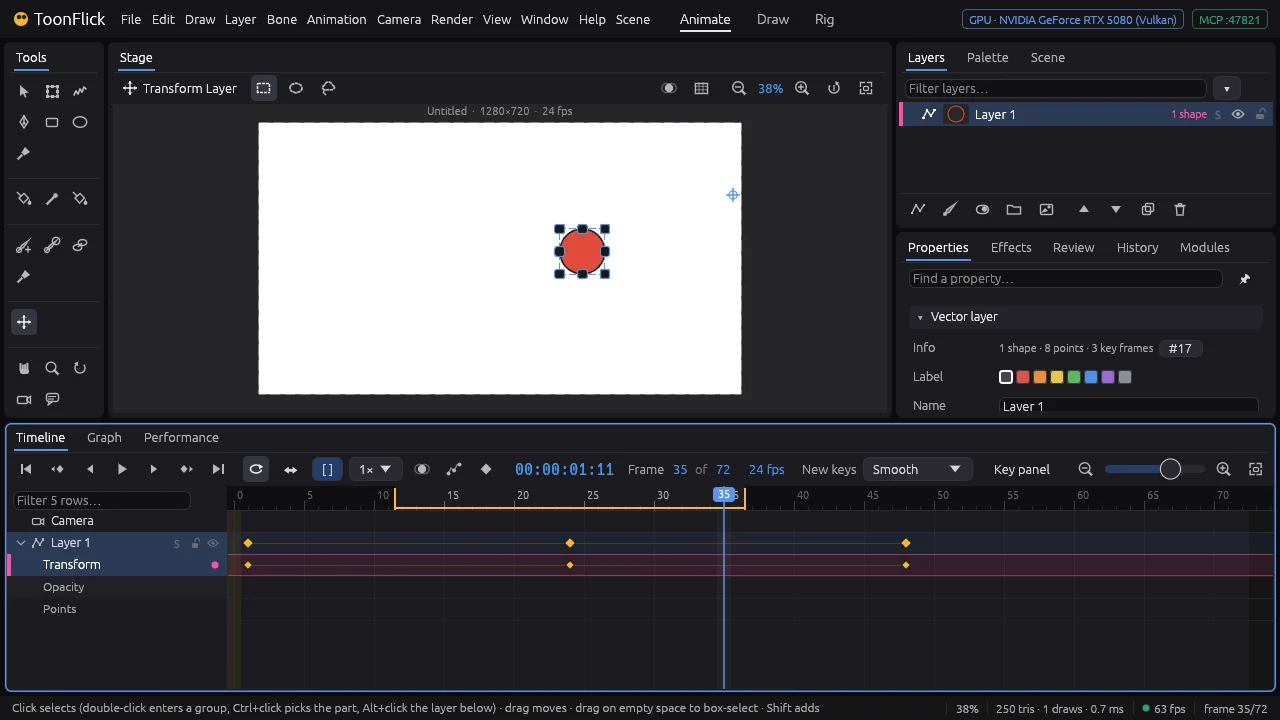
- Frame … of 72 and 24 fps are numbers too: drag or type to change the length of the shot and its frame rate. New keys sets how keys you make from now on move (Smooth, Linear, Ease, Step, Bounce…).
- Ctrl+wheel over the timeline zooms time, F fits the selected keys or the play range; the filter on the left finds rows by name. CtrlF
Working with keys
Move keys in time, change how they move, copy them, repeat a cycle and mark the beats.
- Click a key to select it, Shift+click or drag a box for more. Drag them along the row to move them in time. Shift
- Right-click a key: copy it, copy the pose to the playhead, change its Interpolation or Ease, move it to the playhead, open it in the Graph, or delete it.
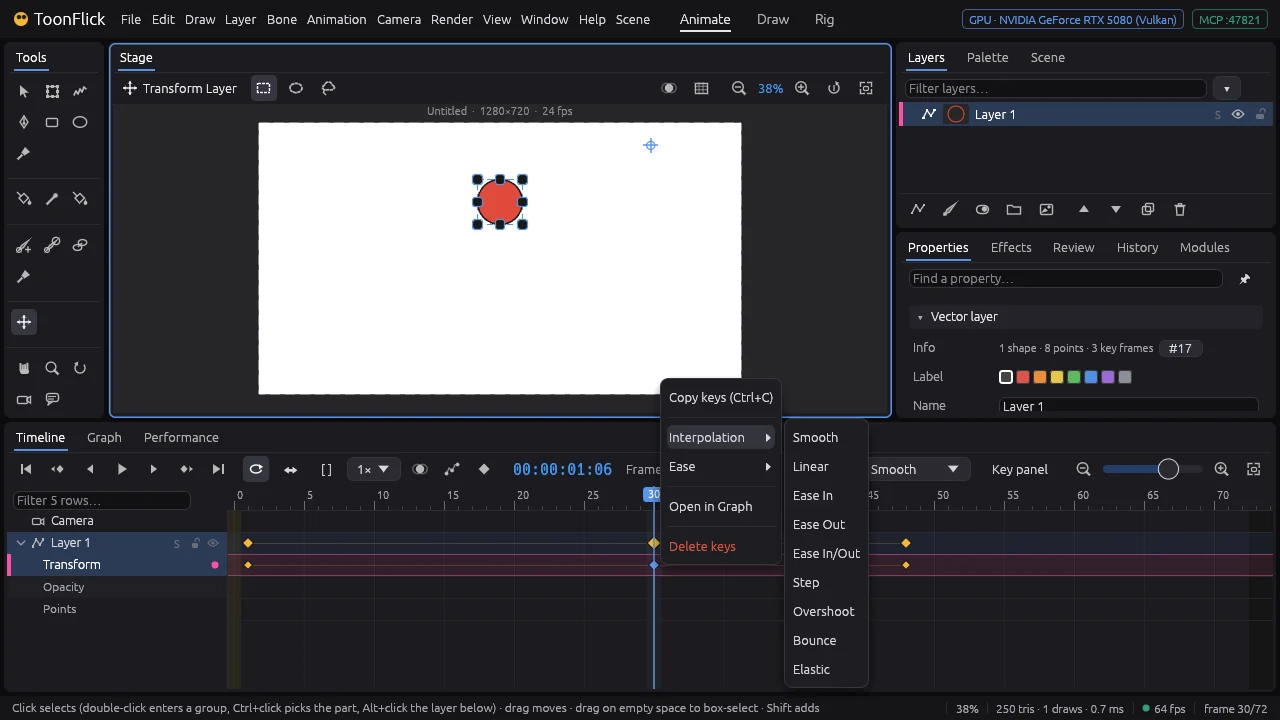
- Interpolation is how the motion runs from one key to the next: Smooth eases in and out, Linear keeps an even speed, Step jumps (good for holds and snappy timing), Overshoot, Bounce and Elastic add life.
- Ctrl+C and Ctrl+V copy selected keys to the playhead. K keys everything selected on this frame. Ctrl+CCtrl+VK
- Animation ▸ Keys ▸ Repeat Cycle… repeats a walk step or a wave as many times as you ask (the shot grows to fit). The same menu nudges, scales, reverses, simplifies or bakes keys.
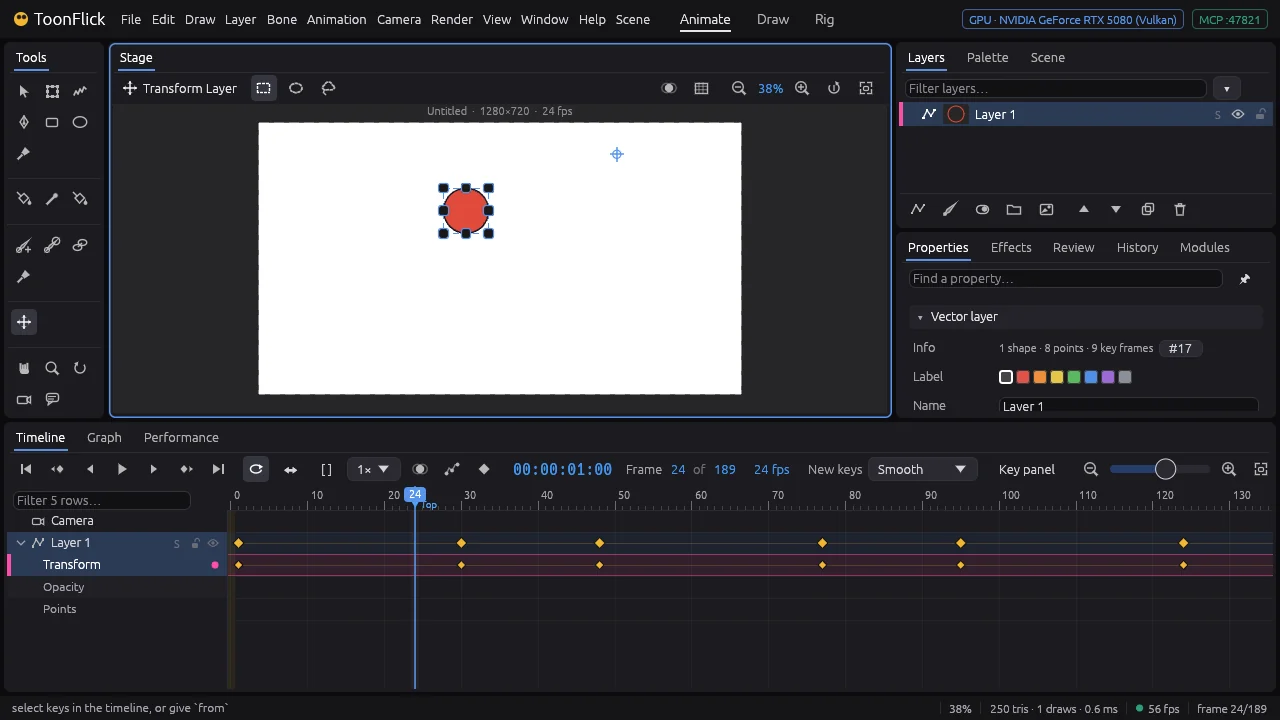
- Markers name the beats: Ctrl+M adds one at the playhead (type its name), Alt+→ and Alt+← jump between them. Ctrl+MAlt+→Alt+←
The Graph editor in depth
Tutorial 04 shaped one bounce. Here is the whole editor: the channels, the views, the tangents and what happens before and after the keys.
- On the left, the channels of the selected layers: Position x and y, Angle, Scale… Each has an eye (show), S (only this one) and a lock (its keys can’t be picked). Find a channel… narrows the list.
- Four views: Values (the real numbers), Normalized (every curve in the same height), Stacked (one above another) and Speed (how fast it moves — bumps are jerks, flat parts holds).
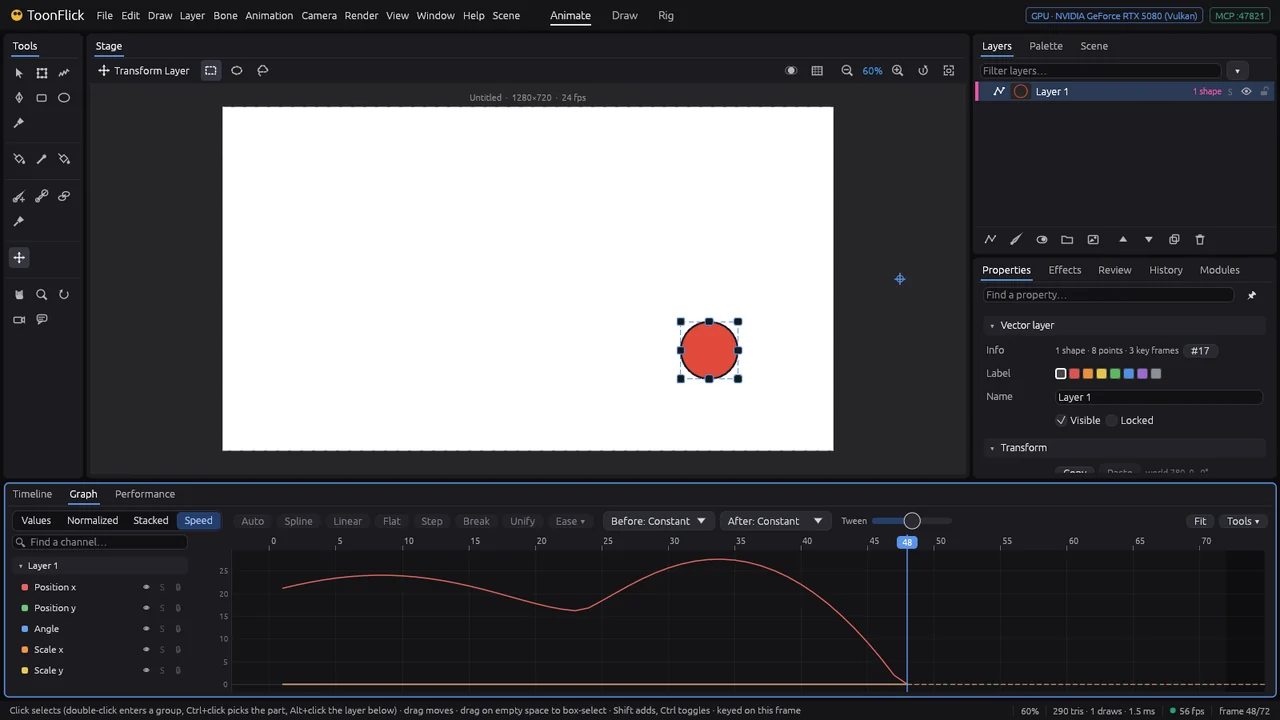
- Click a key (Shift adds, a box picks many) and choose its tangent: Auto (smooth, never past its neighbours), Spline (smooth, may overshoot), Linear, Flat (settles on the key) or Step. Break lets the two handles go their own ways; Unify joins them again. Drag the handles for anything in between. Shift
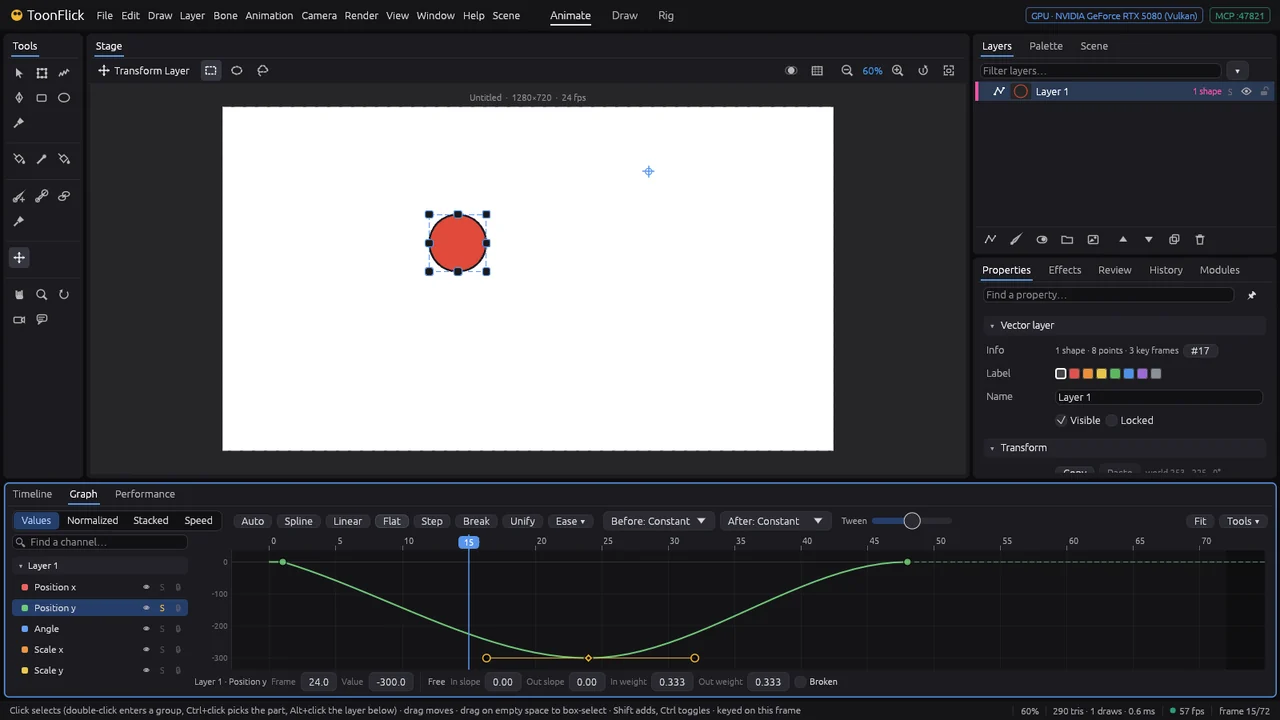
- Below the graph, the selected key in numbers: frame, value, the slopes and weights of its handles, Broken. Flat on only part of a key (y here) leaves the other part alone, so the key shows Free.
- Before and After set what the curve does outside its keys: Constant (holds), Linear (carries on), Cycle, Cycle with offset (a walk that keeps going), Ping-pong.
- Ease ▾ shapes the selected keys in one go; Tween slides a key between its neighbours; Tools ▾ smooths, simplifies, bakes, reverses, adds anticipation, overshoot or bounce, and fixes flipping rotations (Euler filter). F fits the view, Shift+F the selected keys. FShift+F
Motion paths
See the whole flight on the stage and shape it right there — keys, arcs and timing — for layers, controllers and bones.
- Select what moves and press Ctrl+Shift+P (or the path button in the timeline): its path appears, one dot a frame. Close dots are slow, far apart fast. Keys are diamonds with their frame number. Ctrl+Shift+P
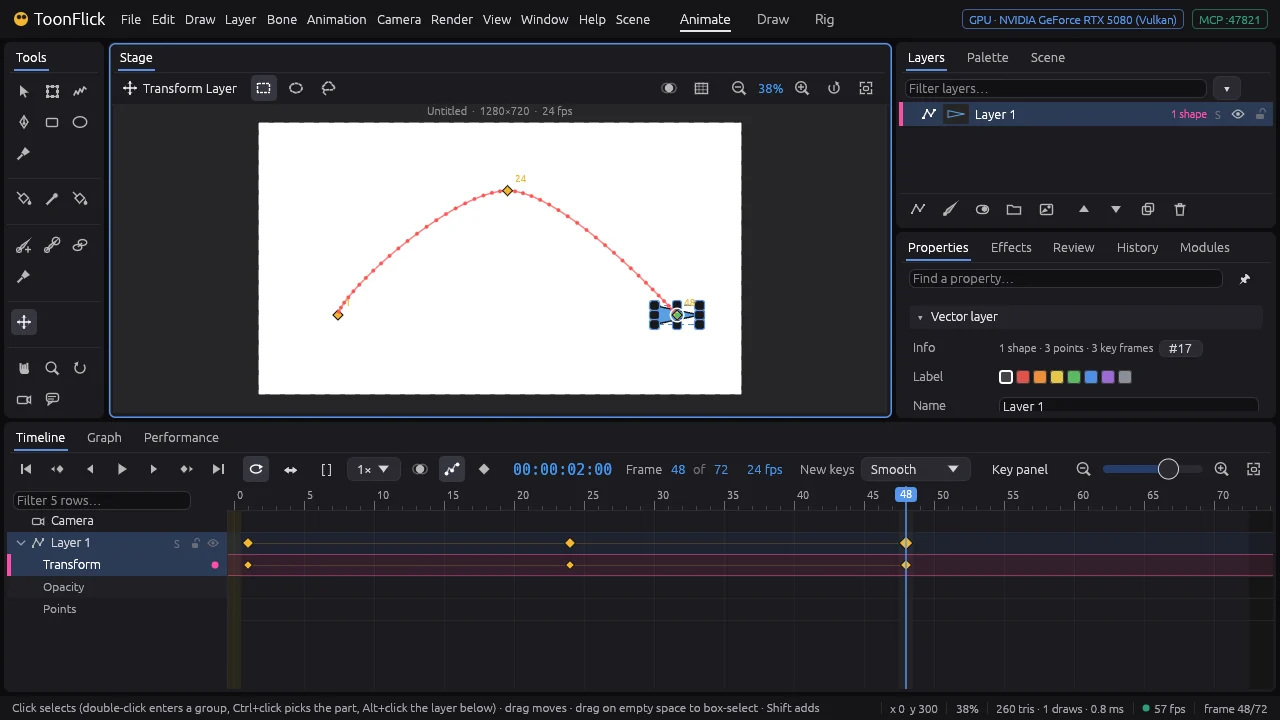
- Drag a diamond to move that key; the arc follows. Click it to show its two handles and pull them to bend the arc; Alt+drag a handle bends one side only. Alt
- Alt+drag a key slides it along the path in time: let go where it should be on that frame. Alt
- Ctrl+click anywhere on the path adds a key on the nearest frame — without changing the motion. Ctrl
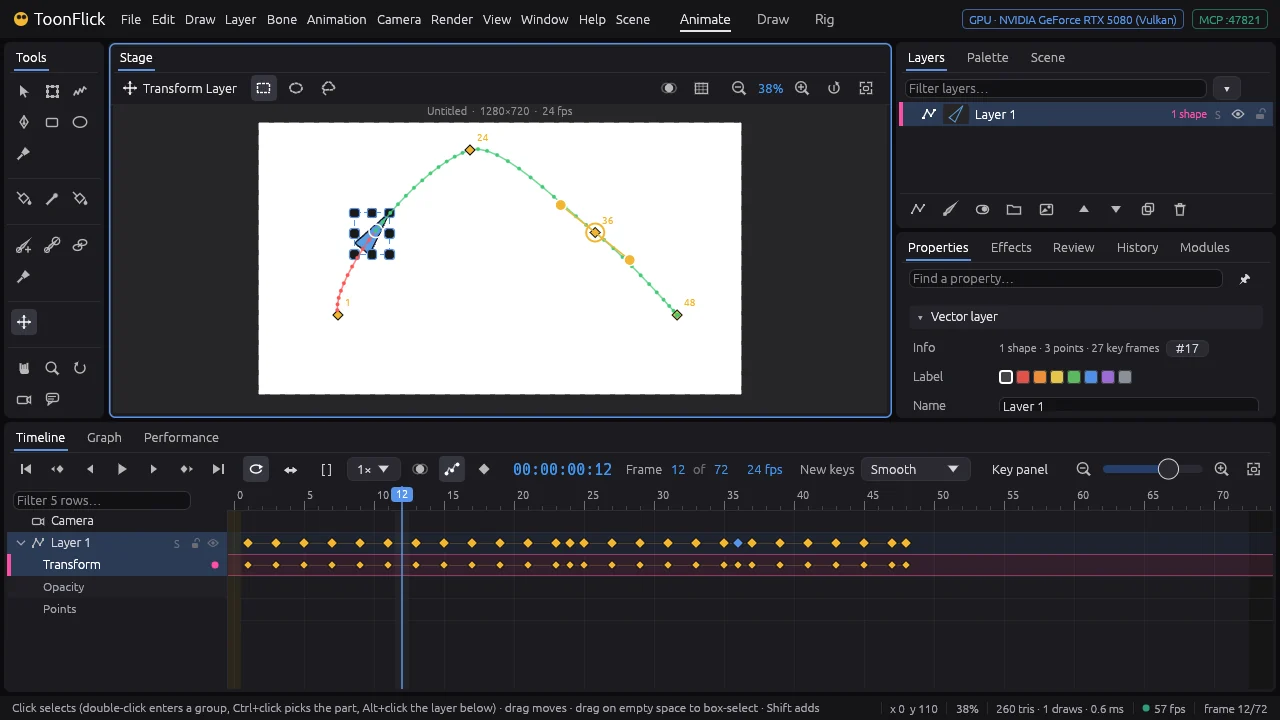
- Animation ▸ Motion Paths ▸ Orient Along Path turns the layer to face where it is going (Angle keys every 2 frames). The path keeps showing only the keys that move it.
- Keys picked on the path, in the timeline and in the Graph follow each other. View ▸ Show has the path options; part E shows paths of bones and IK controllers.
Onion skin and timing
See the frames around the one you are on, and make room or hold where the timing needs it.
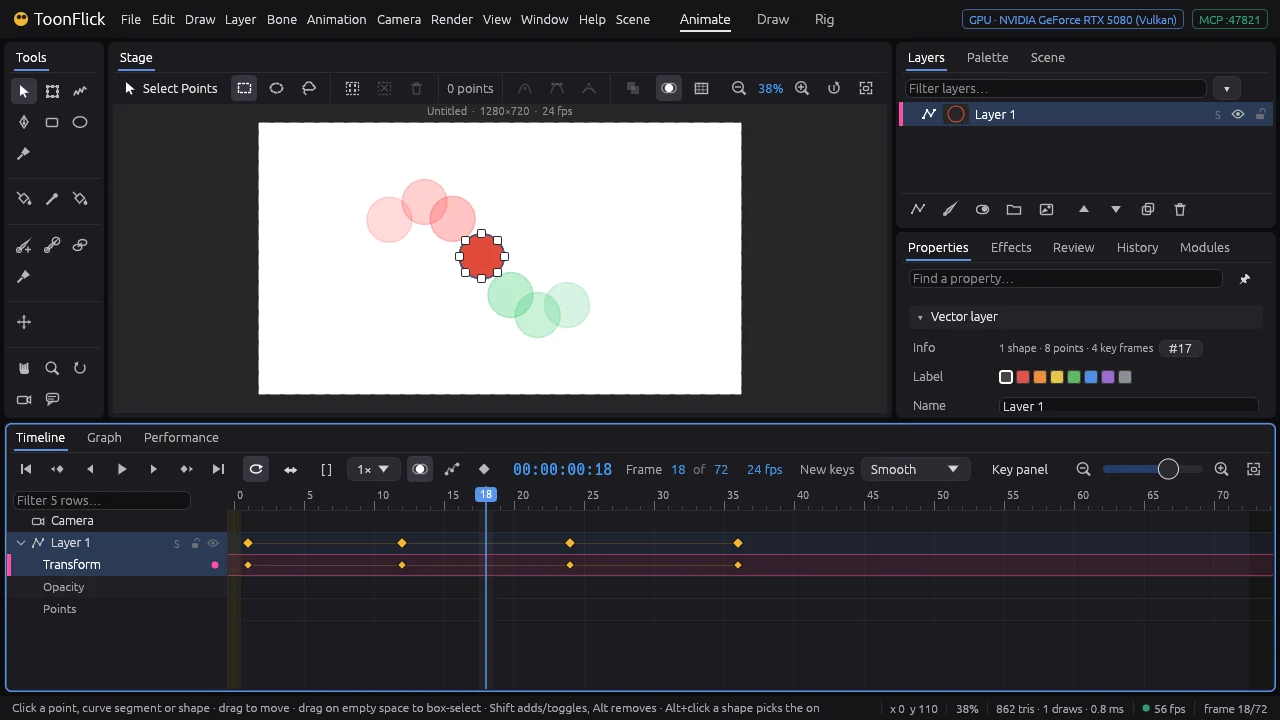
- Ctrl+Shift+O (or the onion button in the timeline) shows the frames before in red and the frames after in green, fading with distance. Ctrl+Shift+O
- Animation ▸ Onion Skin sets how many frames Before and After, Every how many, their Opacity, Keyframes Only (just the keys) and Tinted (colours or the real ones).
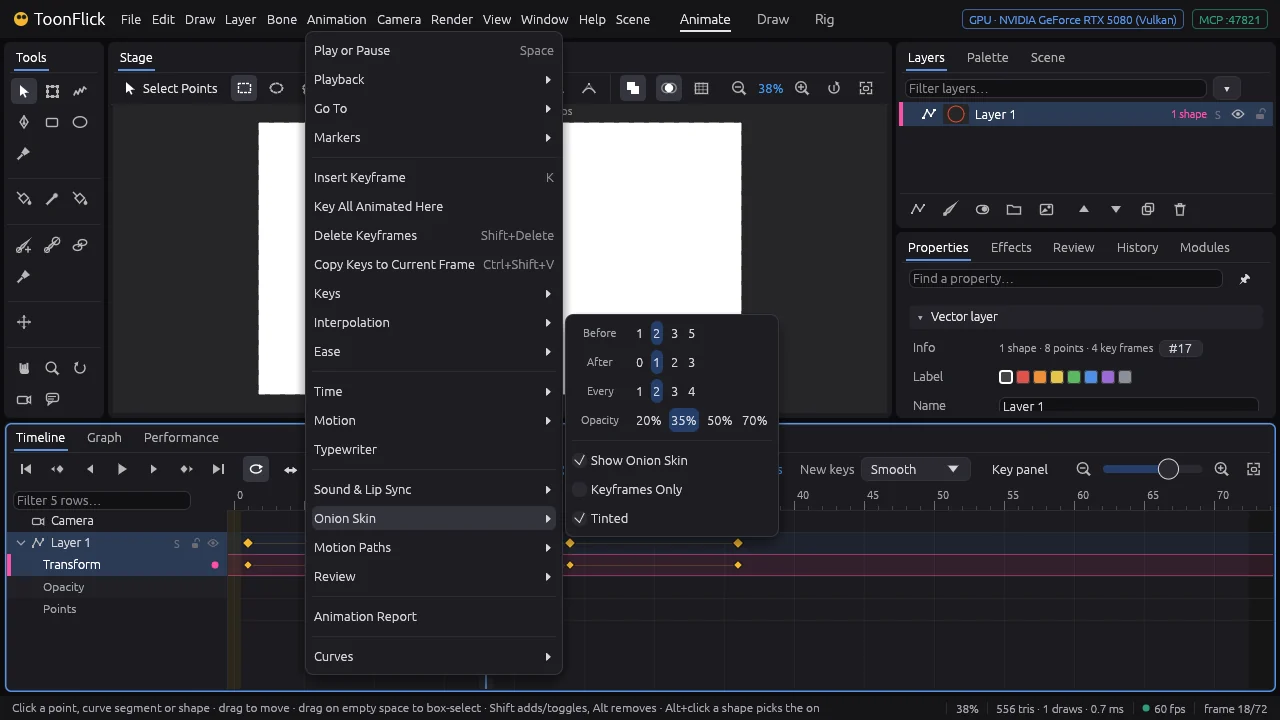
- Read the spacing: ghosts close together are slow (an ease), far apart fast. With every third frame shown, an even arc of ghosts means even speed.
- Animation ▸ Time changes the shot’s timing: Insert Frames… (at the playhead — every key after it moves later and the shot gets longer), Remove Frames…, Hold Frame… (keep this pose longer), Retime Shot… (all of it faster or slower), Change Frame Rate…, Fit Length to Keys.
Sound
Animate to a soundtrack: see it, hear it while you scrub, put markers on the beats.
- File ▸ Import ▸ Soundtrack (WAV)… (or Animation ▸ Sound & Lip Sync ▸ Set Soundtrack…) adds the sound. A Soundtrack row appears at the top of the timeline with its waveform.
- Play (Space) and it plays in sync. Step or scrub the playhead and you hear each frame — turn that off in Animation ▸ Sound & Lip Sync ▸ Scrub Audio. The speaker on the row mutes it. Space
- Animation ▸ Sound & Lip Sync ▸ Markers on Loud Beats puts a marker on every hit — animate the big moments onto them.
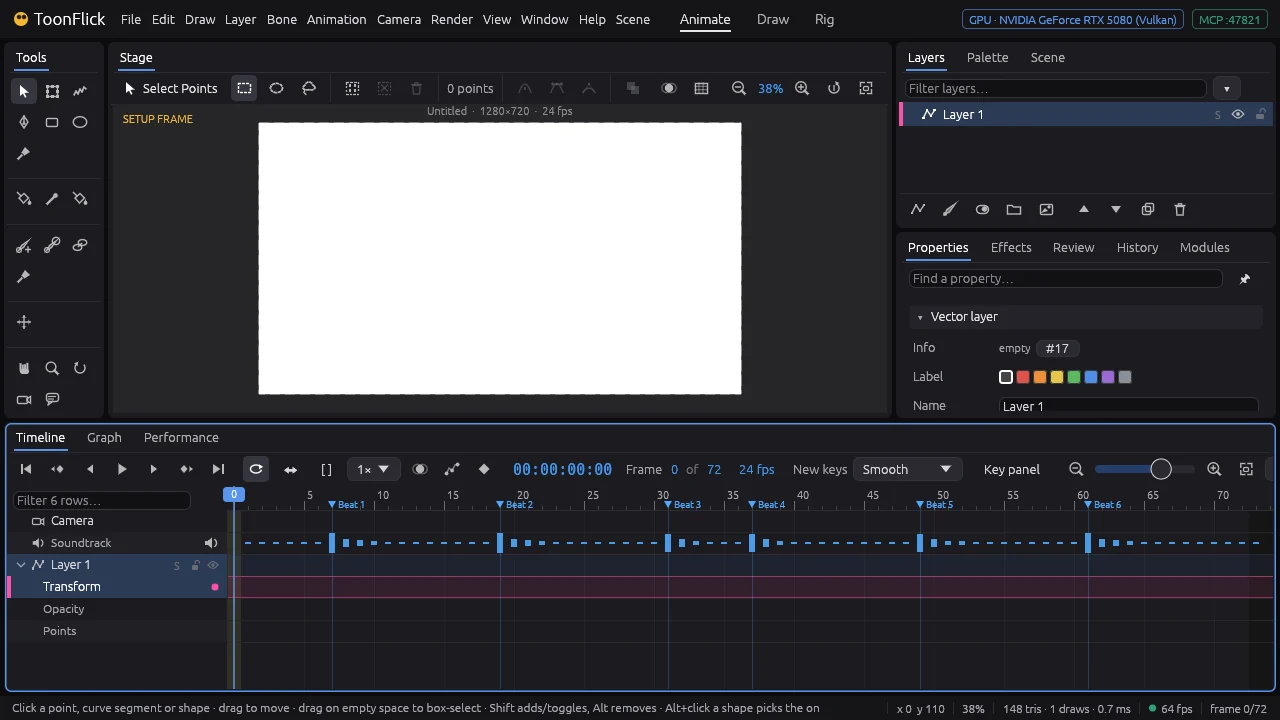
- Drag the Soundtrack row sideways to slide the sound in time; markers stay where they are.
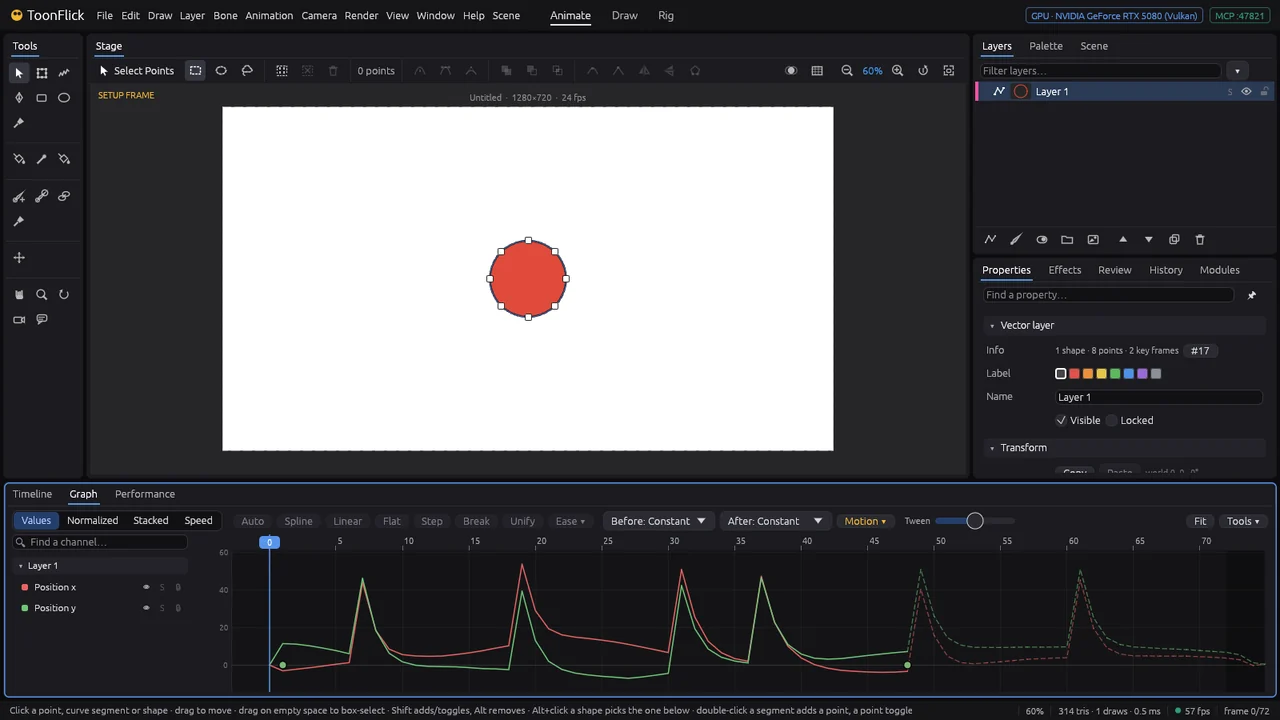
- Let the sound move things: in the Graph pick a curve (S solos it) and open Motion ▾ — Move with the sound’s loudness adds the loudness on top of the keys (how much at full loudness), Wiggle adds a restless shake (how far, how often). A position’s x and y move together. S
- Sound can drive a mouth too: lip-sync picks mouth drawings from the soundtrack — part F shows talking characters.
E · Rigging
Your first skeleton
Bones turn drawings into a puppet. Build an arm: upper arm, forearm and hand.
- Switch to the Rig workspace (the Rig tab at the top). In the Layers panel, add a bone layer with its second button and name it Arm. Alt+3
- Take Add Bone and drag from the shoulder to the elbow. Keep dragging from the tip of the new bone — each one carries the chain on: elbow to wrist, wrist to fingertips. B
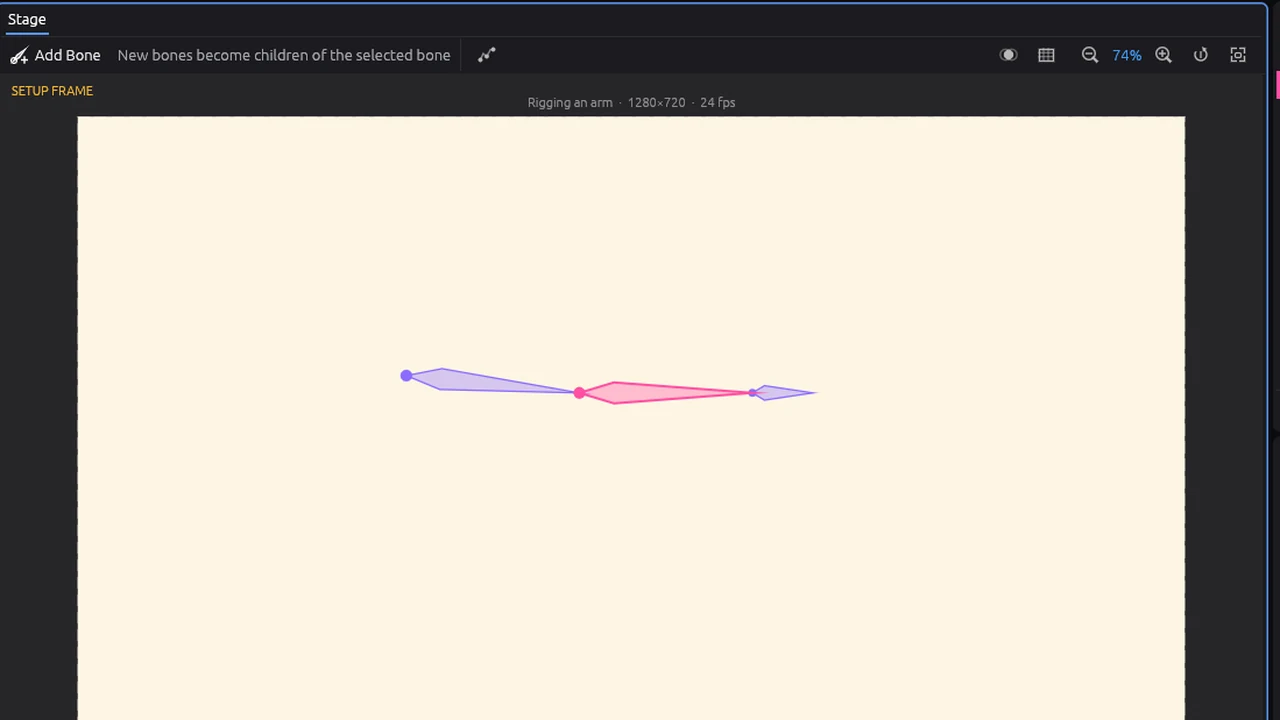
- Click a bone to select it and name it in Properties (Upper arm, Forearm, Hand). Click empty space before dragging to start a new chain somewhere else.
- Take Pose Bones and go to frame 12. Drag the hand: the arm follows (IK). Alt or Ctrl+drag turns only that one bone. Every pose on frame 1 or later is keyed. NAltCtrl
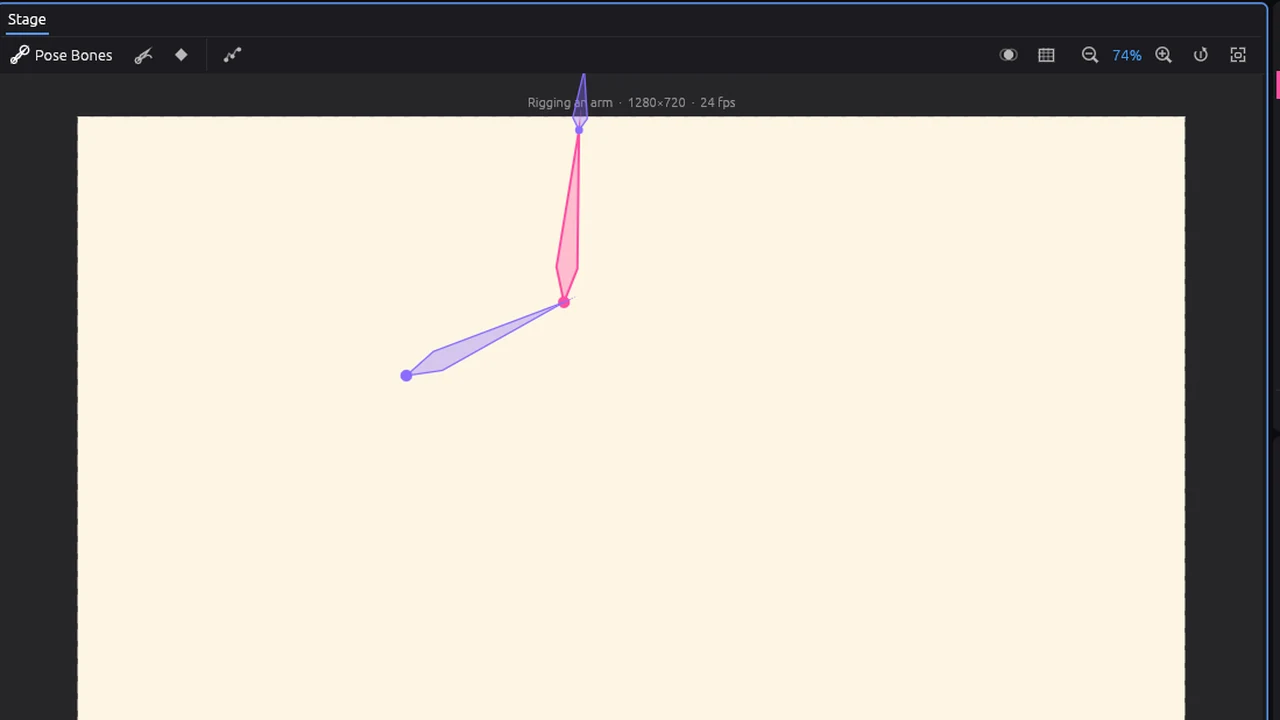
- On frame 0 (the setup) a drag only tries the rig and springs back; Shift+drag changes the setup itself. Shift
Put drawings on the bones
Draw the parts inside the bone layer and tell each one which bone to follow.
- Select the Arm layer and add a vector layer: it goes inside the bone layer. Draw the upper sleeve on it. Add two more for the forearm and the glove.
- Take Bind, select one of the parts in Layers and click its bone: the whole part follows that bone, like a cut-out. J
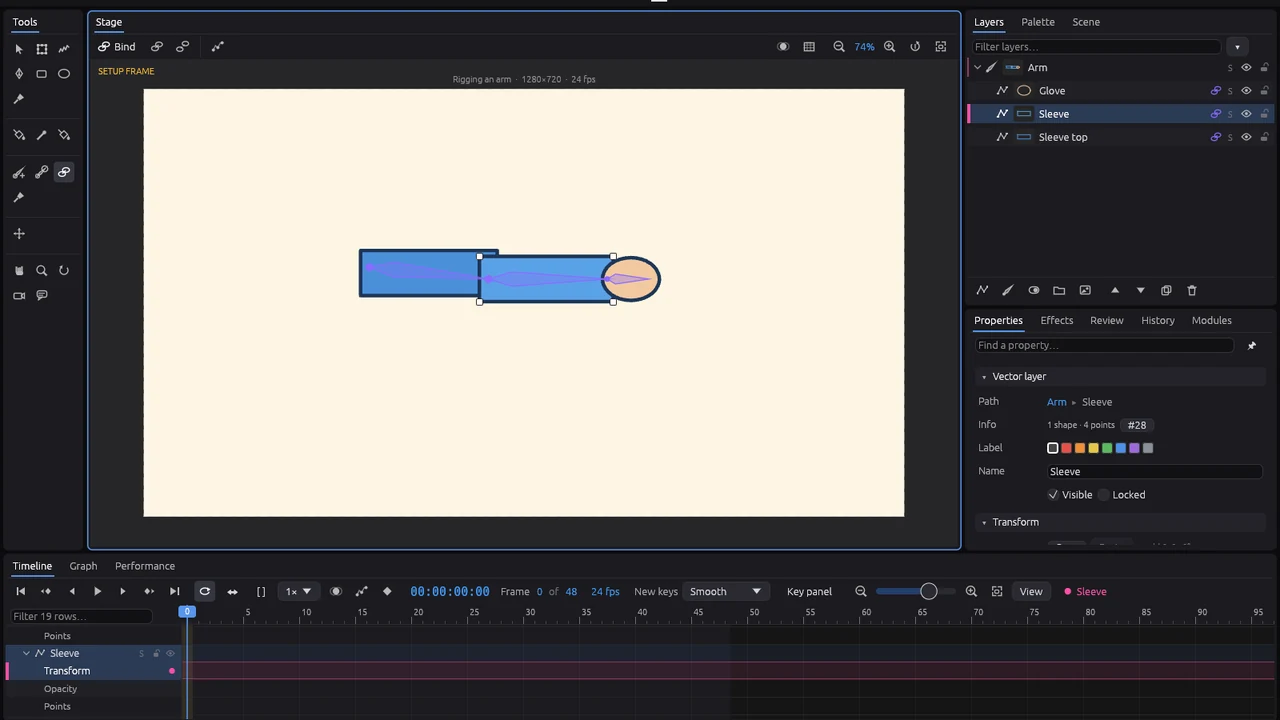
- For one drawing that bends smoothly (a hose-like arm), bind its points instead: Ctrl+B ties every point to its nearest bone — or select points with a box first and click a bone. Alt+click a bone releases. Ctrl+BAlt
- Go to a frame after 0 and pose the bones: the drawings come along.
Controllers, poles and limits
Animators move a hand, not three angles. A controller puts the hand where you drag it; the arm works out the rest.
- On frame 0, select the Forearm bone. In Properties ▸ Control rig ▸ IK target press Add controller (or Bone ▸ Control Rig ▸ Add IK Controller). A handle appears at the wrist.
- Press Add pole on the Pole row: a second handle beside the elbow decides which way it bends.
- Tick Limits and set the range (here −150° to 0°): the elbow never bends backwards.
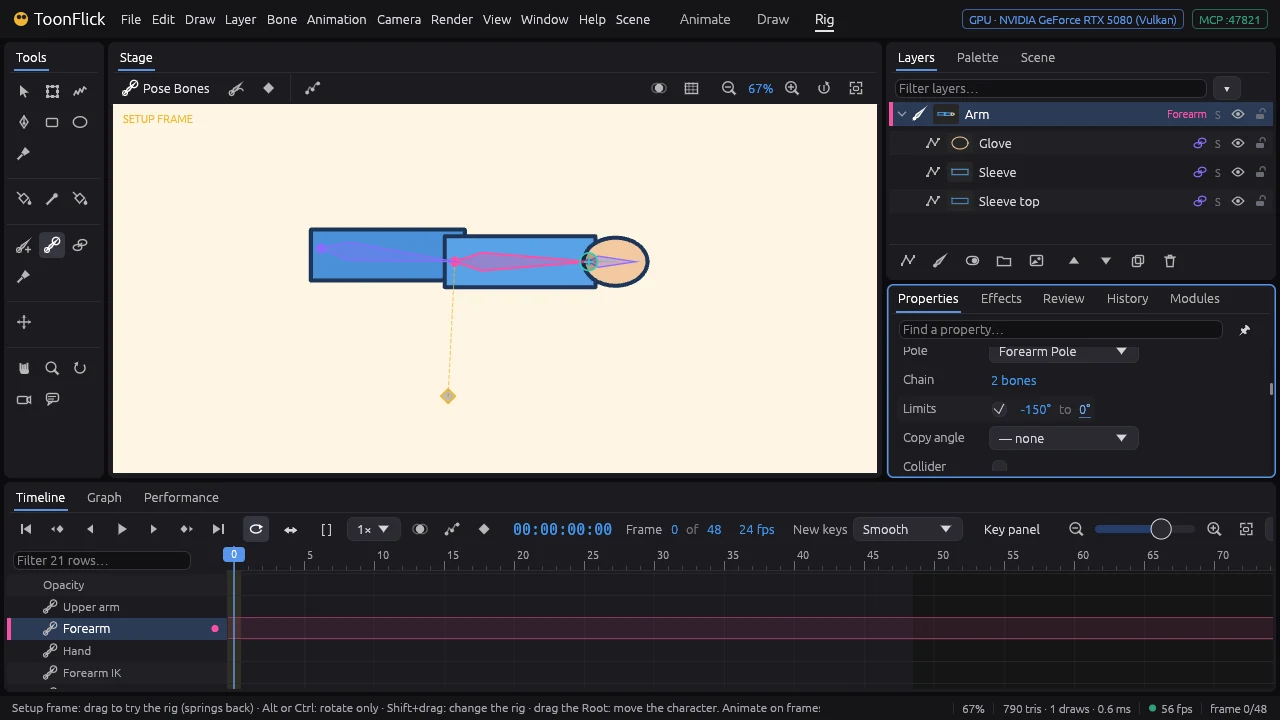
- Animate by dragging the controller on frames 1 and later; the arm reaches for it. Add the controller before posing — poses keyed by hand earlier stay as they are. N
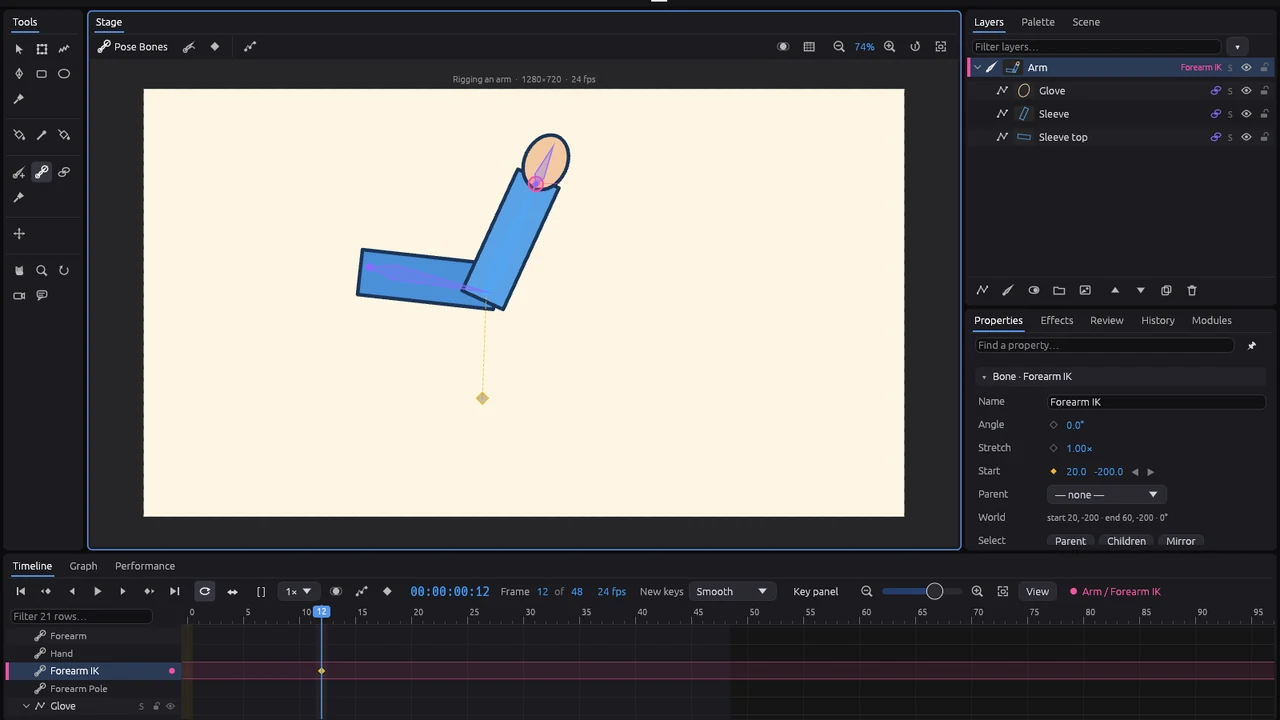
- To hand an IK arm over to plain rotation without a jump: Bone ▸ IK ▸ Switch to FK (Keep Pose), and back.
Smooth bending: meshes and weights
Cut-out parts (E2) turn at the joints. One drawing that bends like rubber — a hose arm, a tail, a sleeve — needs a mesh and weights.
- Put the drawing inside the bone layer (here a Tube over two bones, Upper and Lower). Select it, then Bone ▸ Mesh ▸ Create Mesh: a fine net of triangles under the drawing (Create Mesh (Detail) picks coarse, medium or fine).
- Bone ▸ Mesh ▸ Auto Bind Mesh ties every point of the net to the bones near it, blending where they meet.
- Pose the bones on a frame after 0 (Pose Bones, N): the drawing bends smoothly at the joint instead of breaking. N
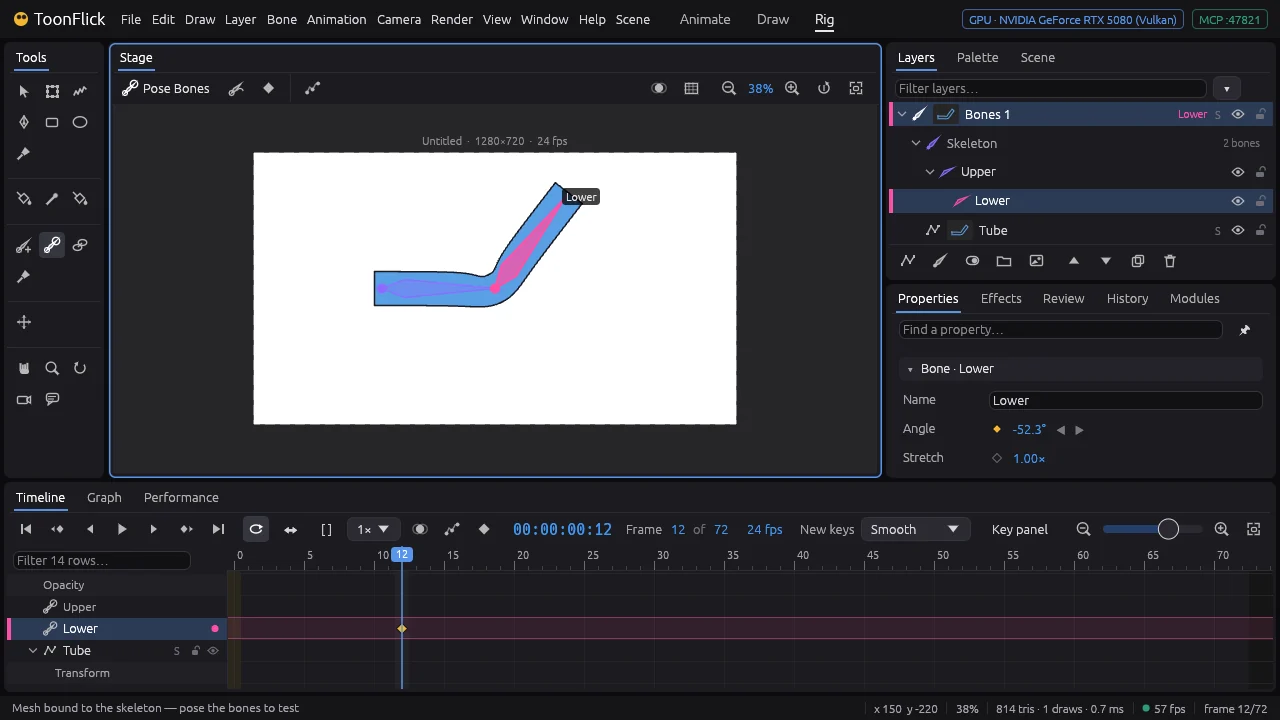
- To fine-tune it, take Weight Paint (G) with the drawing selected and pick a bone — click it on the stage or in the Skeleton folder. The net shows how strongly that bone moves each part: red fully, green half, blue not at all. G
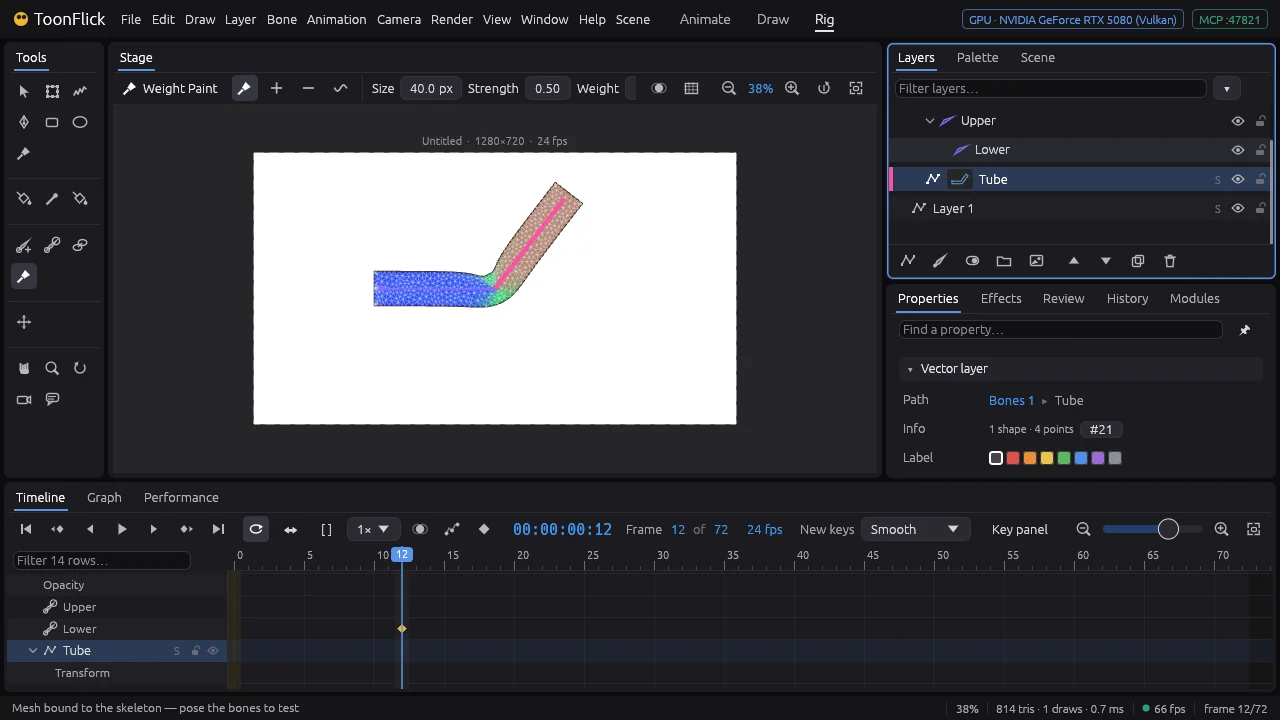
- Drag to paint more of that bone, Ctrl+drag to take it away, Shift+drag to smooth the blend. Size, Strength and Weight are on the bar. Bone ▸ Mesh ▸ Mirror Weights copies one side to the other. CtrlShift
Morphs and correctives
Bones bend a drawing, but some poses need a hand-made touch: an elbow tip, a bulging muscle, a crease. A corrective is a shape fix that comes in by itself as a bone turns.
- Start from a bent pose — here the Tube from E4, the Lower bone turned on frame 12. Select the drawing; Properties ▸ Morphs & correctives has the bone that turns most there already picked as the driver.
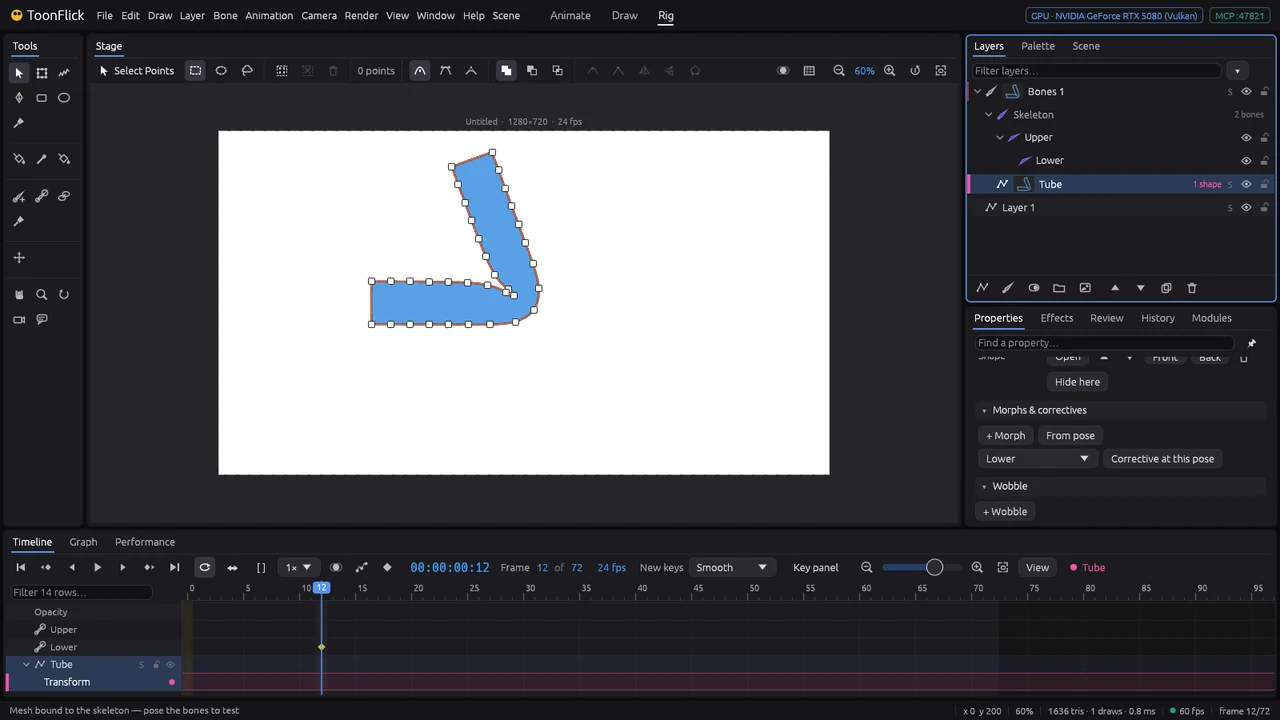
- Click Corrective at this pose. The stage gets an orange frame — EDITING CORRECTIVE — and every point you move now goes into the fix, not the drawing.
- Move the points into the shape this pose wants (Select Points, V) — here the outer corner pulled out into an elbow tip. Then Done editing. V
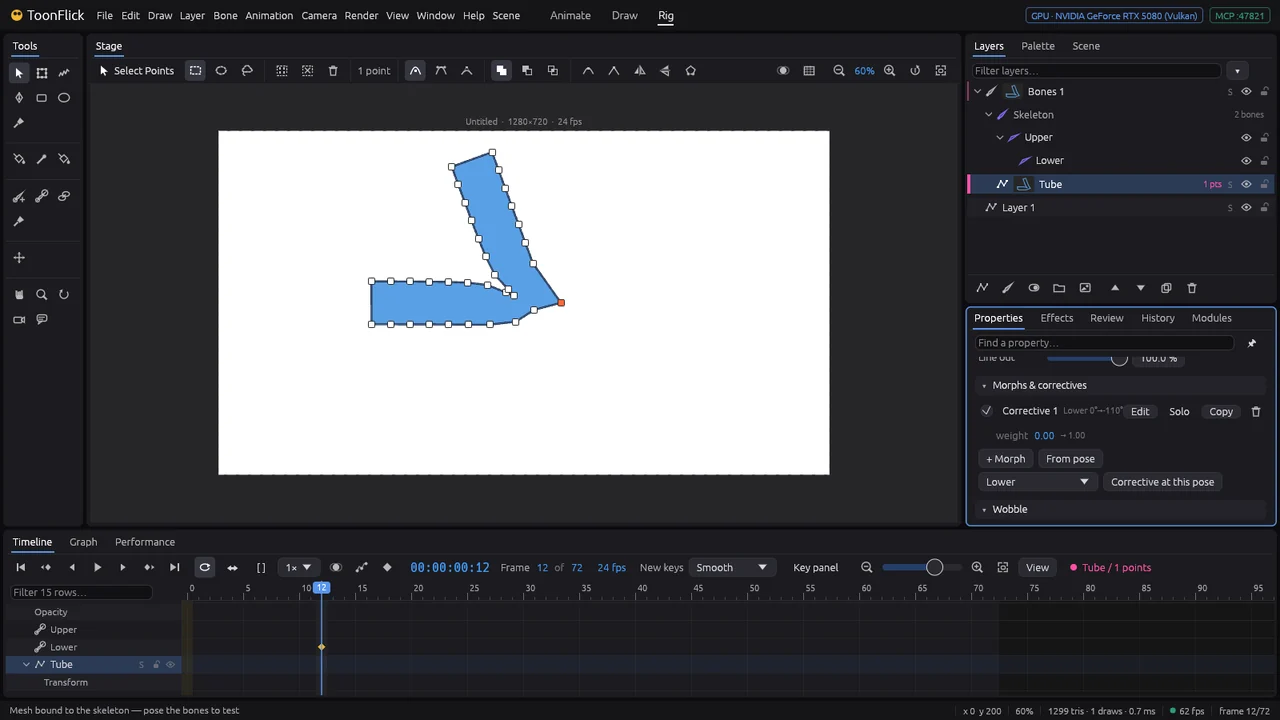
- Scrub: the fix follows the bone. Straight (0°) it is gone, at the pose (here 110°) it is full, halfway it is half — the arrow after weight shows how strong it is on this frame.
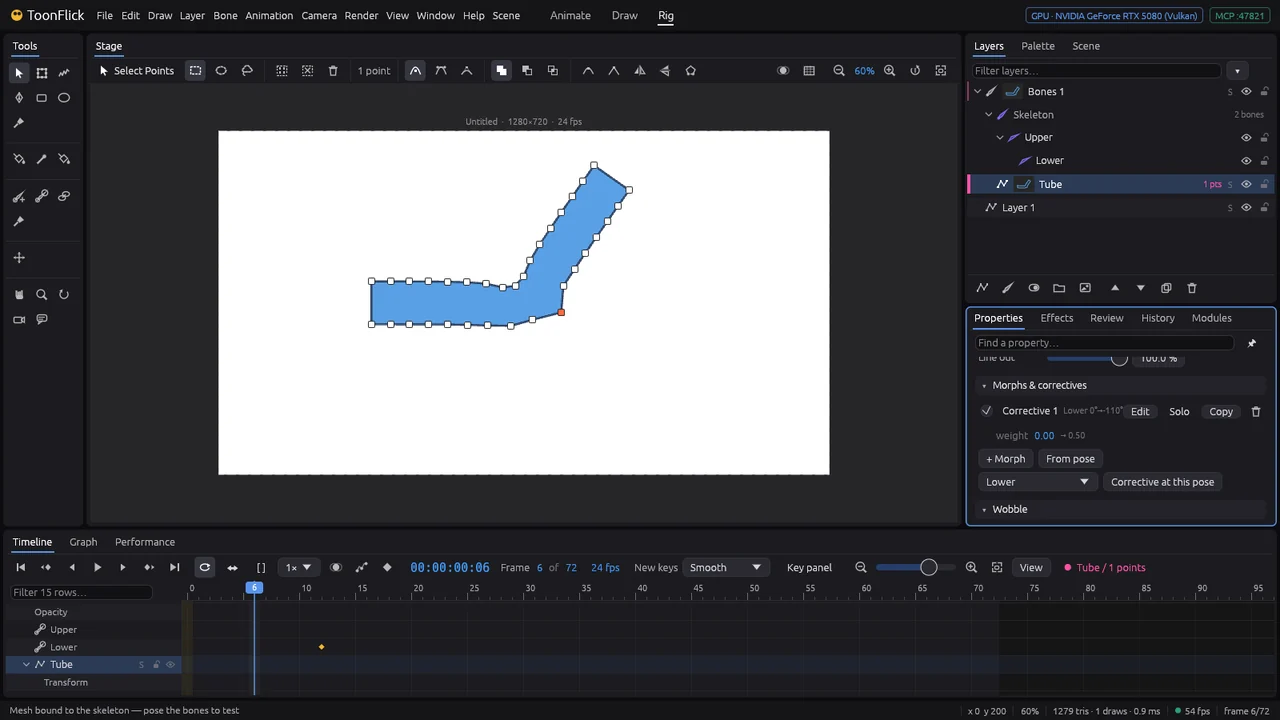
- Each fix in the list has Edit (change it again), Solo (show it alone at full strength), Copy and an on/off box. + Morph makes a plain morph instead — a shape you dial by its weight (and key it); From pose turns the current pose into one.
Joysticks: one handle for a whole pose
Turning five bones for every look is slow. A joystick remembers whole poses and blends them as you move one handle — then you animate only the handle.
- Select the bone layer (here the arm from E4) and click Add joystick in Properties ▸ Joysticks (or Bone ▸ Control Rig ▸ Add Joystick). A handle appears beside the skeleton, with a Joystick handle row in the Skeleton folder.
- Pick its kind: Square (2D) and Circle (2D) have nine places (a 3×3 grid), Slider ↔ and Slider ↕ three, On / off two, Dial (angles) turns between two angles. Here a Slider ↔. The blue number is its reach — how far the handle goes to a side.
- Go to a frame after 0, pose the bones (here the elbow bent) and click the right cell: that pose is recorded there. The keys that made it go — the joystick takes over. Pose again (the arm raised) and click the left cell. The middle is the setup pose.
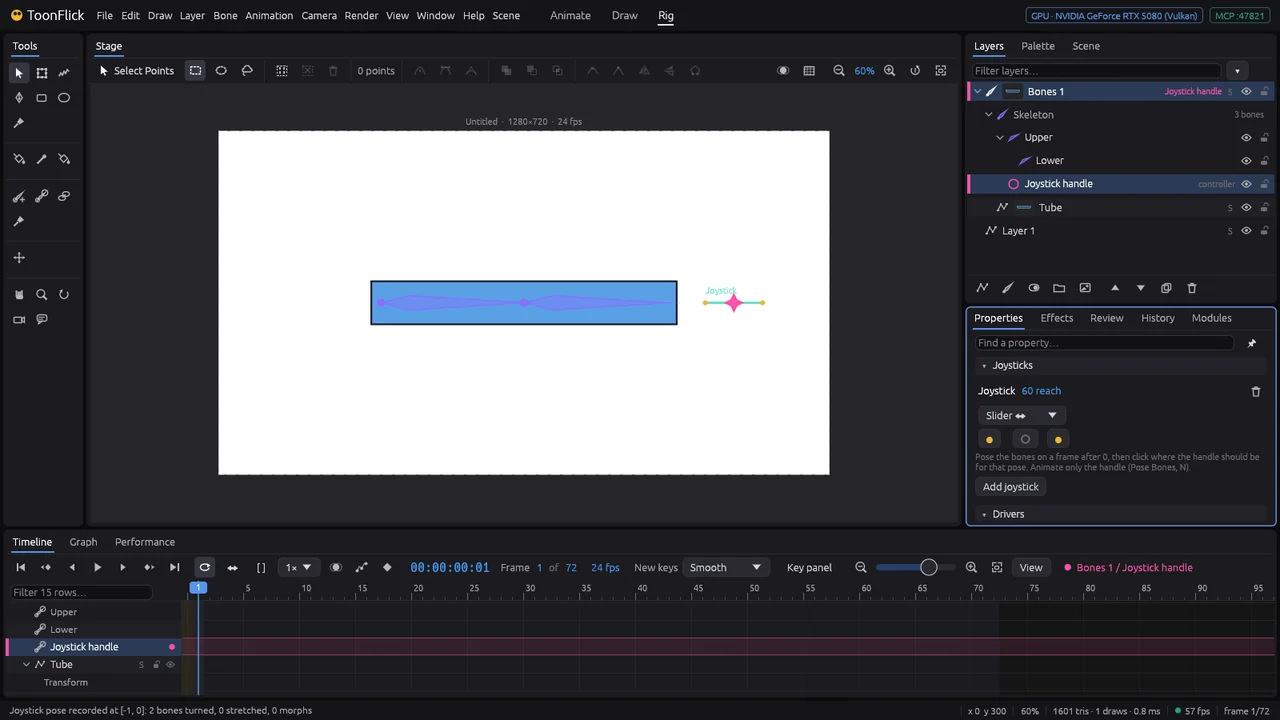
- Now animate just the handle: Pose Bones (N), drag it on the stage and it keys itself. Right bends the elbow, left raises the arm, anywhere between blends the two. N
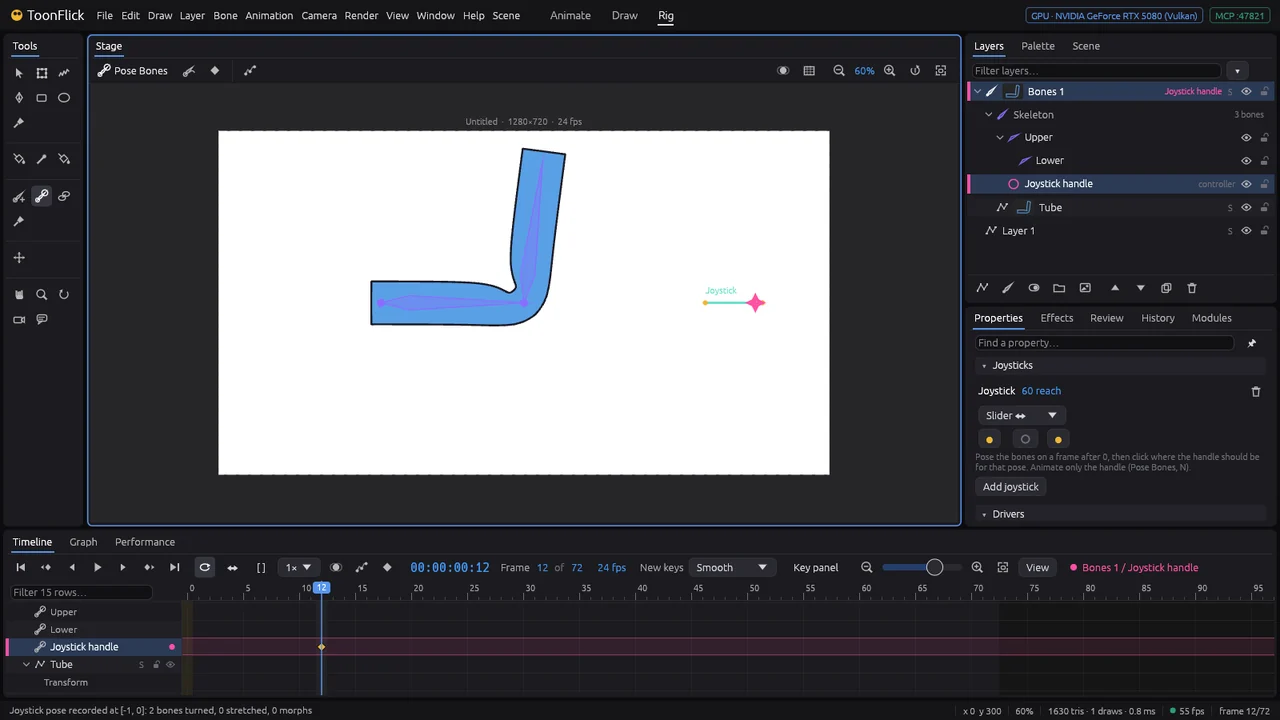
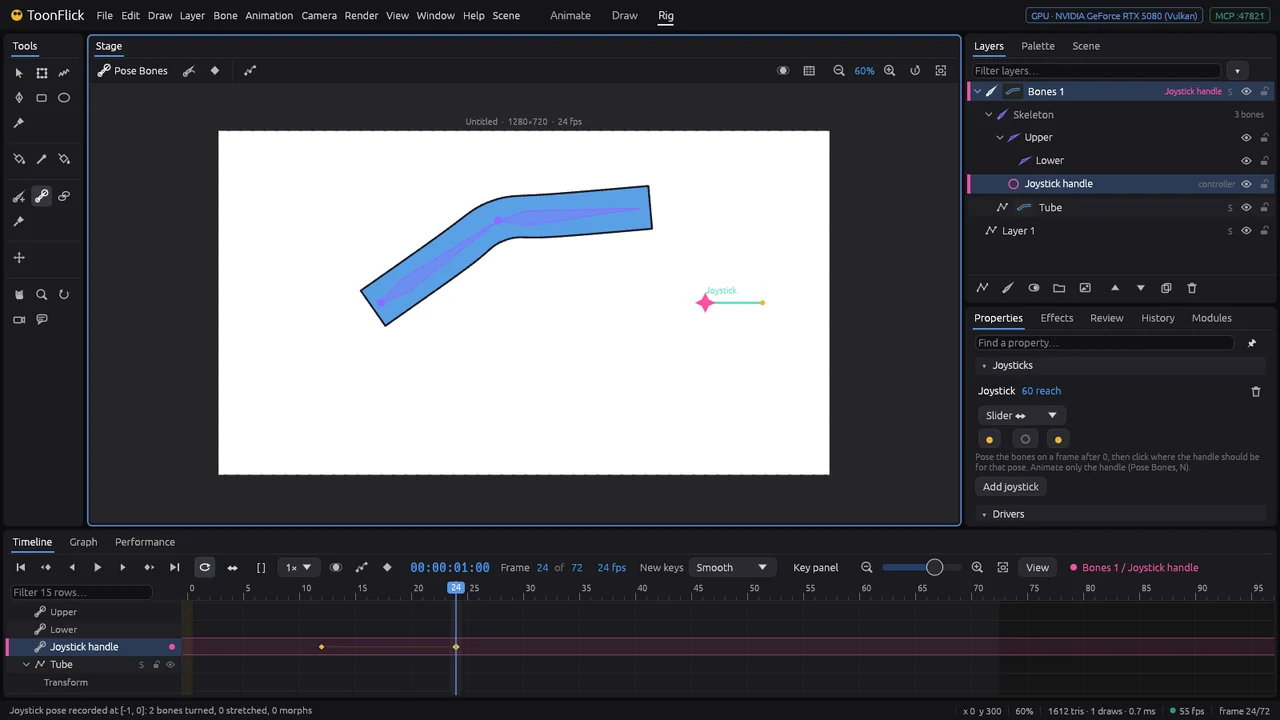
- To change a pose, record its cell again; right-click a filled cell forgets it, the bin removes the joystick with its handle. Poses can turn bones, stretch them and set morph weights (E5). Heads that turn around with views are in part F.
Secondary motion: follow-through and wobble
Tails, ears, hair and bellies lag behind the body, overshoot and settle. You don’t key that — you turn it on and the app works it out from the motion.
- Here a Body bone with a three-bone tail (Tail 1–3) and a tail drawing bound by a mesh (E4). Only Body has keys: it swings up and down. Without follow-through the tail stays stiff, like a stick.
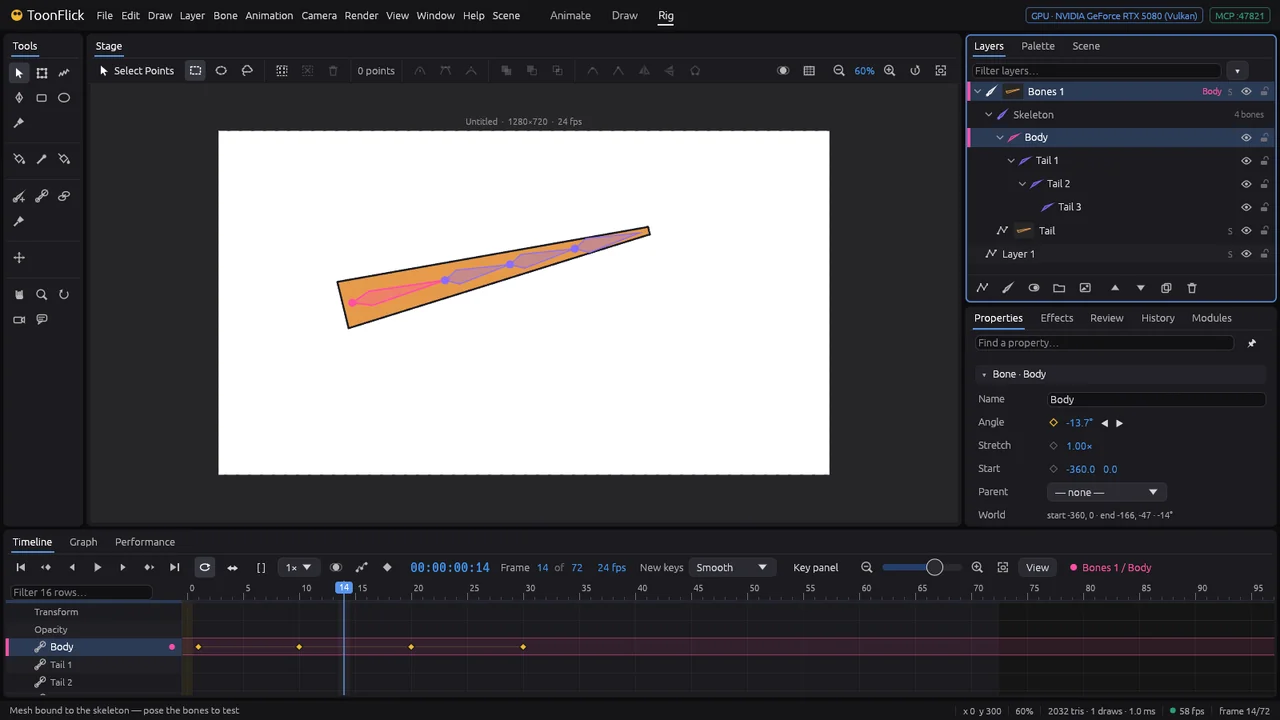
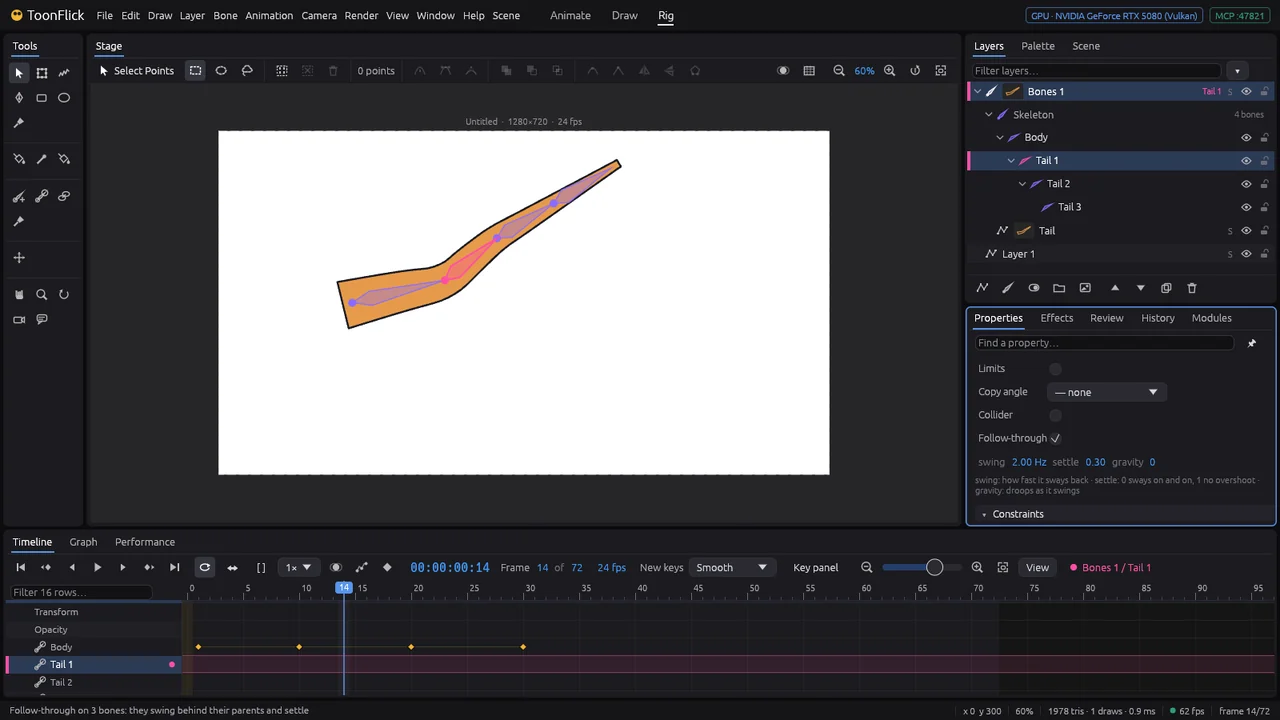
- Click Tail 1 (on the stage or in the Skeleton folder) and tick Follow-through in its Properties. It does every bone below too — the status bar says on how many.
- Play: the tail swings behind the body, bends, overshoots and settles after it stops. swing sets how fast it sways back, settle how soon it calms (0 sways on and on, 1 no overshoot), gravity makes it droop. Space
- For a drawing with no bones inside it — a belly, cheeks, a cape — select the drawing and click + Wobble in its Properties: its points spring behind the rig. Pin near bones keeps it on the skeleton near the bones and lets it wobble further away (or paint that with Weight Paint ▸ Wobble pins).
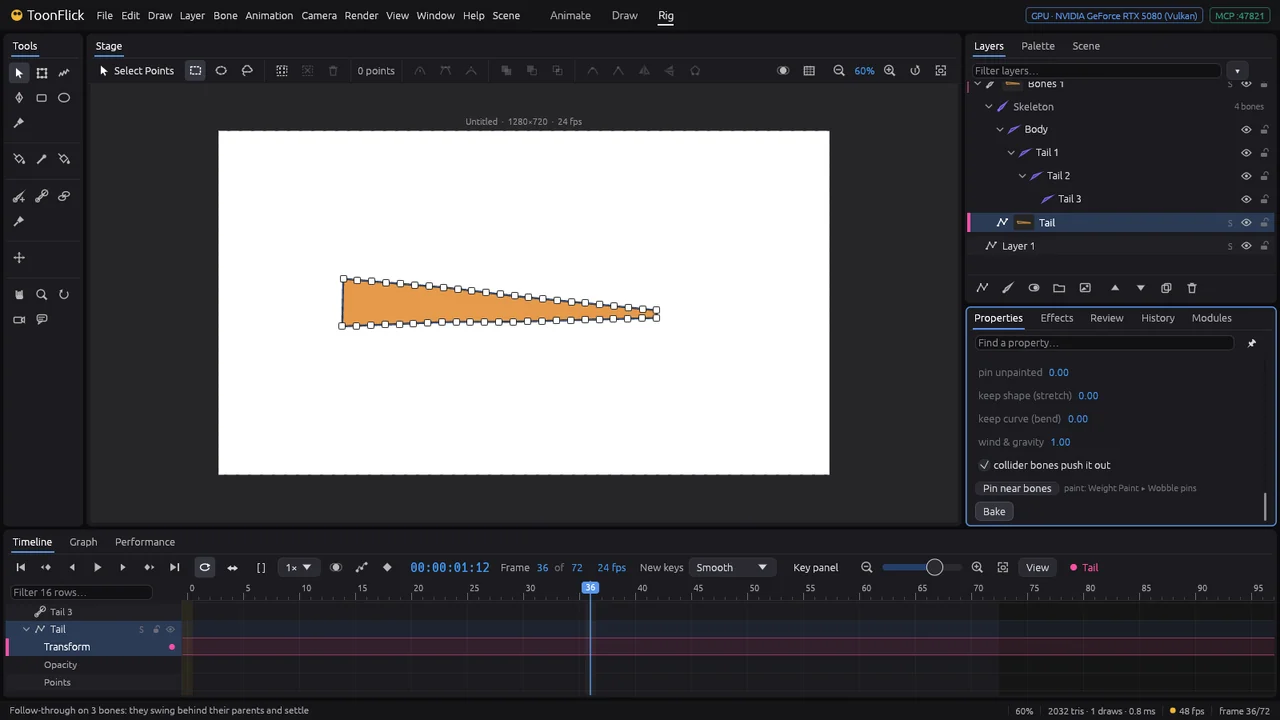
- The motion is worked out from the start of the shot. Bake stores it, so scrubbing anywhere and export give exactly the same — bake again after changing the animation.
Ready rigs: Bone ▸ Templates
Everything from E1–E7 already put together: a whole skeleton with IK, poles, joysticks or springs, and simple stand-in drawings you swap for your own.
- Bone ▸ Templates offers six: Humanoid (IK arms and legs with poles and limits), Humanoid (Side) (the same in profile, for walks — F3), Face (jaw, brows and tilt on joysticks), 360° Head (a dial through eight views), Spring Hair (strands that swing) and Soft Belly (a belly that wobbles).
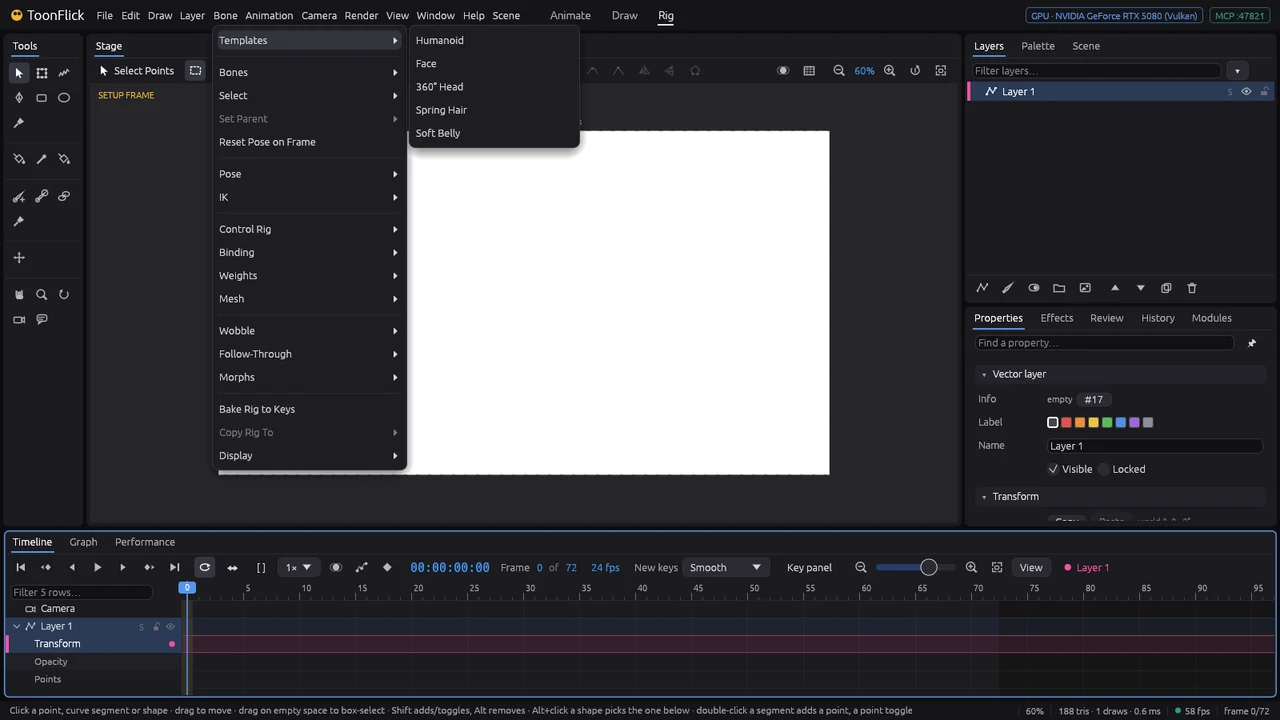
- Pick Humanoid: a new bone layer with 24 bones in its Skeleton folder and a Stand-in art folder — every part is a drawing already pinned to its bone (→ Head, → Hand R…). Circles at the wrists and ankles are the IK controllers, diamonds the poles.
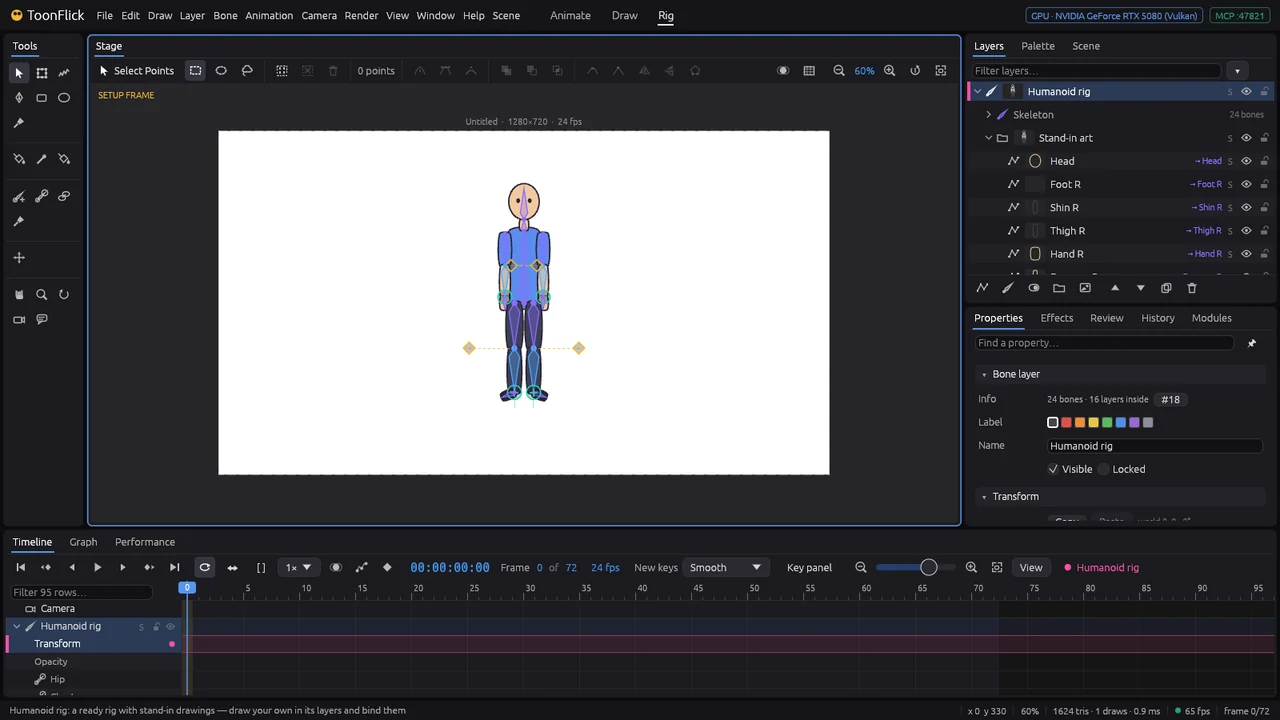
- Animate it right away: a frame after 0, Pose Bones (N), drag a hand or foot controller and the whole limb follows (E3). N
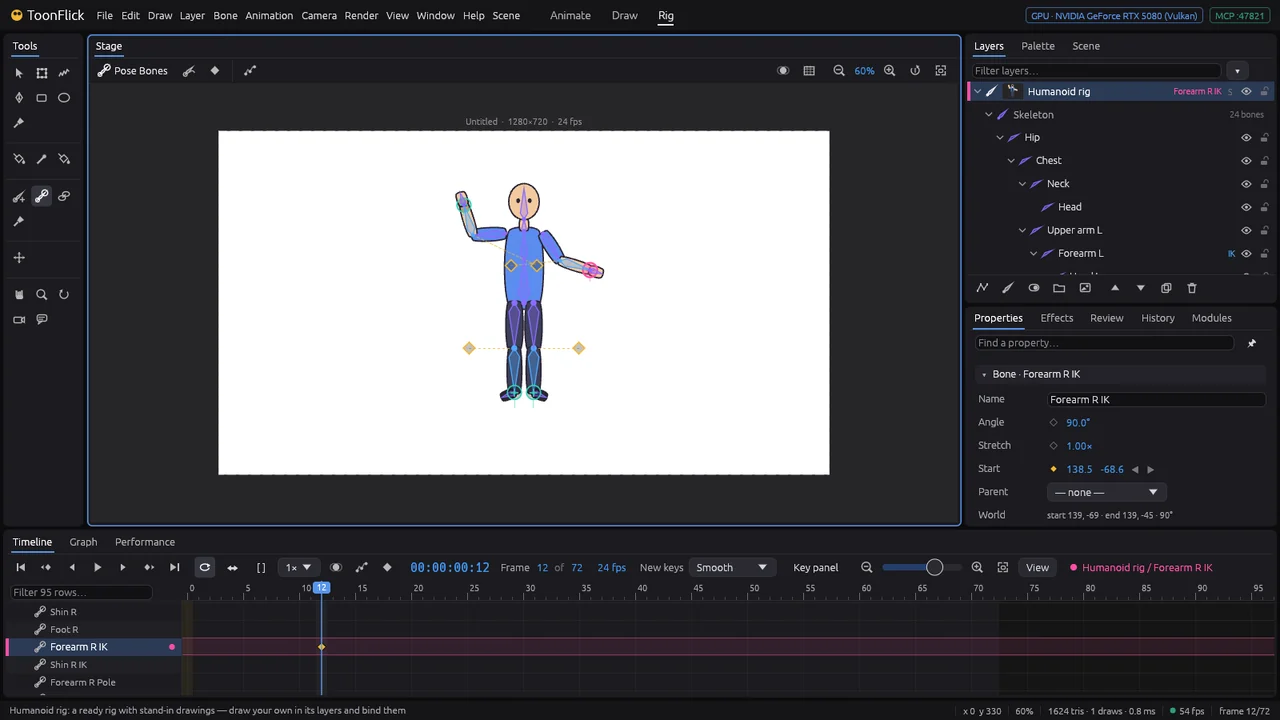
- Make it yours: draw in the stand-in layers (or replace them — select a drawing and bind it to the bone, E2), move bones on frame 0 to fit your character (Shift+drag changes the setup), rename what you like in the Skeleton folder. Shift
A gradient that follows a bone
Shading laid with a gradient stays where it was laid. On a part that bends — a forearm, a tail — tie it to the bone and it turns and stretches with it.
- Here the arm from E4. Select the drawing, take the Gradient tool (Shift+U) and drag along the forearm, from the elbow to the hand (B7 shows the tool). Shift+U
- Bend the forearm on a frame after 0: the gradient stays across the stage where it was laid, and the raised forearm is shaded wrong.
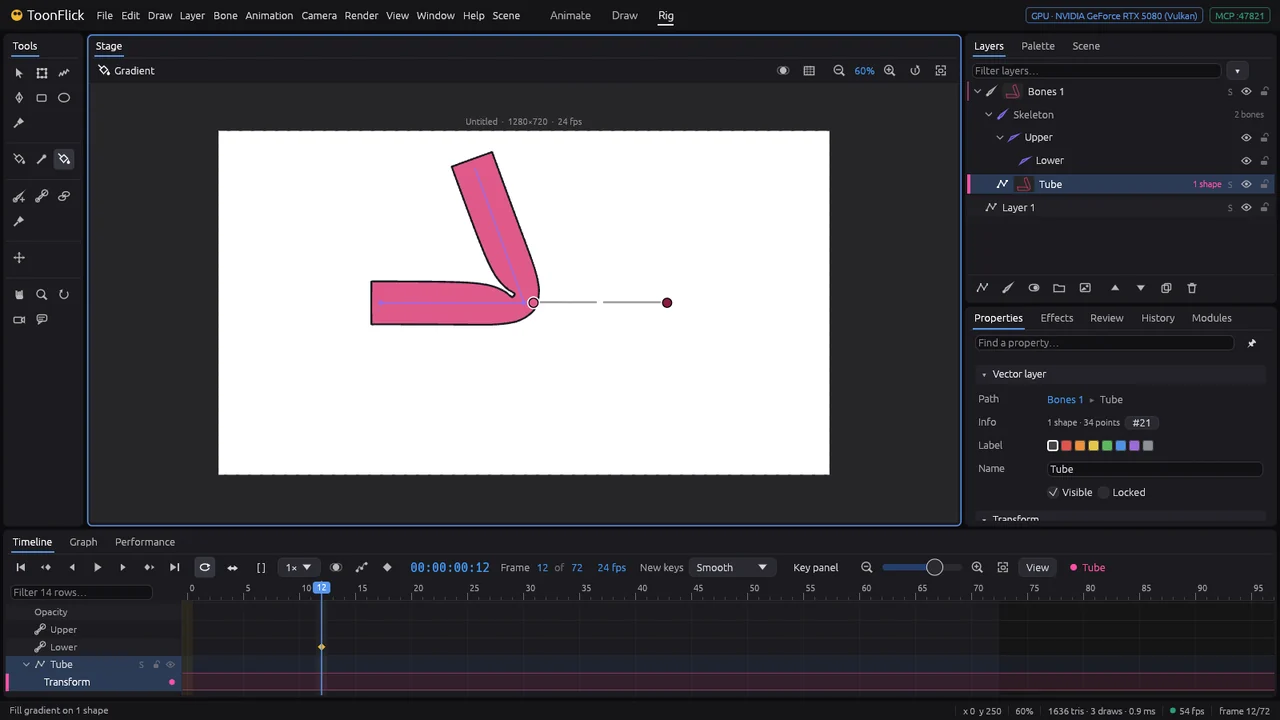
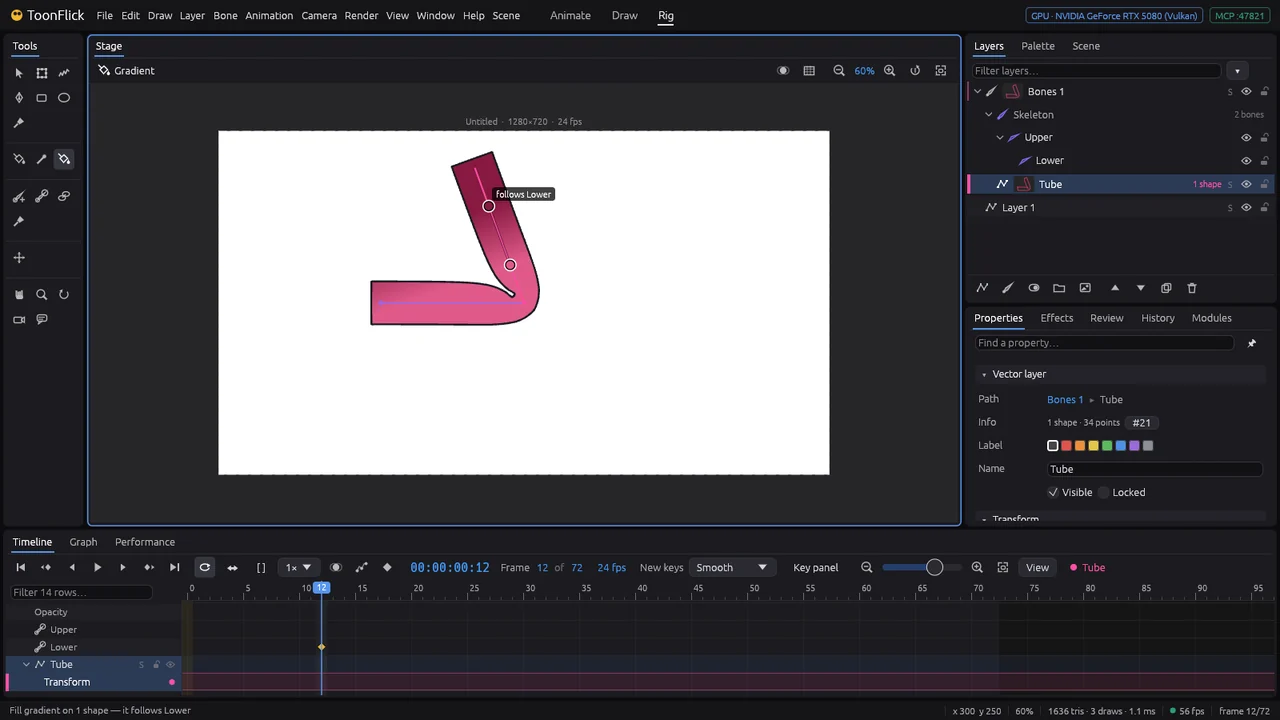
- With the gradient showing, the Gradient tool draws the bones. On frame 0, point at Lower — it lights up and names itself — and click.
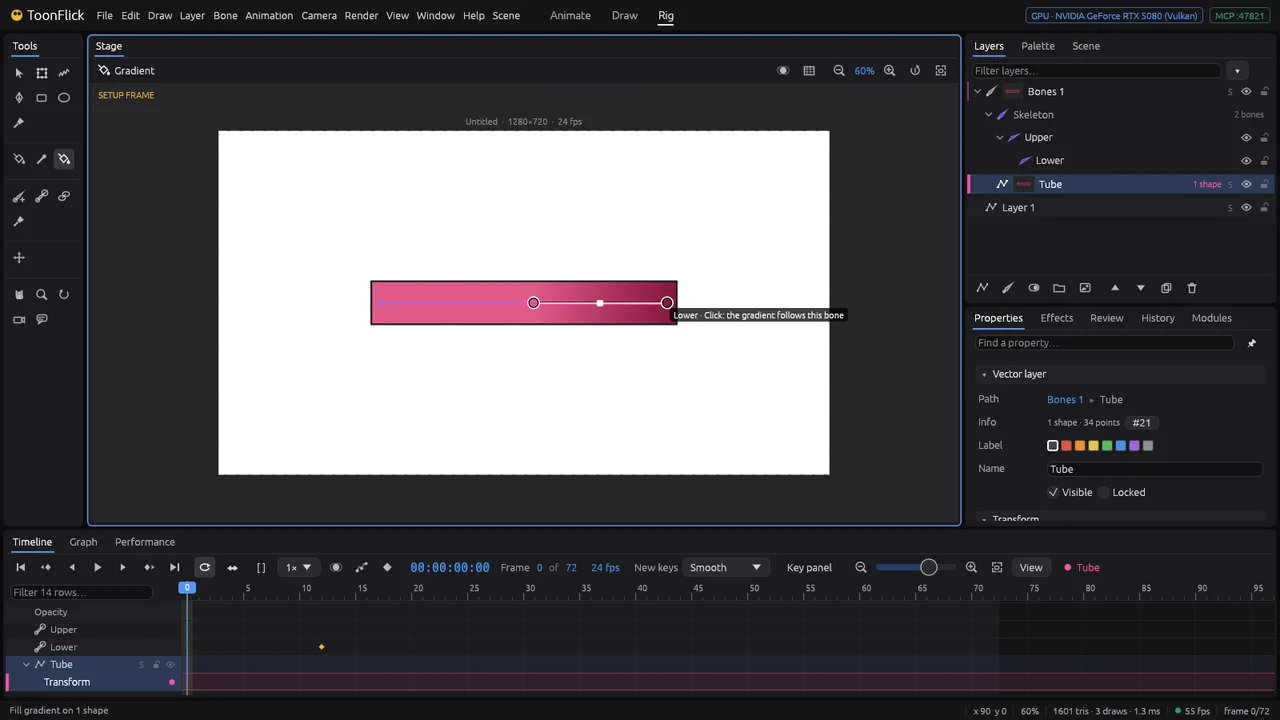
- Now it follows Lower: on every frame it turns and stretches with the forearm. The status bar and the label at its end say which bone. Alt+click the bone stops it; the Palette’s gradient editor has the same as Follow a bone… (with the shape selected). Alt
F · Characters
Talking: mouths and lip-sync
A talking mouth is a set of drawings, one per sound, and a layer that shows one at a time. Give it a voice recording and the app picks the mouths for you.
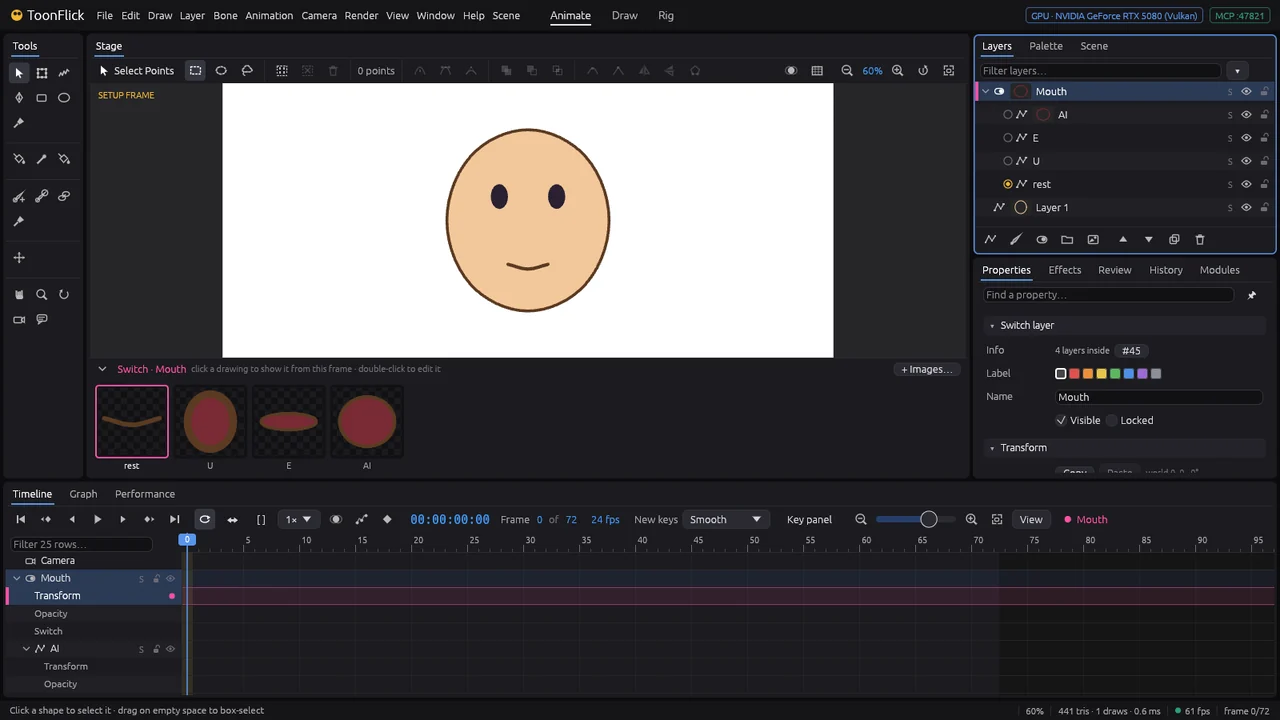
- Draw the face without a mouth. In Layers click New switch layer and name it Mouth (Properties ▸ Name). A strip under the stage shows the switch’s drawings — none yet.
- With Mouth selected, New vector layer puts a layer inside it. Make four and name them after the mouth shape: rest (closed), U (small and round), E (wide and flat), AI (wide open). Draw each mouth in its layer.
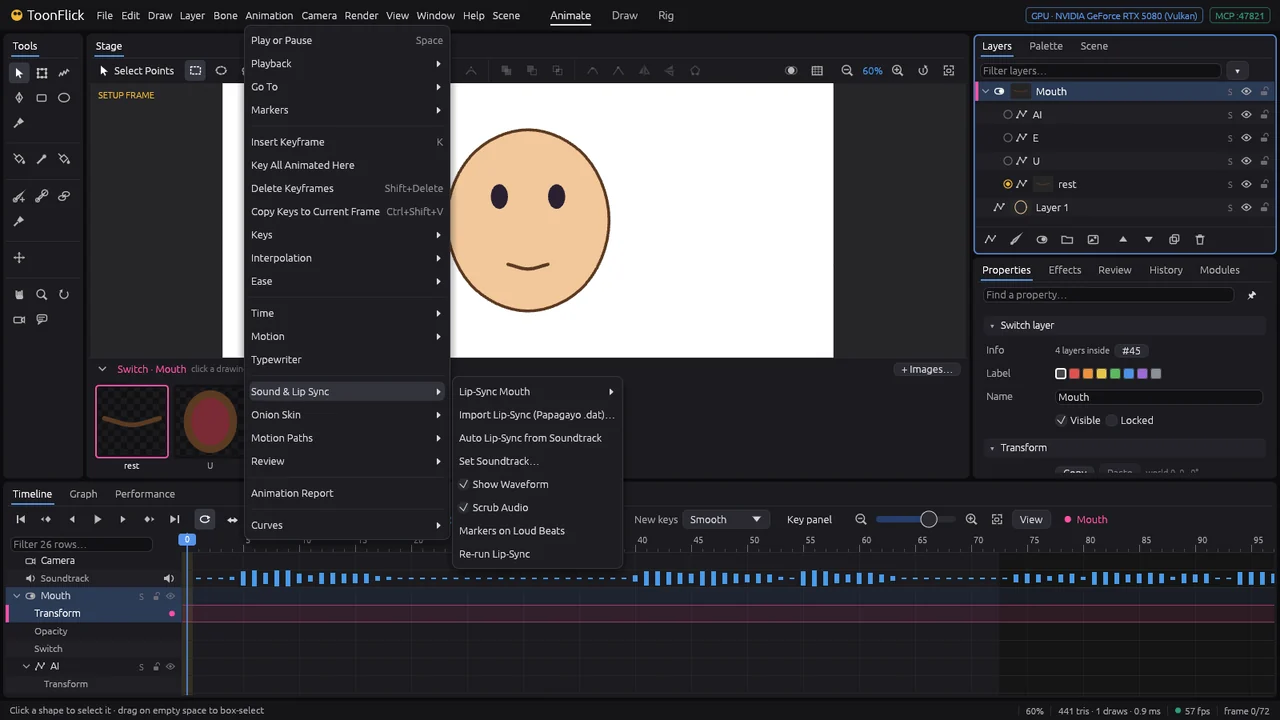
- Add the voice: File ▸ Import ▸ Soundtrack (WAV)… (D6). Then, with Mouth selected, Animation ▸ Sound & Lip Sync ▸ Auto Lip-Sync from Soundtrack.
- The mouth is keyed from the voice’s loudness: quiet closes it, loud opens it wide, and each shape stays at least two frames so it doesn’t flicker. If the voice runs past the end, the shot gets longer (the status bar says to which frame). Play (Space) to watch it talk. Space
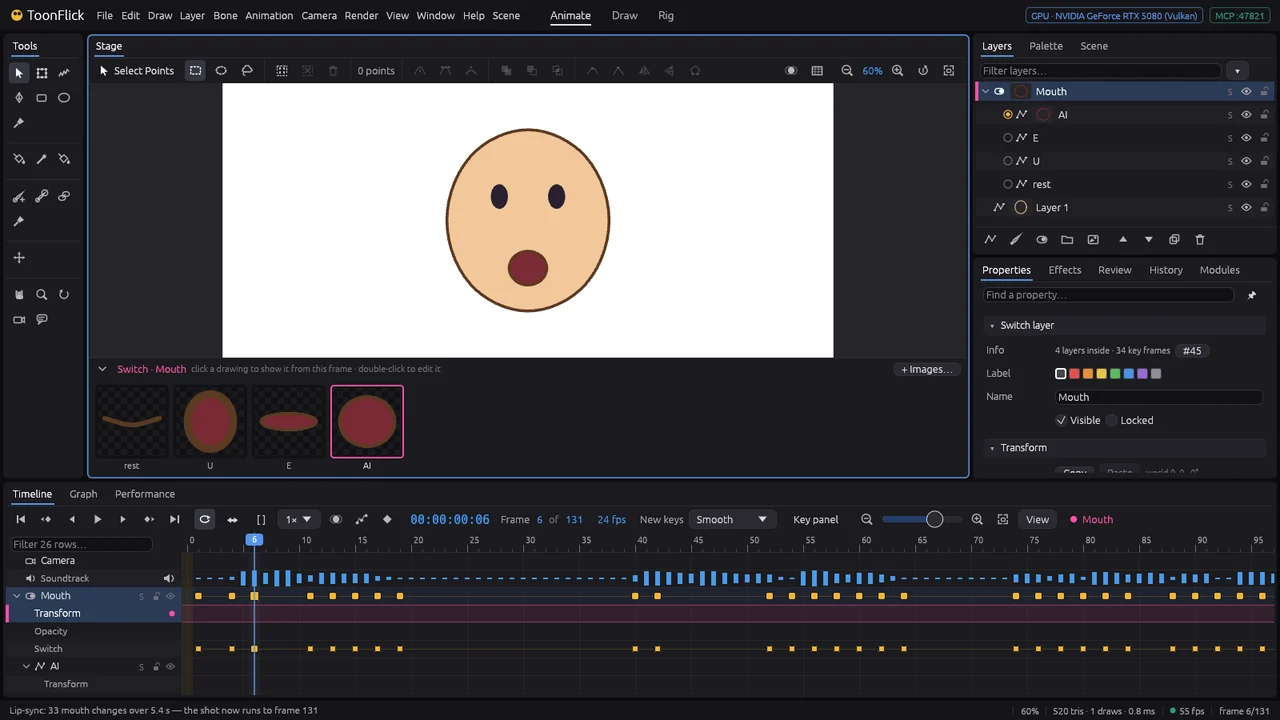
- Fix any frame by hand: click a mouth in the strip and it shows from that frame. Changed the recording? Re-run Lip-Sync. For mouths matched to the actual words, make a Papagayo file and use Import Lip-Sync (Papagayo .dat)….
Eyes: blinks and looks
An eye is three drawings: the white, the iris and the lid. The white works as a mask, so the iris and the lid show only inside the eye — the iris tucks under its edge, the lid closes over it.
- Put the three in a group (here Eye), from the bottom: White (the eye’s shape with its outline), Iris (ring, colour, pupil, highlight), Lid (a block of skin above the eye with a lid line at its lower edge). Unmasked, the lid hangs in the air and the iris would poke out of the eye.
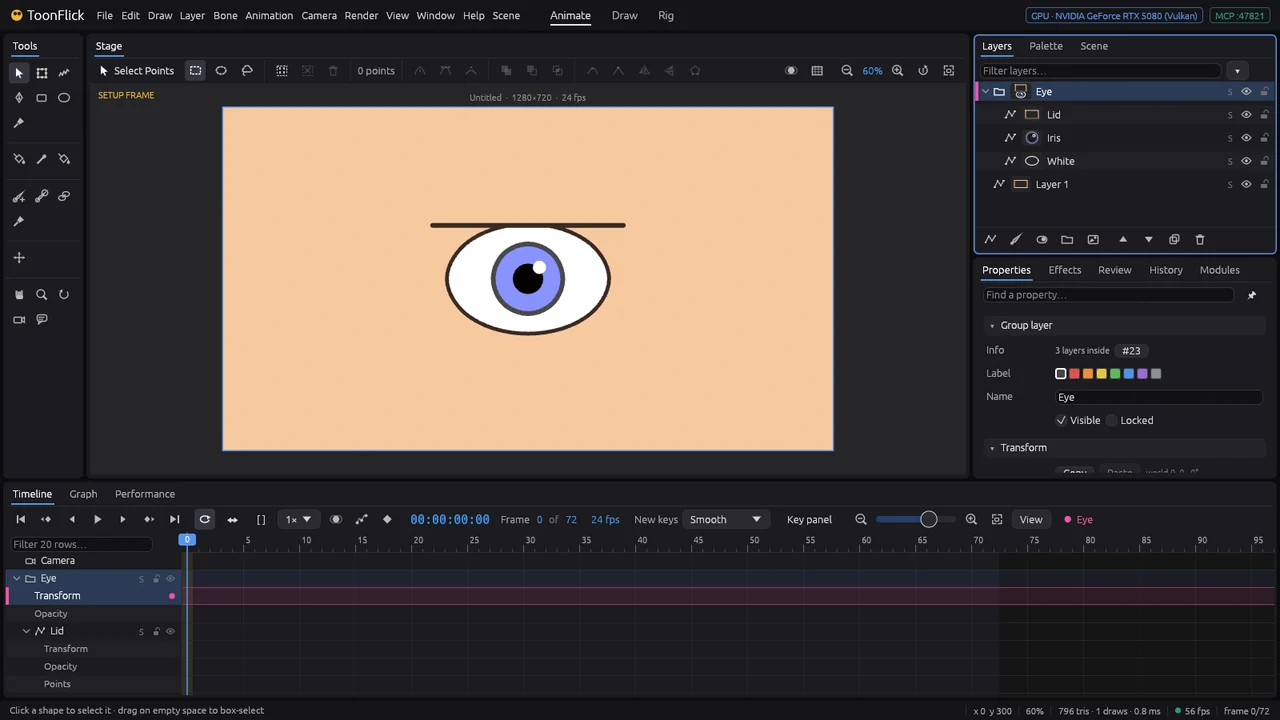
- Masks as in C3: select the group and tick Children can mask each other. White: Mask ▸ Add to mask, and tick Outline on top of masked layers so its outline stays over the lid. Iris and Lid: Mask ▸ Masked (clipped).
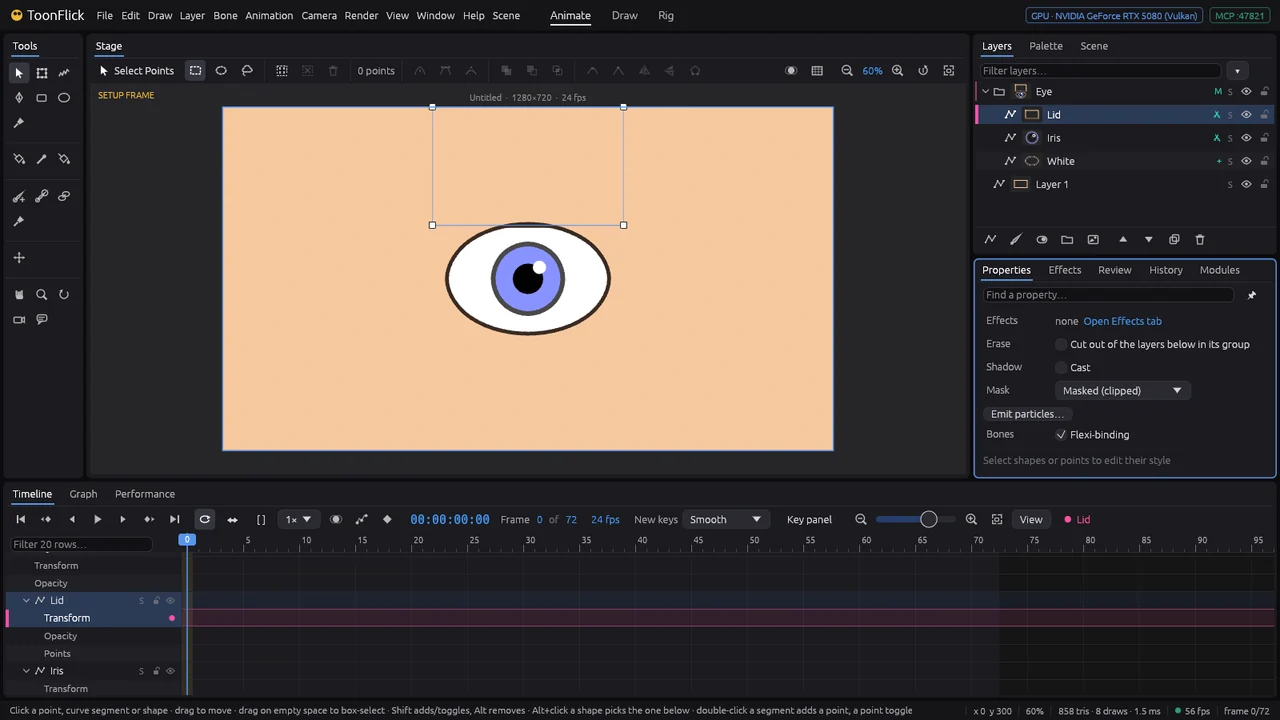
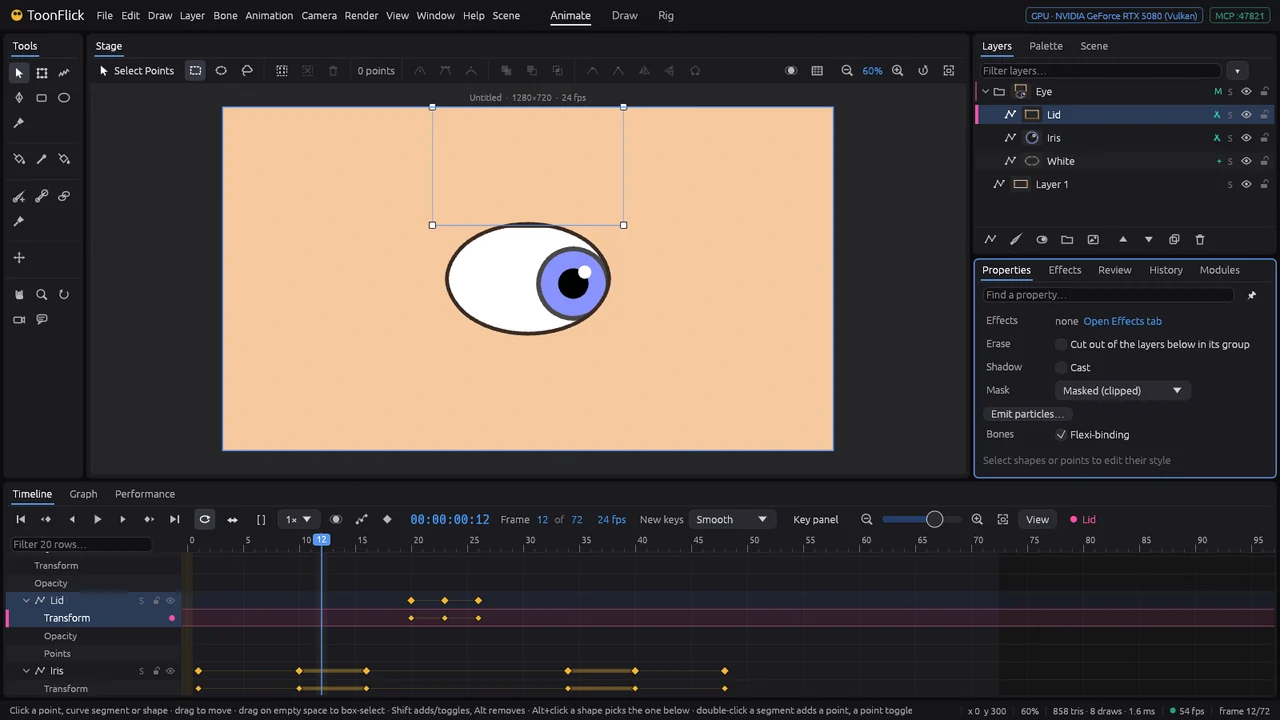
- Look: key the Iris layer’s position (Transform Layer, C2). Move it to a side and it slides under the eye’s edge instead of over the skin. Hold a look a few frames before moving on.
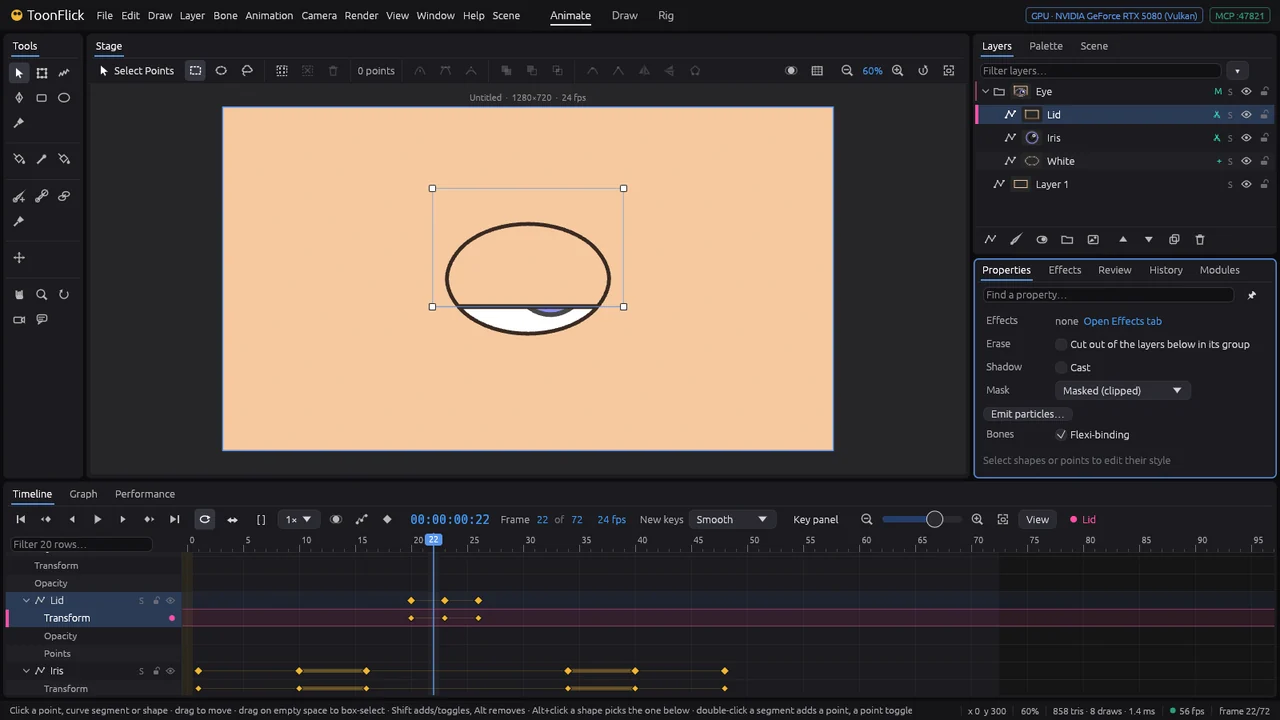
- Blink: key the Lid layer down over the eye and back — open, closed three frames later, open three after that. A blink is quick; the lid line travels across the white. Faster still: select the Eye group and Animation ▸ Motion ▸ Blink Here squashes it shut and open again over four frames (Blinks Through the Shot puts blinks all along; an eye drawn as a switch with a drawing named closed shows that one instead).
- For two eyes that look together, steer both irises with one controller bone, or mix looks and blinks on joysticks (E6). File ▸ Examples… ▸ Eyes: control bones and blend shapes has both, ready to take apart.
A walk
A walk is a cycle — two steps that repeat — done in place, and the character moved forward at the speed its feet push the ground back.
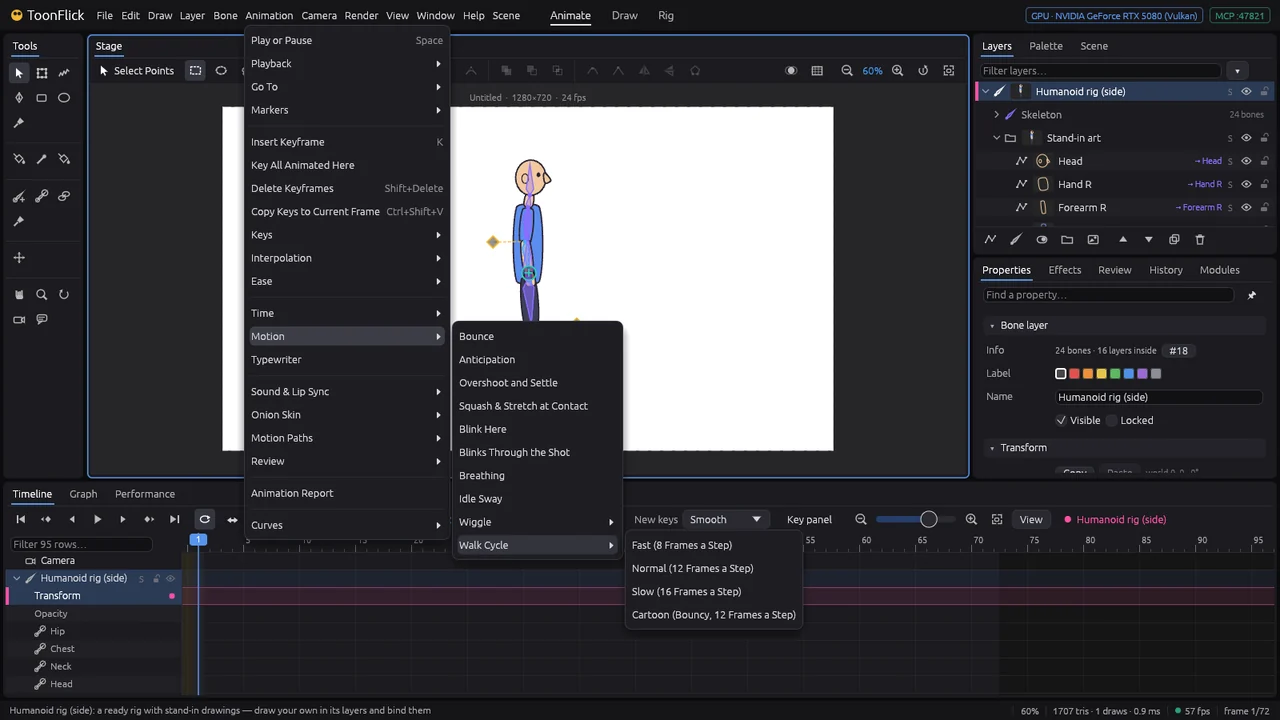
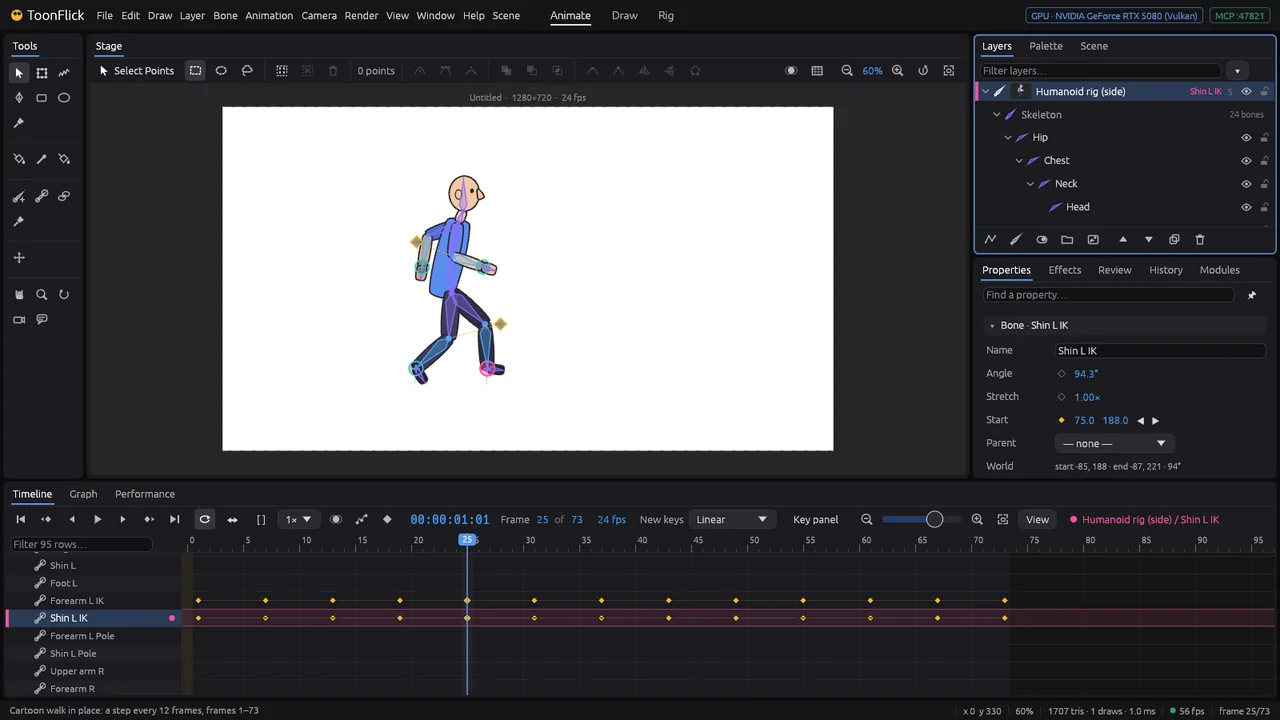
- Start from Bone ▸ Templates ▸ Humanoid (Side) — the E8 rig seen from the side, facing right, since a walk reads best in profile. Go to frame 1 and pick Animation ▸ Motion ▸ Walk Cycle ▸ Normal (12 Frames a Step) — or Fast (8) or Slow (16).
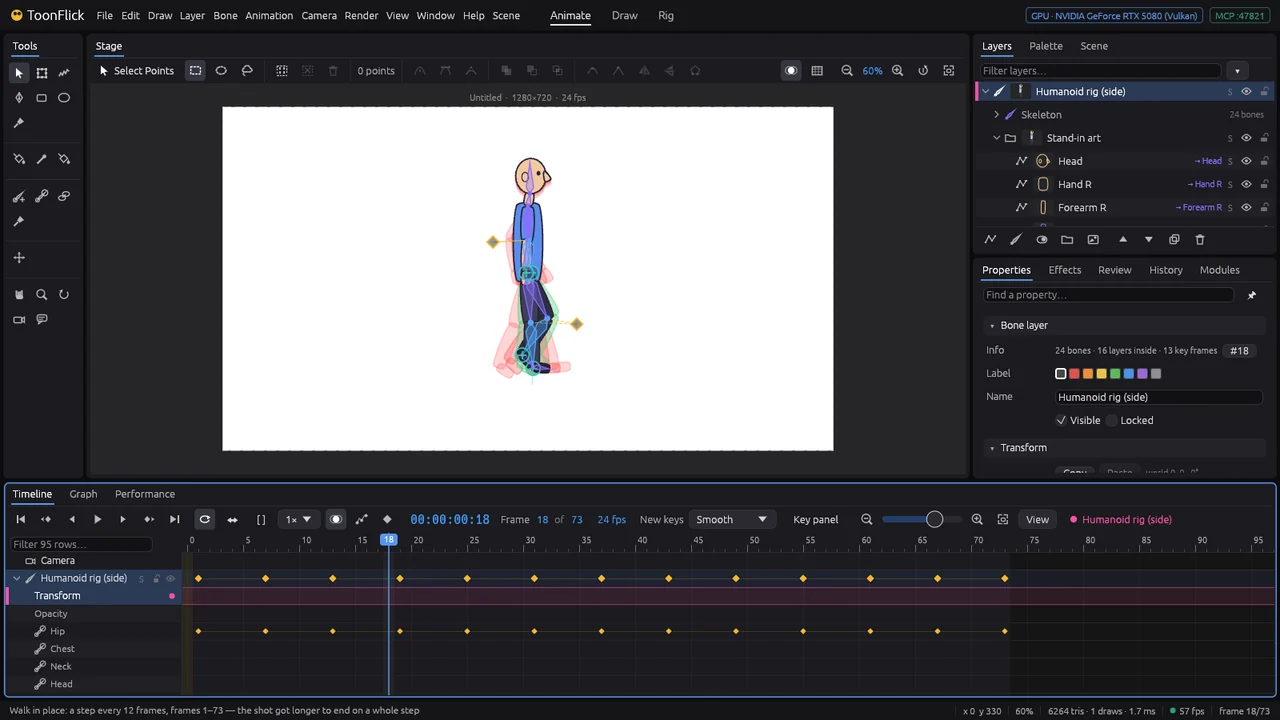
- The feet, hands and hip get keys from the playhead to the end of the shot: each foot plants and slides back, then lifts and swings through; the arms swing against the legs; the hip bobs. The shot grows a little to end on a whole step — the status bar says so. Onion skin (D5) shows the steps. Ctrl+Shift+O
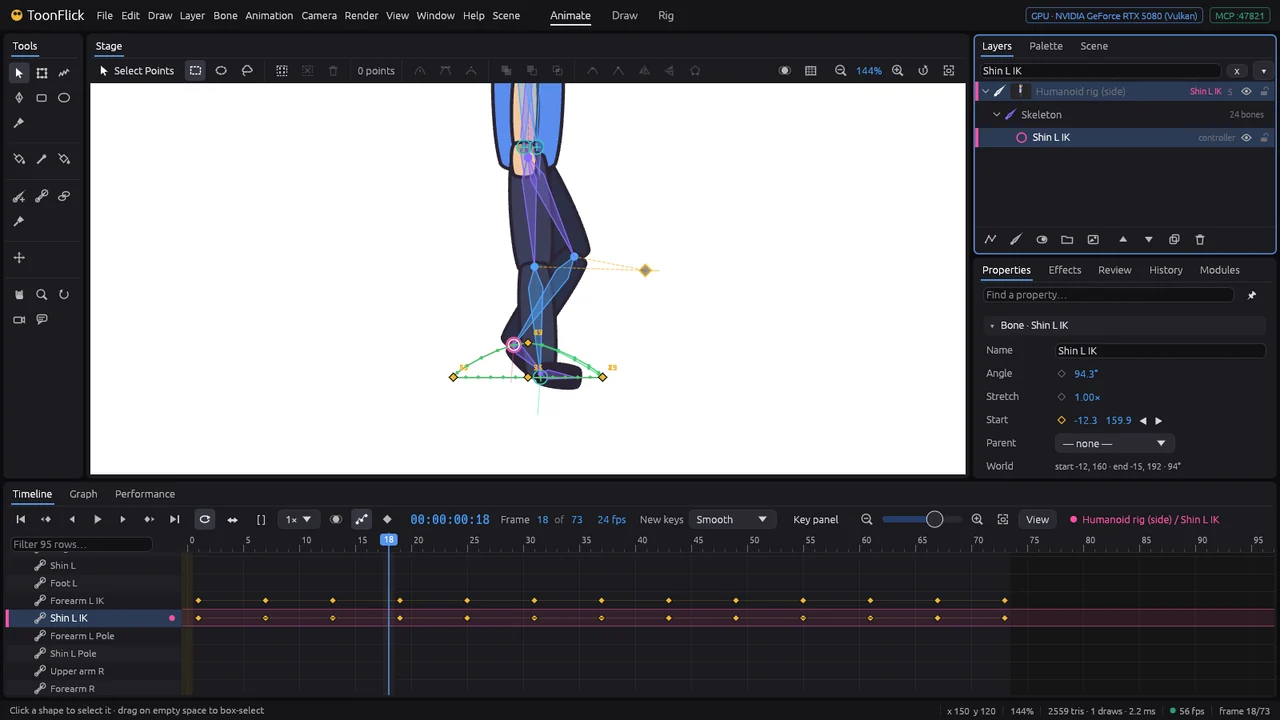
- Look at a foot’s path (D4): type Shin L IK in the Layers filter to find the foot’s controller, select it, Ctrl+Shift+P over the stage. A flat line along the ground (planted, sliding back) and an arch above it (the step). Drag its keys to change the step: a higher arch, a longer stride. Ctrl+Shift+P
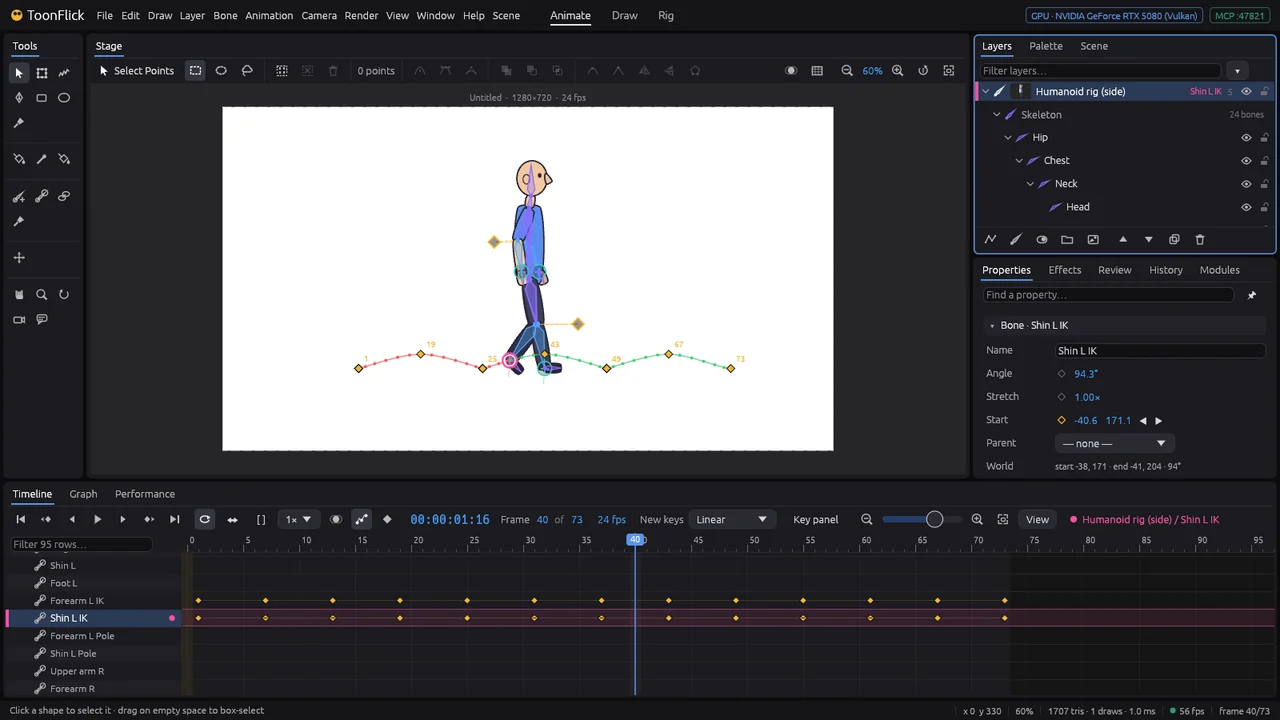
- Walking forward: set New keys to Linear (an even speed), then key the rig layer’s position (Transform Layer, C2) on the first and last frame. Normal moves a foot 130 back in 12 frames, so move the rig about 11 a frame. Right when the foot’s path stands still while planted — arches with points between them, no sliding.
- A cartoon walk: Walk Cycle ▸ Cartoon (Bouncy, 12 Frames a Step) instead. Longer steps with the knee lifted high, a deep dip on every contact, big arm swings, and the chest leaning into the walk and pitching with each step (the head stays level). Run it on the same frames again and it replaces the walk you had; the forward move stays.
- Your own cycle works the same: key one cycle by hand, select its keys and Animation ▸ Keys ▸ Repeat Cycle… repeats it as many times as you say (the shot grows to fit, and the status bar says so).
G · Look
Effects, recipes and looks
Glows, outlines, shadows, blurs and colour changes go on a layer — or on the whole scene — as a stack you can change any time. The drawing itself stays as it is.
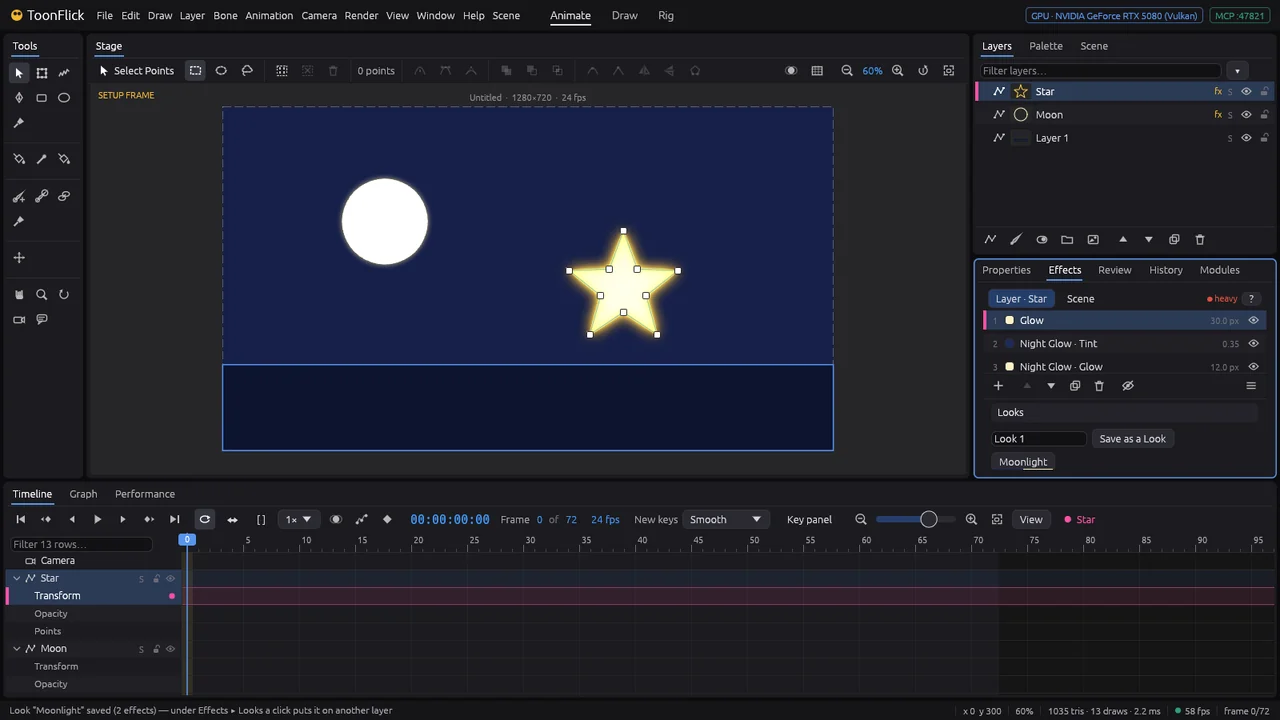
- Select a layer (here Star) and open the Effects tab next to Properties. At the top: Layer · Star or Scene — which stack you are editing.
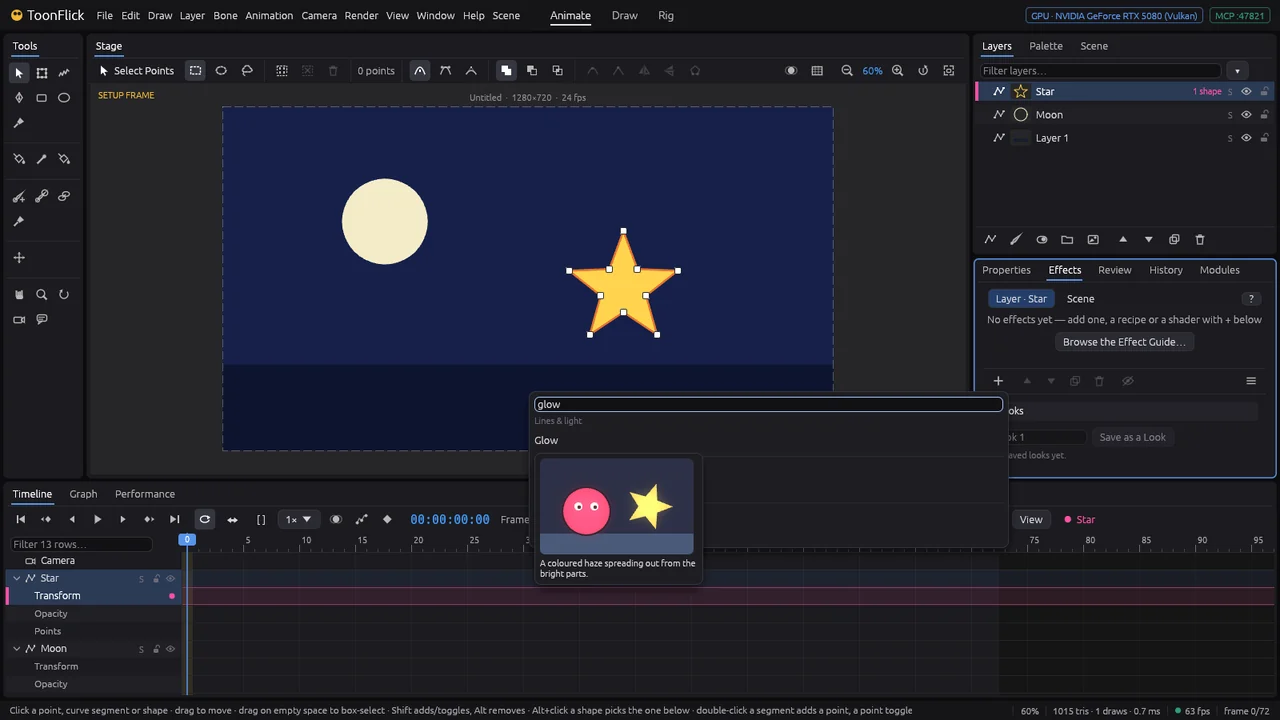
- Click + below the list and type to search. Rest on an effect and a moving preview shows what it does. Click it to add it.
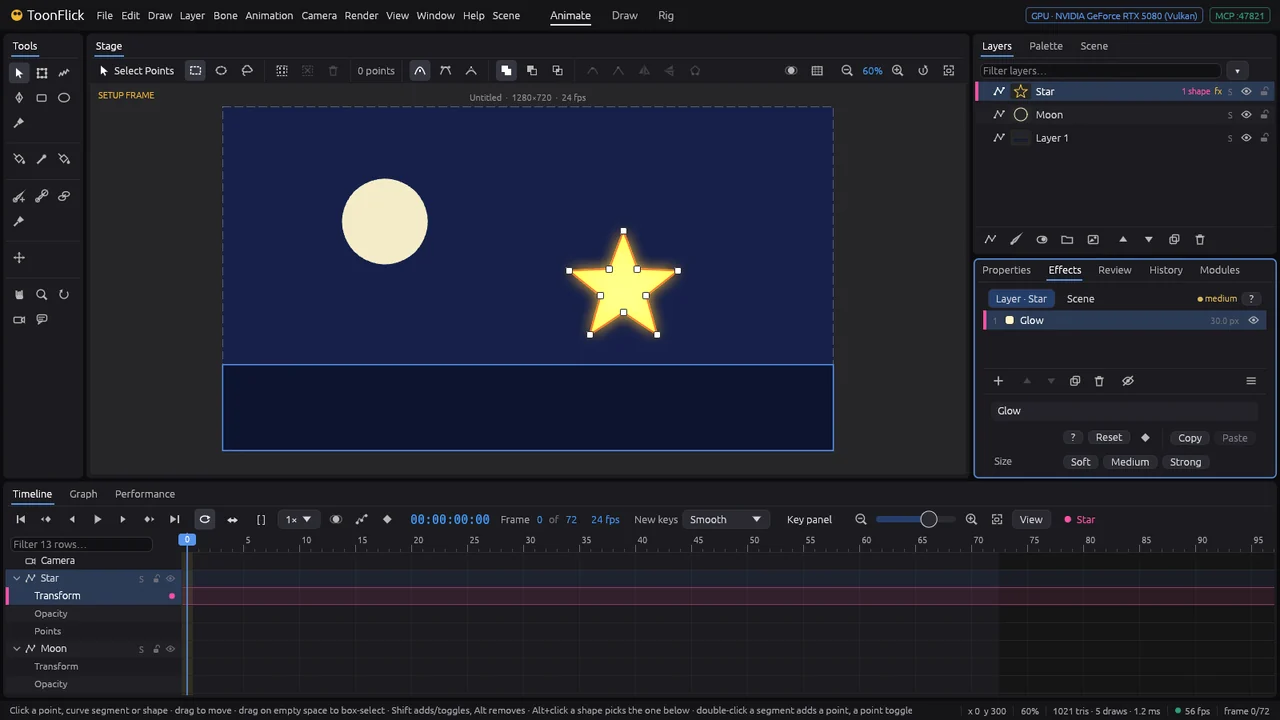
- The effect’s settings show under the list: Soft, Medium, Strong to start with, then every value (drag the blue numbers). The dot at the top says how heavy the stack is to render.
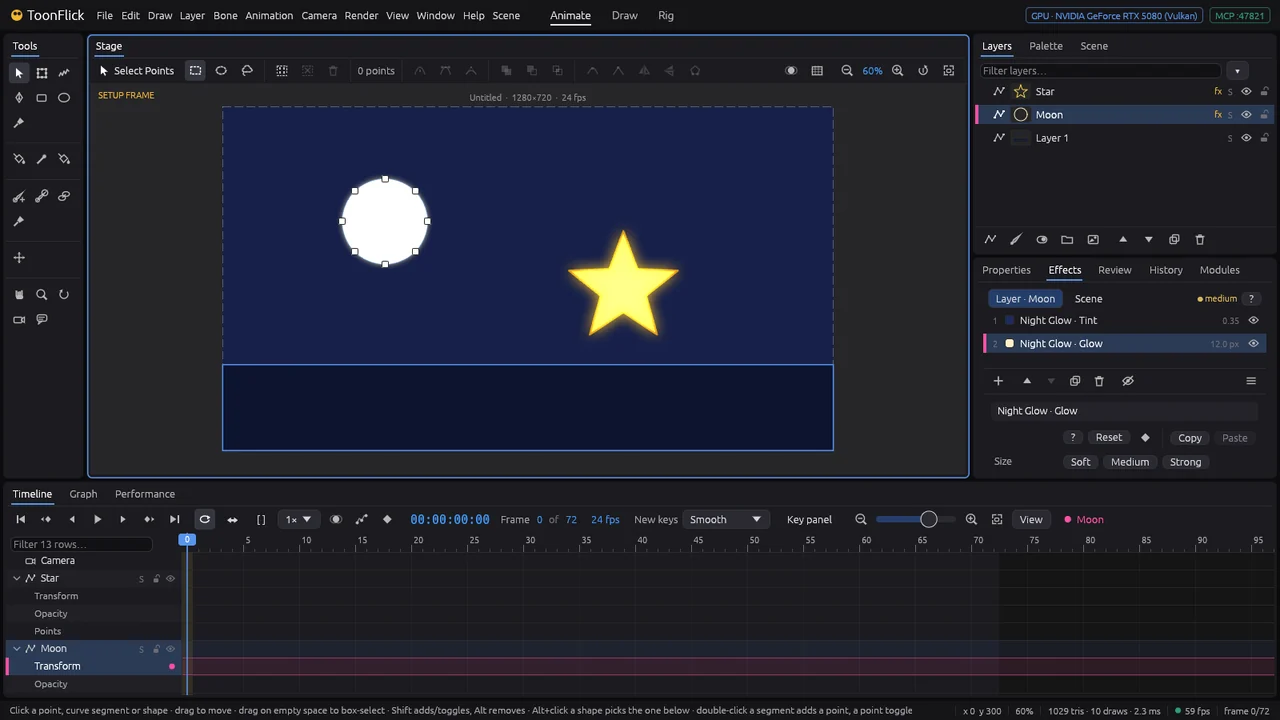
- A recipe adds several effects at once — Comic Ink, Sticker, Neon, Old Film, Toon Shade, Night Glow… They are in the same + list (and in ☰ ▸ Recipes). Here Night Glow on the Moon: a tint and a glow.
- Effects run top to bottom: the arrows under the list change the order, the eye turns one off, the crossed eye turns them all off to compare. Each effect can be keyed and timed (Timing below its settings).
- Liked it? Under Looks name it and Save as a Look. A look then puts the same effects on any other layer with one click (Shift+click: instead of its own) — here Moonlight on the Star. Right-click a look to rename it, export it or keep it for other projects. Shift
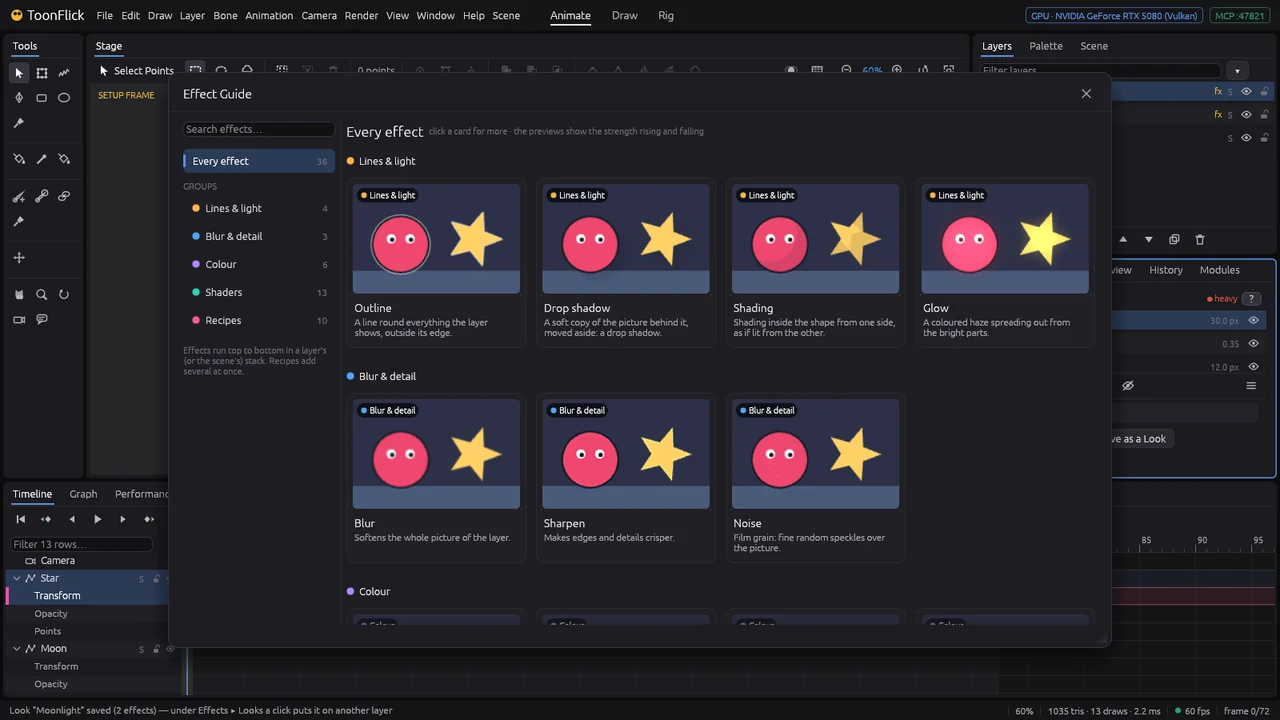
- Not sure what an effect does? The ? at the top opens the Effect Guide: every effect, recipe and shader with a moving preview, by group, searchable.
Light and shadow
One scene light throws every shadow — on the layers behind or on the floor — so they all fall the same way and move together when the light moves.
- Select the layer that should throw a shadow (here Ball) and tick Shadow ▸ Cast in its Properties (or Layer ▸ Cast Shadow). If the scene has no light yet, one is added for it — the status bar says so.
- Height says how far above the ground the layer is: the higher, the further its shadow falls. Drop puts the shadow on the layers behind it, softened and darkened.
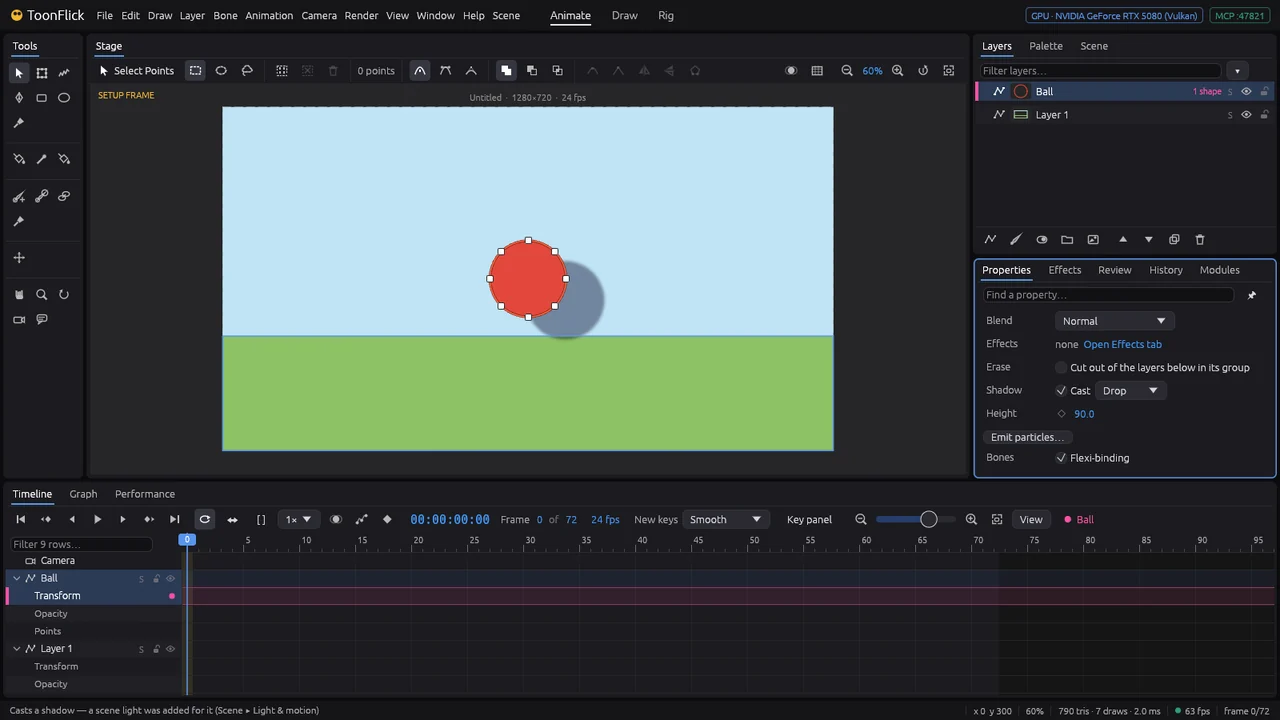
- Ground lays the shadow flat on the floor instead — the ground line, set in the Scene tab. Raise the ball (or key Height) and its shadow slides away; that tells how high it is.
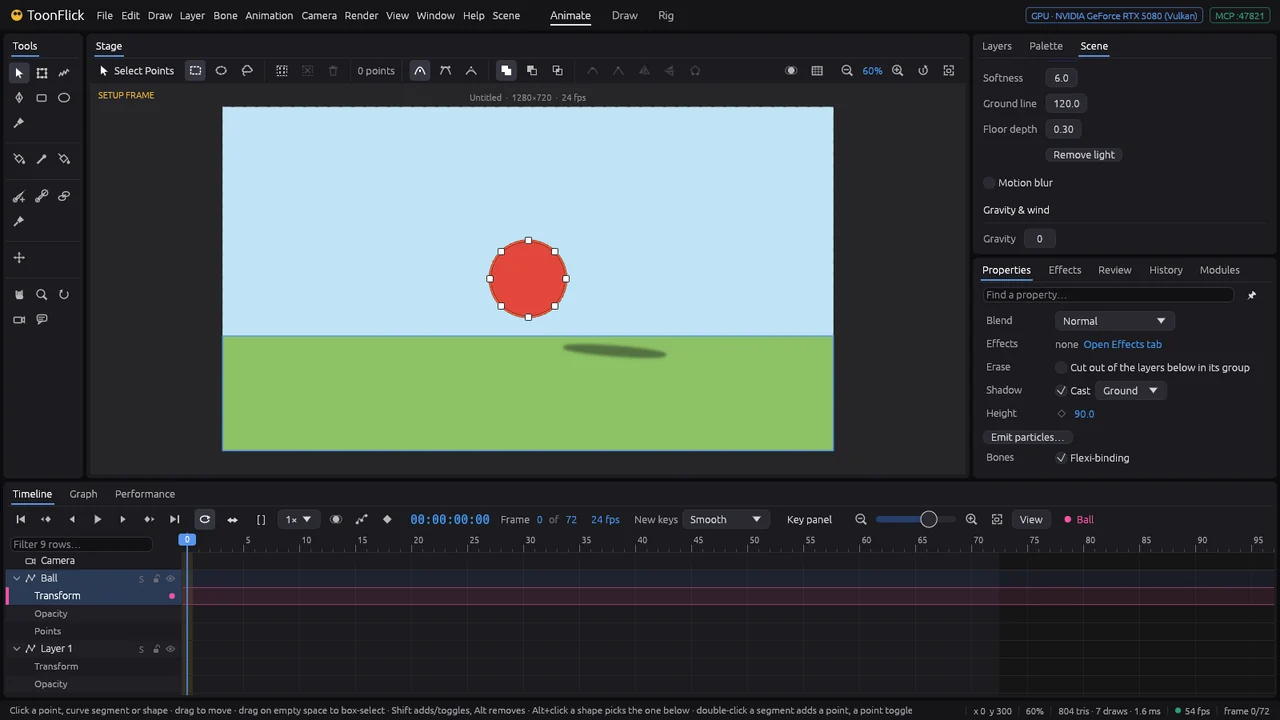
- Scene ▸ Light & motion sets the light: Direction (where it comes from), Elevation (low = long shadows), Strength, Colour, Softness, Ground line and Floor depth (how flat the floor shadow is). Direction, Elevation and Strength can be keyed — a sun going down.
- Shading inside shapes follows the same light: the Shading effect and the Toon Shade recipe (G1) darken the side away from it.
Particles, gravity and wind
Snow, rain, sparks, smoke: one small drawing, drawn hundreds of times as it flies. The scene’s gravity and wind push the particles, hair and cloth the same way.
- Select the layer the particles should come above (here Layer 1, the sky — so the snow falls behind the Hill). Layer ▸ Particles has ready ones: Rain, Snow, Sparks, Smoke, Fire, Sparkles, Speed Lines.
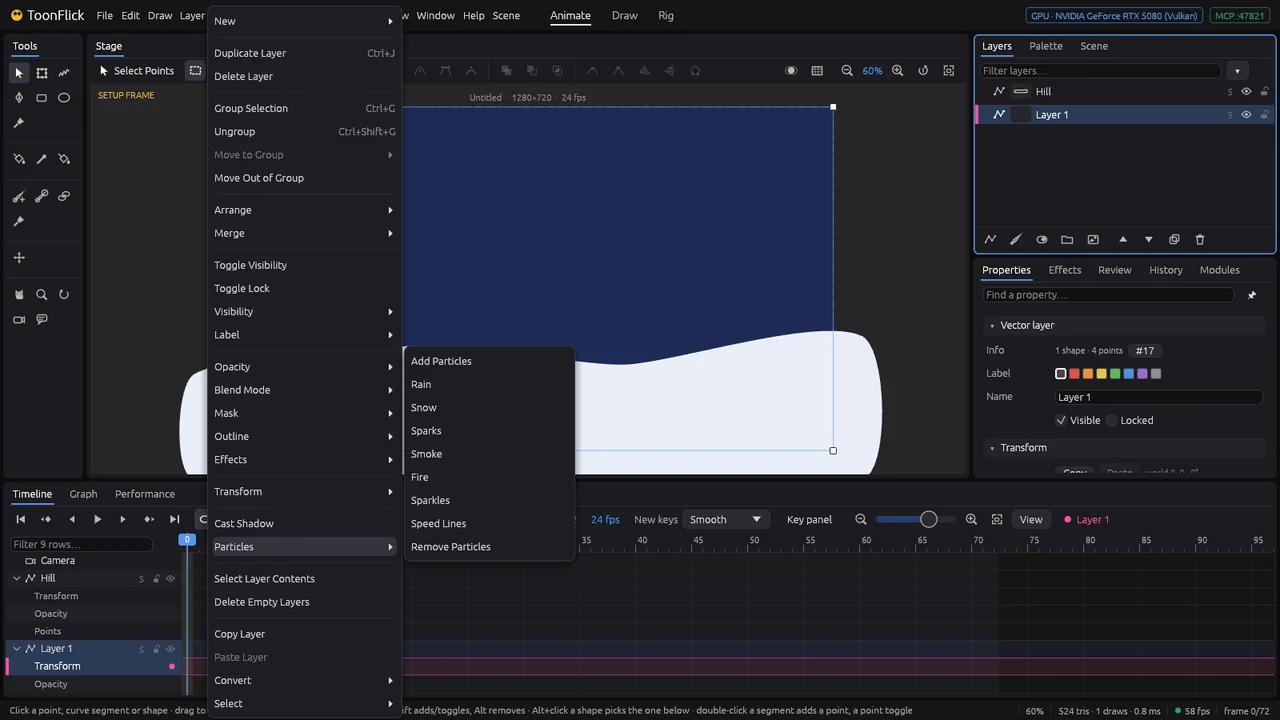
- Snow makes a new layer whose drawing is one flake. Scrub or play: it snows. Its Properties ▸ Particles sets everything — rate (how many a second), life, speed, direction and spread, gravity, spin, size and how it changes, fades, where they are born (point, line, rect, circle), bouncing off the ground. Space
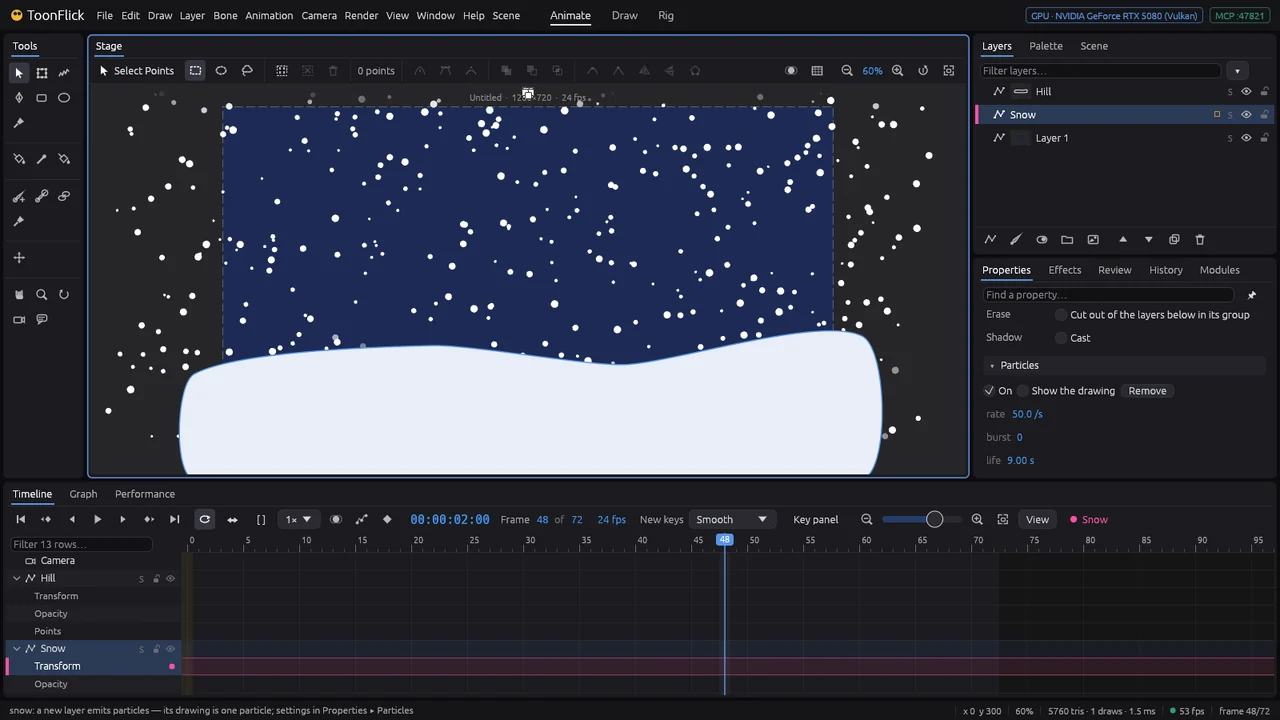
- Your own particle: draw it in a layer (a leaf, a heart, a coin) and click Emit particles… in its Properties. Tick Show the drawing to see and edit the one it copies.
- Scene ▸ Gravity & wind is for the whole scene: Gravity, and Add wind — Wind (how strong), Blows to (where), Gusts and Turbulence. Particles with wind & gravity above 0 drift with it, as do hair and cloth with Wobble (E7). The values can be keyed: a storm that grows.
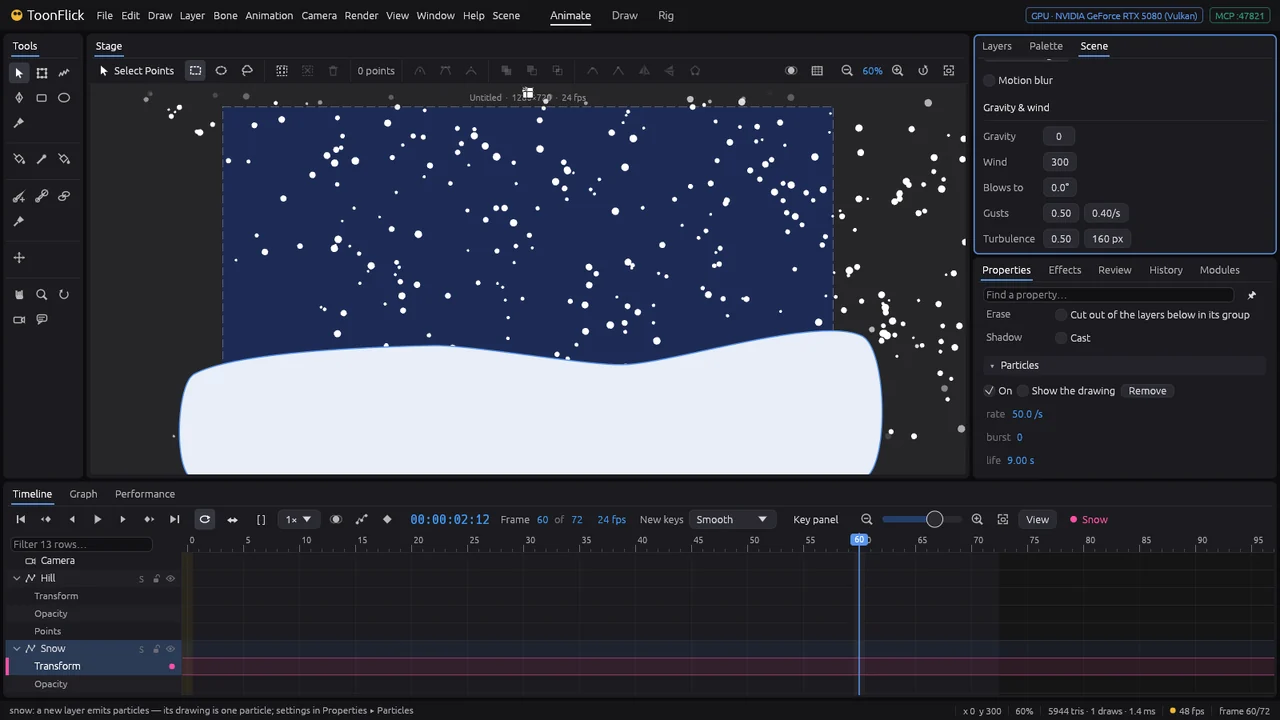
- Particles are worked out from the start of the shot each time, the same way every time (seed gives another set). start already going makes the snow be falling already on frame 1.
Coming next: more rigging, characters, the look, the camera and rendering.